

Hello friends, in this blog post, we are going to discuss some important facts about “Microsoft 365 Collaboration“.
Today, workplaces are running as teams and are largely dependent on teamwork.
It has become normal to work on the same documents, exchange information frequently, review…
…changes, and complete projects by employees, students, business owners, and working professionals.
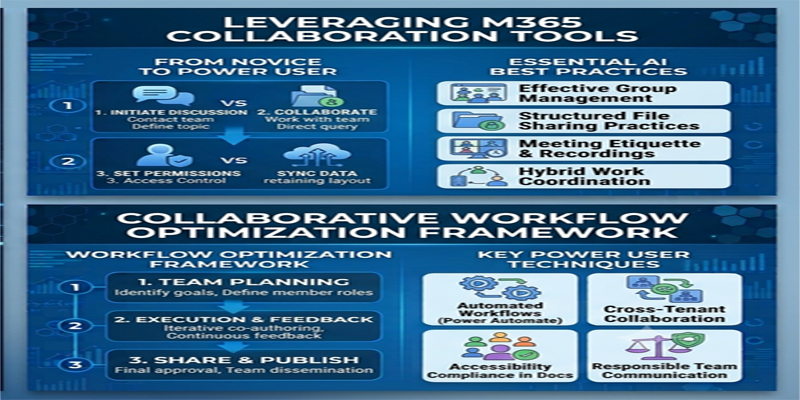
Now, users can get rid of sending emails about acknowledgement updates very frequently; team members can easily collaborate on a shared document and see the updates as soon as they occur.
And using the version history feature, they can also review earlier changes and recover previous versions if required.
There are various fascinating and useful tools provided by Microsoft 365 that make this process easier and more effective.
Now users can easily edit documents, share files together, communicate with colleagues, and manage different versions…
…of their work with the use of some amazing services such as SharePoint, OneDrive, Microsoft Teams, Word, Excel, and PowerPoint.
In this extensive post, we are going to explore the full process of “Microsoft 365 Collaboration“.
Here we will see the working of Microsoft 365 collaboration, file sharing with security,…
…co-editing documents, document versions management, process of improving teamwork.
1. What Is Microsoft 365 Collaboration?
Microsoft 365 collaboration refers to using connected Microsoft applications and cloud services to work together on documents, spreadsheets, presentations, and other business information.
It allows multiple people to contribute to a project without needing to exchange separate copies of every file.
For example, a company preparing a financial report may have:
- One employee preparing data in Excel.
- Another employee writing the report in Word.
- A manager reviewing the figures.
- A presentation designer preparing slides in PowerPoint.
- Team members communicating through Microsoft Teams.
When files are stored in supported shared locations, such as OneDrive or SharePoint, authorised users can access and collaborate on them.
Main Benefits of Microsoft 365 Collaboration
1. Real-time teamwork: Multiple users can work on supported documents simultaneously.
2. Easy file sharing: Share documents through links instead of sending repeated attachments.
3. Centralised storage: Keep team files in shared locations using SharePoint.
4. Version management: Review earlier versions and restore them when appropriate.
5. Better communication: Use Microsoft Teams to discuss projects and coordinate work.
6. Flexible access: Work with supported files through desktop, web, and mobile applications.
These features can help reduce duplicate files, improve communication, and make project management more organised.
2. Microsoft 365 Tools Used for Collaboration
Several Microsoft applications work together to support collaboration.
A. Microsoft OneDrive
OneDrive is Microsoft’s cloud storage service. It is particularly useful for storing individual working files and sharing selected documents with others.
You can use OneDrive to:
- Store Word documents, Excel workbooks, and PowerPoint presentations.
- Access files from different supported devices.
- Share documents with colleagues.
- Collaborate on supported Office files.
- Synchronise selected files with your computer.
- Review available version history.
For example, an employee can prepare a report in Word, save it to OneDrive, and share it with a manager for review.
B. Microsoft SharePoint
SharePoint is designed for managing shared content across teams and organisations.
It provides sites, document libraries, lists, and other tools for organising business information.
Common uses include:
- Managing departmental documents.
- Sharing project resources.
- Maintaining company policies.
- Organising team files.
- Controlling access to shared information.
- Maintaining document versions.
For example, a company’s HR department can maintain an official document library containing employee policies, forms, and approved templates.
C. Microsoft Teams
Microsoft Teams provides a workspace for communication and collaboration.
It supports features such as:
- Group chats.
- Video and audio meetings.
- Team channels.
- File sharing.
- Meeting scheduling.
- Collaboration with connected Microsoft 365 services.
Files shared in Teams channels are generally stored in the associated SharePoint site, while files shared in individual or group chats are generally stored in the sender’s OneDrive for Business. Exact behaviour can depend on the type of chat, account, and configuration.
D. Microsoft Word, Excel, and PowerPoint
These applications are used to create and edit content.
- Word: Collaborate on reports, letters, proposals, and documents.
- Excel: Work together on budgets, sales records, and data analysis.
- PowerPoint: Prepare presentations with contributions from multiple users.
When supported files are saved in OneDrive or SharePoint, authorised users can collaborate through compatible desktop or web applications.
3. How to Share Files Using Microsoft 365
Sharing files is one of the most frequently used collaboration features in Microsoft 365.
You can share a document directly from OneDrive, SharePoint, or a supported Office application.
Step 1: Open OneDrive or SharePoint
Sign in using your Microsoft 365 account.
Open OneDrive if you are sharing an individual working file, or open the relevant SharePoint site if you are sharing a team or organisational document.
Step 2: Select the File
Find the Word document, Excel workbook, PowerPoint presentation, or other file you want to share.
Select the file and choose the Share option.
Step 3: Choose Sharing Permissions
Review the available link settings.
Depending on your organisation’s configuration and subscription, you may see options such as:
- Anyone with the link.
- People in your organisation.
- Specific people.
- People who already have access.
You may also be able to select whether recipients can edit or only view the file.
Step 4: Enter Recipients
Enter the email addresses of the people who need access, where applicable.
You can also add a message explaining why you are sharing the document.
Step 5: Send or Copy the Link
Choose the available option to send the invitation or copy the sharing link.
Recipients can then open the file according to the permissions you granted.
Example: Sharing a Word Document
Suppose you have prepared a business proposal and want your manager to review it.
- Save the Word document in OneDrive.
- Select the Share option.
- Enter your manager’s email address.
- Give editing or viewing permission as appropriate.
- Send the invitation.
Your manager can open the document without requiring you to send a new attachment every time you make an update.
Security tip: Use specific-person links for confidential files whenever possible. Avoid public or broadly accessible links for sensitive business information.
4. How to Co-Edit Word Documents in Real Time
Co-authoring allows multiple people to edit a supported Word document together.
It is useful when preparing reports, proposals, assignments, and business documents that require contributions from different team members.
Step 1: Save the Document in OneDrive or SharePoint
Open your document in Microsoft Word and save it to an appropriate cloud location.
The document must be stored in a supported location and use a compatible format for the expected co-authoring experience.
Step 2: Share the Document
Use the Share option to invite colleagues and provide the required editing permissions.
Step 3: Allow Collaborators to Open the File
Recipients can open the shared document in Word for the web or a supported desktop version.
Step 4: Edit Together
Multiple authorised users can work on the document simultaneously.
Depending on the application and settings, you may see:
- Other users’ editing activity.
- Changes as they are saved.
- Indicators showing where collaborators are working.
- Comments and suggestions.
- Updated document content.
Step 5: Review and Finalise
Use comments and review tools to discuss changes. Once the document is approved, save and share the final version with the intended audience.
Practical example: A college project report can be divided among four students. One student writes the introduction, another prepares the research section, a third adds findings, and the fourth reviews the conclusion. They can contribute to the same shared document rather than combining four separate files manually.
5. How to Collaborate on Excel Workbooks
Excel collaboration is useful for financial reports, inventory records, sales analysis, budgeting, and project tracking.
When an eligible workbook is stored in OneDrive or SharePoint, multiple authorised users may be able to edit it simultaneously.
Step 1: Save the Workbook to a Shared Location
Open Excel and save the workbook in OneDrive or an appropriate SharePoint document library.
For modern co-authoring, use a supported Excel format such as XLSX.
Step 2: Share the Workbook
Select Share and provide the necessary editing permissions to collaborators.
Step 3: Open the Shared Workbook
Other users can open the workbook using a supported Excel application or Excel for the web.
Step 4: Work on the Data
Collaborators can enter information, update cells, and work with supported spreadsheet features.
For example:
- A sales employee updates monthly sales figures.
- An accountant checks expenses.
- A manager reviews totals.
- A data analyst prepares charts.
Step 5: Review Changes
Use available collaboration indicators and version history to understand updates and recover earlier versions if needed.
Important Excel Collaboration Tips
- Avoid creating multiple competing copies of the same workbook.
- Use clear worksheet names.
- Protect sensitive worksheets or ranges where appropriate.
- Avoid unnecessary structural changes while others are working.
- Test complex formulas and macros in your actual collaboration environment.
Some Excel features, especially certain legacy sharing or macro-related workflows, may behave differently during co-authoring. Check compatibility before depending on them.
6. How to Collaborate on PowerPoint Presentations
PowerPoint allows teams to create presentations together.
This is particularly helpful for business proposals, training presentations, classroom projects, and marketing plans.
Step 1: Save Your Presentation to OneDrive or SharePoint
Open the PowerPoint presentation and save it to a supported cloud location.
Step 2: Share the Presentation
Select Share and invite team members with the required permissions.
Step 3: Allow Team Members to Edit Slides
Collaborators can open the presentation and work on supported slides simultaneously.
For example:
- One person prepares the introduction.
- Another adds product information.
- Another creates charts.
- A manager reviews the final presentation.
Step 4: Review and Improve the Presentation
Use comments, slide design tools, and available collaboration features to refine the content.
Step 5: Share the Final Presentation
Once complete, share the editable PPTX file or export a PDF if recipients only need to view or print the presentation.
7. Understanding Microsoft 365 Version History
Version history is an important collaboration feature.
When a supported file is stored in OneDrive or SharePoint, previous versions may be available for review or restoration.
This can be particularly useful when someone accidentally deletes information, changes important content, or overwrites part of a document.
What Is Version History?
Version history maintains earlier versions of a file so users can review how it changed over time.
Depending on the service and configuration, it can help you:
- See previous document versions.
- Check when changes were saved.
- Identify the person associated with a version.
- Restore an earlier version.
- Recover content after an unwanted update.
How to View Version History
The exact steps depend on the application and interface, but the general process is:
- Open OneDrive or the relevant SharePoint document library.
- Locate the file.
- Open its context menu.
- Select Version history, where available.
- Review the available versions.
- Open or restore the required version if appropriate.
In some Office applications, you can also access version history from the file name or File information area.
How to Restore an Earlier Version
Suppose a team member accidentally removes important information from a report.
You can:
- Open the file’s version history.
- Identify a version created before the unwanted change.
- Review that version.
- Select Restore if you want to make it the current version.
Before restoring, check whether newer changes need to be preserved. Restoring an earlier version can replace the current file content, so coordinate with collaborators when necessary.
Version History vs Undo
These two features serve different purposes.
| Feature | Main purpose |
|---|---|
| Undo | Reverse recent actions in the current editing session |
| Version history | Review or restore previously saved versions |
| Recycle Bin | Recover deleted files or items within the applicable retention period |
Version history is especially useful when several people are working on the same document over an extended period.
8. How Microsoft Teams Improves Collaboration
Microsoft Teams brings communication and teamwork into one workspace.
Instead of switching repeatedly between email, messaging applications, and shared documents, teams can coordinate work through chats, channels, meetings, and shared files.
A. Team Channels
Channels help organise conversations around projects, departments, or specific topics.
For example, a marketing department may create channels for:
- Campaign Planning.
- Social Media.
- Advertising.
- Customer Research.
- Monthly Reports.
Team members can discuss updates and share relevant files in the appropriate channel.
B. Meetings and Screen Sharing
Teams meetings allow users to communicate through audio and video.
During meetings, participants can share their screens or presentations, making it easier to review documents and discuss project progress.
C. Sharing Office Files
Users can share Word, Excel, and PowerPoint files in chats and channels.
Depending on the file location and permissions, colleagues can open and collaborate on the documents directly.
D. Connecting Teams with Other Microsoft 365 Apps
Teams works with several Microsoft services, including:
- SharePoint for shared files and team content.
- OneDrive for individual file sharing.
- Outlook for calendar and meeting workflows.
- Planner for task management, where available.
- Forms for polls and information collection.
These integrations help create a connected working environment.
9. Best Practices for Managing Shared Files
Good file management is essential when several people are working together.
1. Use a Clear Folder Structure
Organise files into folders based on projects, departments, or document categories.
For example:
- Finance
- Human Resources
- Marketing
- Operations
- Project Reports
2. Use Consistent File Names
Choose descriptive filenames rather than generic names such as Document1 or Final2.
For example:
Annual_Business_Report_2026.docx
This makes documents easier to identify.
3. Avoid Duplicate Files
Do not repeatedly download, edit, and upload separate copies unless necessary.
Work from the shared document whenever possible.
4. Assign Appropriate Permissions
Give users only the access they need.
For example, some employees may need viewing access to company policies, while HR administrators may require editing access.
5. Use Comments for Reviews
Instead of making unexplained changes, use comments to ask questions, suggest improvements, and provide feedback.
6. Review Version History
Use version history to understand changes and recover earlier versions when necessary.
7. Store Team Documents in SharePoint
Use SharePoint for documents that belong to a department or organisation. This helps maintain continuity when individual employees change roles or leave the organisation.
8. Keep Confidential Information Secure
Follow your organisation’s security policies. Avoid sharing confidential documents through unrestricted links, and review access when projects end.
10. Common Microsoft 365 Collaboration Problems and Solutions
Problem 1: A colleague cannot access a shared file
Possible reasons:
- The person was not granted permission.
- The sharing link has expired or is restricted.
- The person is signed in using the wrong account.
- The organisation blocks external sharing.
Solution: Check the file’s sharing settings, verify the recipient’s account, and create a suitable new sharing invitation if necessary.
Problem 2: Real-time editing is not working
Possible reasons:
- The file is stored locally rather than in a supported cloud location.
- The file format is not supported for the expected co-authoring feature.
- The application is outdated.
- A user has opened a separate copy.
Solution: Store the file in OneDrive or SharePoint, use a compatible format, update the application, and ensure everyone opens the same shared file.
Problem 3: Changes are not appearing immediately
Possible reasons:
- Synchronisation is delayed.
- The application is offline.
- The user is editing a separate copy.
- There is a temporary connection problem.
Solution: Check the internet connection, confirm the correct file location, and review the sync or save status.
Problem 4: A previous version needs to be restored
Solution: Open version history, identify the required version, and restore it after checking whether newer changes need to be preserved.
Problem 5: A user accidentally deletes a file
Solution: Check the appropriate OneDrive or SharePoint Recycle Bin. Recovery depends on retention settings, permissions, and whether the item is still within the available recovery period.
11. Frequently Asked Questions
1. Can multiple people edit the same Word document at the same time?
Yes. Multiple authorised users can co-author a supported Word document when it is stored in a compatible OneDrive or SharePoint location and opened using supported applications.
2. What is the difference between OneDrive and SharePoint for collaboration?
OneDrive is primarily designed for an individual’s files and sharing, while SharePoint is designed for shared organisational and team content. Both support collaboration, but they serve different storage and management needs.
3. Can I collaborate on Excel files in real time?
Yes. Supported Excel workbooks stored in OneDrive or SharePoint can be edited by multiple authorised users simultaneously, subject to compatibility and account requirements.
4. How do I see who edited a Microsoft Office document?
You may be able to review version history and other available document activity information. The exact details depend on the application, storage location, permissions, and account configuration.
5. Is version history available in Microsoft 365?
Version history is available for supported files stored in OneDrive and SharePoint. The number of retained versions and recovery options depend on service settings and organisational policies.
6. Can I share Microsoft 365 files with people outside my organisation?
In many Microsoft 365 environments, external sharing is supported. However, the organisation’s administrator may restrict who can share files externally and which sharing links can be used.
7. Do I need Microsoft Teams to collaborate on Office documents?
No. You can collaborate using OneDrive, SharePoint, Word, Excel, and PowerPoint without using Teams. Teams provides additional communication and meeting features.
8. Can I use Microsoft 365 collaboration on mobile devices?
Yes. Supported Microsoft 365 mobile applications allow users to access, edit, and share files on compatible smartphones and tablets. Available features depend on the application, device, and account.
Conclusion
Friends, in this post, we have fully understood the process of “Microsoft 365 Collaboration“. It greatly helps individuals and organisations to work together on documents, spreadsheets, business information, and presentations.
Users can easily store and share individual files using OneDrive; a central platform is provided for team documents by SharePoint, and communication and coordination are beautifully supported by Microsoft Teams. Excel, Word, and PowerPoint offer multiple authorised users to participate and contribute to the shared work within a team.
Teams can easily reduce duplicate files and improve productivity by using real-time co-authoring, appropriate sharing permissions, version history, and organised document libraries.
Microsoft 365 collaboration really helps you in building an organised and efficient workflow, whether you are a student working on a group assignment, an employee preparing a business report, or a company managing multiple projects
If you have any questions, email us at support@a5theory.com, and we will get back to you ASAP.
Hope! You will have enjoyed this post, “Microsoft 365 Collaboration“.
Please feel free to share your feedback in the comments below.
Have a great time!