

Hello Friends, in this blog post, we are going to discuss the amazing “Microsoft Forms, OneDrive, and SharePoint“.
Microsoft Office has much more beyond Excel, Word, and PowerPoint. Microsoft 365 offers various fascinating…
…tools that greatly help users in storing files, collecting information, sharing documents, and collaborating with others.
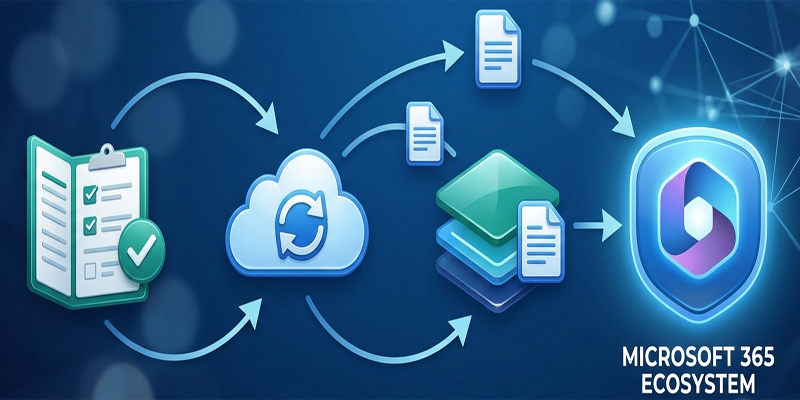
Microsoft Forms, OneDrive, and SharePoint are three most amazing and useful tools.
You can easily create quizzes, registration forms, surveys, and feedback questionnaires using Microsoft Forms.
For personal and work files, OneDrive offers cloud storage, whereas organisations get great…
…help from SharePoint in sharing documents, team resources, and an internal website.
An effective use of all these amazing tools together makes daily office work faster, more organised, and easier to manage.
In this post, we are going to explore “Microsoft Forms, OneDrive, and SharePoint“.
Here you will get to know about Microsoft Forms, OneDrive, and SharePoint along with their…
…differences, use, and working with Microsoft Word, Excel, Outlook, PowerPoint, and Teams.
1. What Are Microsoft Forms, OneDrive, and SharePoint?
Although these tools are connected, each serves a different purpose.
Microsoft Forms
Microsoft Forms is an online tool for creating surveys, quizzes, polls, feedback forms, and registration forms. You can share a form through a link or other available sharing options and collect responses online.
Common uses include:
- Creating student quizzes and assessments.
- Collecting customer feedback.
- Registering participants for events.
- Conducting employee surveys.
- Gathering information from customers or team members.
- Reviewing responses and analysing results.
Forms can display response summaries and, where supported, export response data to Excel for further analysis.
Microsoft OneDrive
OneDrive is Microsoft’s cloud storage service. It allows you to save files online and access them from supported devices after signing in to your account.
You can store Word documents, Excel workbooks, PowerPoint presentations, PDFs, images, and other files. You can also share selected files with other people and collaborate on supported Office documents.
Typical uses include:
- Keeping personal documents backed up in the cloud.
- Accessing work files from different devices.
- Sharing a presentation with a colleague.
- Collaborating on an Excel workbook.
- Synchronising selected folders with your computer.
Important: OneDrive for personal use and OneDrive for work or school have different account and administrative arrangements. Features, storage limits, and sharing options depend on your account and subscription.
Microsoft SharePoint
SharePoint is a platform for creating team sites, managing shared documents, organising business information, and publishing internal content.
Organisations commonly use it to create department websites, document libraries, project workspaces, knowledge bases, and structured lists.
Common uses include:
- Maintaining company policies and procedures.
- Organising project documents.
- Sharing resources across departments.
- Managing document versions and permissions.
- Creating internal team sites.
- Building lists to track requests, tasks, or other information.
SharePoint is particularly useful when files and information belong to a team or organisation rather than just one individual.
2. Microsoft Forms vs OneDrive vs SharePoint
Understanding their differences helps you choose the right tool for each task.
| Feature | Microsoft Forms | OneDrive | SharePoint |
|---|---|---|---|
| Main purpose | Collect responses | Store and share files | Manage team content |
| Typical content | Surveys, quizzes, polls | Personal or work files | Shared documents, lists, sites |
| Best for | Feedback and data collection | Individual file access and collaboration | Organisational collaboration |
| Excel integration | Analyse response data | Store and collaborate on workbooks | Manage shared workbooks and related files |
| Access control | Depends on form settings and account | File and folder sharing permissions | Site, library, list, and item permissions |
| Common users | Teachers, businesses, researchers | Individuals and teams | Departments and organisations |
For example, use Forms to collect employee feedback, OneDrive to store your own working documents, and SharePoint to maintain the official company document library.
3. How to Create a Microsoft Form
Creating a form is a straightforward way to collect information without manually asking each person for a response.
Step 1: Open Microsoft Forms
Sign in with a supported Microsoft account and open Microsoft Forms through the Microsoft 365 website or the Forms app available to your account.
The available features may differ between personal accounts and work or school accounts.
Step 2: Create a new form
Select the option to create a new form. Give it a clear title, such as “Customer Feedback Survey” or “College Event Registration”.
Add a short description explaining why you are collecting the information.
Step 3: Add questions
Choose suitable question types, such as:
- Choice: Select one or more answers from a list.
- Text: Enter a short or long written response.
- Rating: Rate a product, service, or experience.
- Date: Provide a date.
- Ranking: Arrange options in order, where available.
You can mark important questions as required and organise the questions so the form is easy to complete.
Step 4: Configure form settings
Review who can respond, whether respondents need to sign in, and any available response restrictions. Work or school accounts may provide organisation-specific settings, including restrictions on who can participate.
Avoid collecting sensitive personal information unless you have a valid reason and suitable privacy and security arrangements.
Step 5: Share the form
Use the available sharing options to distribute the form to the intended audience. Depending on the account and settings, you may be able to share a response link, generate a QR code, or use other supported methods.
Step 6: Review the responses
Open the response section to review submissions and summary charts. If you need deeper analysis, use the available Excel export option.
For example, a business can use a customer satisfaction form to collect ratings and comments, then analyse the results in Excel to identify recurring complaints or popular services.
4. How to Use OneDrive with Microsoft Office Apps
OneDrive makes it easier to save, access, and share Office documents across devices.
Step 1: Sign in to OneDrive
Open OneDrive through the web or the OneDrive app on your computer. Sign in using the appropriate personal, work, or school account.
On supported Windows installations, OneDrive may already be installed and configured.
Step 2: Upload or save files
You can upload existing documents or save new Word, Excel, and PowerPoint files to a OneDrive folder.
When using desktop Office applications, select Save As and choose an appropriate OneDrive location. In supported configurations, you can also create and save documents directly through the Microsoft 365 web apps.
Step 3: Organise your files
Create folders with meaningful names, such as:
- Projects
- Reports
- Presentations
- Invoices
- Training Materials
Use consistent naming conventions so you can find documents quickly.
Step 4: Share a file
Select a file and use the sharing option to choose who can access it. Depending on the available settings, you may be able to share with specific people or create a link with defined permissions.
Choose whether recipients can edit or only view the file. Review link access carefully, particularly when sharing business documents.
Step 5: Collaborate in Office apps
When a supported document is stored in OneDrive, multiple people may be able to edit it together. For example, a team can update an Excel budget or contribute to a Word report without repeatedly emailing separate attachments.
AutoSave and real-time co-authoring depend on the file location, application, account, and supported file format.
5. How to Use SharePoint for Team Collaboration
SharePoint is designed for managing shared information across a team or organisation.
Step 1: Create or access a SharePoint site
In an organisation using Microsoft 365, an authorised user may create a SharePoint site or access an existing team site. Site creation permissions depend on the organisation’s configuration.
A department might have a site for HR documents, while a project team might have a site for plans, meeting notes, and deliverables.
Step 2: Create document libraries
A document library is a place to store and organise shared files. For example, a marketing team might create libraries for campaign plans, brand assets, and approved presentations.
Libraries can support features such as version history, metadata, and access permissions, depending on their configuration.
Step 3: Organise documents
Use clear folder structures or metadata to help people find files. For frequently used resources, consider adding links or organising the site navigation.
Avoid creating unnecessary duplicate copies of the same document, as they can lead to confusion about which version is authoritative.
Step 4: Manage permissions
SharePoint permissions help determine who can view, edit, or manage site content. Access can be managed at different levels, including sites, libraries, folders, and individual files.
Grant only the access people need. Avoid broad access settings for confidential company information, and review permissions when employees change roles or leave a project.
Step 5: Collaborate with Office apps
Users can open supported files from SharePoint in Word, Excel, and PowerPoint. Depending on the application and configuration, they can edit files in the browser or desktop app, collaborate with colleagues, and use version history to review or restore earlier versions.
SharePoint also integrates with Microsoft Teams, which can provide a convenient workspace for conversations, meetings, and shared files.
6. How Forms, OneDrive, and SharePoint Work Together
The biggest benefit comes from combining these tools into a single workflow.
Consider a company conducting employee training.
- Collect information with Forms: Create a registration form asking employees to select a training session.
- Review responses: Export or review the collected information in Excel.
- Prepare documents: Create the training schedule and attendance sheets in Word or Excel.
- Store working files in OneDrive: Keep personal drafts and working documents in the appropriate account.
- Publish shared resources in SharePoint: Store approved schedules, training materials, and policies in the relevant team site.
- Collaborate through Teams and Office apps: Share links, discuss updates, and edit supported documents with colleagues.
This approach reduces repetitive data entry and makes information easier to find.
Another example is event management. Forms can collect registrations, Excel can help analyse attendance, OneDrive can hold an organiser’s working files, and SharePoint can provide a central location for approved schedules and shared event resources.
The exact workflow depends on account permissions, available licences, and the organisation’s configuration.
7. How to Use Microsoft Forms with Excel
Excel is particularly useful when form responses need additional analysis.
After collecting responses, use the available Forms-to-Excel option to work with the data in a spreadsheet. Depending on how the workbook is created and linked, the export may behave differently from a workbook that remains connected to a form.
In Excel, you can:
- Sort responses by date or category.
- Filter submissions to find specific answers.
- Calculate averages and totals.
- Create charts to visualise feedback.
- Build PivotTables to summarise large response sets.
- Identify common answers and trends.
For example, a training feedback form may collect ratings from 200 participants. Excel can calculate the average rating, compare feedback across sessions, and highlight areas needing improvement.
Always check how the response workbook is linked to Forms before assuming that exported data will update automatically.
8. Best Practices for Security and Productivity
Follow these practices to use Microsoft Forms, OneDrive, and SharePoint more effectively.
Protect confidential information
Use appropriate sharing permissions and avoid publicly accessible links for confidential documents. Confirm the recipient list before distributing files or forms.
Keep personal and team files separate
Use OneDrive for individual working files and SharePoint for content that the organisation or team needs to manage collectively. This distinction makes ownership and access easier to understand.
Use meaningful names
Name forms, folders, sites, and documents clearly. A name such as “Customer Feedback – October 2026” is more useful than “New Form 3”.
Maintain document versions
Use available version history and approval processes for important documents. Store official policies and final templates in a controlled shared location.
Review permissions regularly
Check access when a project ends, team membership changes, or a document becomes confidential.
Understand your Microsoft 365 plan
Not every feature is available with every account or subscription. Some organisational features require specific licences or administrator configuration. Check your plan and workplace policies before building a process around a particular feature.
9. Common Problems and Their Solutions
Forms are not accepting responses
Check whether the form is accepting responses, whether a response deadline has passed, and whether access is restricted to a particular organisation or group.
A OneDrive file is not synchronising
Check your internet connection, available storage, account sign-in, sync status, and any error messages in the OneDrive application. Confirm that the file is saved in a folder configured for synchronisation.
A SharePoint file cannot be opened
You may lack the required permissions, be signed in with the wrong account, or be using a link that no longer works. Ask the site owner to verify access and share the correct link.
Multiple people are editing conflicting copies
Use a shared OneDrive or SharePoint location and collaborate on the same supported document rather than emailing separate copies. If conflicts occur, compare versions before replacing or deleting content.
Excel does not show the expected form responses
Check that you opened the correct response workbook and understand whether it is a linked workbook or a separate export. Confirm that the latest submissions have been received and that the workbook has been refreshed or reopened if required.
10. Frequently Asked Questions
Is Microsoft Forms free to use?
Microsoft Forms is available with certain Microsoft accounts and subscriptions. The features and limits depend on the account type and current Microsoft offering.
What is the difference between OneDrive and SharePoint?
OneDrive is primarily designed for an individual’s cloud files, while SharePoint is designed for shared team and organisational content. Both can store files and support collaboration, but they serve different management needs.
Can I use Microsoft Forms without Excel?
Yes. You can create forms, collect responses, and review available summaries without using Excel. Excel becomes useful when you need more detailed calculations, filtering, reporting, or visualisation.
Can I use OneDrive and SharePoint with Word and PowerPoint?
Yes. Supported Word and PowerPoint files can be stored in these services and opened for editing or collaboration. Available features depend on your application, account, permissions, and file format.
Do I need Microsoft Teams to use SharePoint?
No. SharePoint can be used independently. Teams integrates with SharePoint for many shared-file workflows, but Teams is not a universal requirement for using SharePoint sites and libraries.
Which tool should a small business use first?
Start with OneDrive for individual work files and Forms for simple surveys or registrations. Introduce SharePoint when the business needs a central place to manage team documents, policies, shared resources, and permissions.
Conclusion
Friends, in this blog post, we have fully understood the concept of “Microsoft Forms, OneDrive, and SharePoint“. They are used to solve different but connected workplace problems. Forms are used to collect information, OneDrive is used to store and share files, and SharePoint helps in organising shared content for organisations and teams.
These amazing tools are highly capable and efficient in supporting a workflow for students, professionals, and businesses when integrated with Word, Excel, PowerPoint, Outlook, and Teams. Start with a simple task, select the right tool, carefully configure access, and gradually expand your workflow as per your requirements.
If you have any queries, you can write to us at support@a5theory.com; we will get back to you ASAP.
Hope! You would have enjoyed this post, “Microsoft Forms, OneDrive, and SharePoint“.
Please feel free to share your feedback in the comments below.
Have a great time!