

Hello Friends, in this blog post, we are going to look at “Microsoft Word for beginners” step by step.
For anyone who wants to write, edit, format, and share documents, Microsoft Word is one of the most beneficial tools or applications, meeting all the requirements perfectly.
For assignments and project reports, students use it; for official work and correspondence, professionals use it.
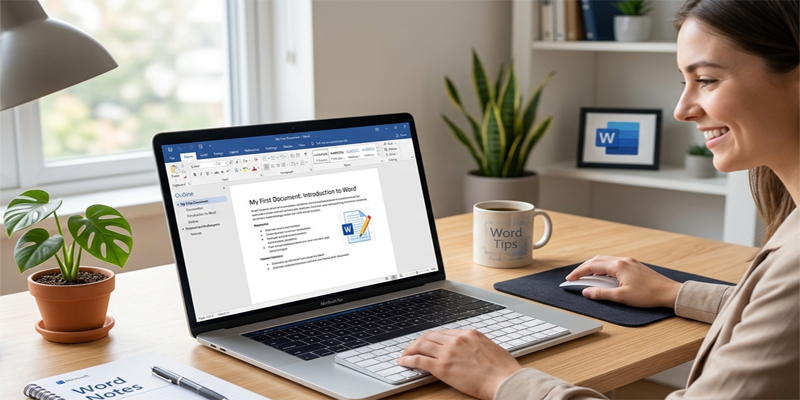
And for policies, letters, and other important documents, most of the businesses depend on it
Actually, you don’t need to learn everything at once when you are very new to computers or have not used Microsoft Word ever before.
You just need to learn a few important and essential tools and practice them on a regular basis.
You will be amazed to see that you have already learned to create organised, clean, and professional-looking documents at ease.
In this post, “Microsoft Word for beginners,” we will explore how quickly you can start with Microsoft Word, type and format text, organise pages,…
… insert tables and pictures, save documents, and prepare files for printing or sharing in easy-to-understand language.
1. What Is Microsoft Word?
Microsoft Word is a word-processing application developed by Microsoft. It allows you to create and manage documents containing text, images, tables, lists, page numbers, and other elements.
You can use Word to prepare anything from a short personal letter to a lengthy research report.
Some common uses include:
- Writing school and college assignments.
- Preparing resumes and job applications.
- Creating business letters and reports.
- Drafting notices, applications, and formal documents.
- Writing books, articles, and research papers.
- Preparing certificates, forms, and simple brochures.
- Editing documents created by other people.
Word is available as a desktop application for supported Windows and Mac computers, as well as a web application that runs in a browser.
You can explore the available options on the official Microsoft Word website.
2. How to Open Microsoft Word
Before creating a document, you need to open Word. The steps depend on how you access the application.
Method 1: Open Word on a Windows computer
- Click the Start button or press the Windows key on your keyboard.
- Type
Wordin the search box. - Select Microsoft Word from the search results.
- Wait for the application to open.
- If prompted, sign in with your Microsoft account or follow the instructions displayed.
If Word does not appear, it may not be installed, or your account may not have access to the desktop application.
Method 2: Use Word in a web browser
If you do not have the desktop application, you can try Word for the web.
- Visit Microsoft 365.
- Sign in with your Microsoft account.
- Select Word from the available applications.
- Choose the option to create a blank document.
The web version is useful for everyday writing and supports collaboration. Some features differ from those available in the desktop version.
Microsoft provides additional beginner instructions in its official Word for new users guide.
3. Understand the Microsoft Word Interface
When Word opens, you will see several tools and sections. Understanding the basic interface makes it easier to work efficiently.
The main interface elements
Title bar: Displays the document name and other application information.
Quick Access Toolbar: Depending on your configuration, this provides quick access to commands such as Save and Undo.
Ribbon: The main toolbar area containing tabs and groups of commands.
Document area: The page where you type and edit your content.
Status bar: Displays information such as page number, word count, and other document details, depending on your version and settings.
Zoom control: Changes how large or small the document appears on your screen. Zooming does not normally change the actual printed size of the content.
Important tabs in Word
| Tab | Main purpose |
|---|---|
| File | Create, open, save, print, and manage documents |
| Home | Format text, align paragraphs, and create lists |
| Insert | Add tables, pictures, page numbers, and other elements |
| Design | Apply document themes and formatting options |
| Layout | Adjust margins, orientation, columns, and spacing |
| References | Manage contents pages, citations, and footnotes |
| Review | Check spelling, add comments, and review edits |
| View | Change document views and display settings |
The exact tabs and commands can vary between Word versions, platforms, and account types.
4. Create Your First Word Document
Now that you understand the interface, it is time to create a document.
Step 1: Start with a blank document
Open Word and select Blank document. You will see a new page where you can begin typing.
You can also select a template if you want to start with a predefined layout, such as a resume or report.
Step 2: Type your content
Click inside the document area and start typing.
For practice, you can enter a simple paragraph:
“Microsoft Word(Microsoft Word for beginners) is a useful application for creating documents. It helps students, professionals, and businesses prepare well-organised written material.”
Press Enter when you want to start a new paragraph.
Step 3: Correct mistakes
If you make a typing mistake, place the cursor where you want to edit the text. Use Backspace or Delete as needed.
You can also select a word or sentence and type replacement text.
Step 4: Use Undo and Redo
If you accidentally delete something or apply incorrect formatting, use Undo to reverse the previous action. Redo can restore an action that you have undone.
Common keyboard shortcuts include:
- Ctrl + Z: Undo.
- Ctrl + Y: Redo.
On a Mac, the usual Undo shortcut is Command + Z.
Step 5: Save your document
Do not wait until you finish writing before saving your work.
- Open the File menu.
- Select Save As if you are saving the document for the first time.
- Choose a suitable location.
- Enter a meaningful file name.
- Select Save.
For example, you could name your practice file My_First_Word_Document.docx.
The standard Word document format is DOCX. Word for the web generally saves supported documents automatically, while desktop saving behaviour depends on your setup and selected storage location.
5. How to Format Text in Microsoft Word
Formatting helps make a document easier to read and understand. You can change the appearance of text to distinguish titles, headings, important information, and ordinary paragraphs.
Most basic text-formatting commands are available on the Home tab.
Change the font
A font determines the appearance of letters and numbers.
To change the font:
- Select the text you want to modify.
- Open the font menu on the Home tab.
- Choose the font you prefer.
For formal documents, use a clear and readable font. Avoid switching between too many font styles in the same document.
Change the font size
Select your text and choose a suitable size from the font-size menu.
For example, a document title may use a larger font than the body text. The appropriate size depends on the document type and its intended audience.
Apply bold, italic, and underline
These three options are useful for highlighting selected text.
- Bold: Makes text appear heavier.
- Italic: Slants the text.
- <underline>Underline:</underline> Adds a line beneath the text.
Useful shortcuts include:
- Ctrl + B for bold.
- Ctrl + I for italic.
- Ctrl + U for underline.
Use these features selectively. Applying every style to too much text can make a document difficult to read.
Change text colour
Select the text and use the Font Color option on the Home tab.
Choose colours that maintain good contrast with the page background. For formal letters and reports, black or another dark, readable colour is often appropriate for the main text.
Align your text
Word provides different paragraph-alignment options:
- Left alignment: Commonly used for normal paragraphs.
- Centre alignment: Useful for titles and selected headings.
- Right alignment: Useful for specific details, dates, or layout requirements.
- Justified alignment: Aligns text with both margins, which can be appropriate for some formal documents.
Do not centre every paragraph. Use alignment to create a clear visual structure.
6. Use Headings and Paragraph Formatting
A well-organised document is easier to read than a long block of unstructured text.
Apply heading styles
Word provides built-in styles such as Title, Heading 1, and Heading 2.
To apply a heading style:
- Select the text that should act as a heading.
- Open the Home tab.
- Find the Styles section.
- Select the appropriate heading style.
For example, use Heading 1 for major sections and Heading 2 for subsections.
Heading styles are especially helpful for long reports because they support navigation and can be used to generate a table of contents.
Microsoft explains this feature in its official heading styles guide.
Adjust line spacing
Line spacing controls the vertical distance between lines of text.
Select the relevant paragraphs and use the line and paragraph spacing options on the Home tab. Choose a spacing setting that suits your document requirements.
Create bullet points
Bullets help present information clearly when the order of items is not important.
For example:
- Prepare the document.
- Check the formatting.
- Review spelling.
- Save the final version.
Create numbered lists
Use numbered lists when the order of steps matters.
- Open Microsoft Word.
- Create a blank document.
- Type your content.
- Save the file.
Use the built-in list commands instead of manually typing numbers for every item. Word can then adjust numbering when you insert or remove steps.
7. Adjust Page Layout and Margins
Page layout controls how content is arranged on the page. This is particularly important when preparing applications, school assignments, reports, and documents intended for printing.
Change page margins
Margins are the blank spaces around the edges of a page.
- Open the Layout tab.
- Select Margins.
- Choose a preset or configure custom margins if necessary.
Use the margin requirements specified by your school, employer, publisher, or recipient.
Change page orientation
Word generally provides two main page orientations:
- Portrait: The page is taller than it is wide.
- Landscape: The page is wider than it is tall.
Portrait is suitable for most letters and reports. Landscape can be useful for wide tables or content that needs additional horizontal space.
Insert page breaks
A page break starts the following content on a new page.
Instead of pressing Enter repeatedly to move text downward, insert a page break where you want the next page to begin.
A common shortcut is Ctrl + Enter on Windows.
Page breaks are useful for separating a cover page, contents page, chapters, and appendices.
Add page numbers
For longer documents, page numbers make navigation easier.
- Open the Insert tab.
- Select Page Number.
- Choose a location and style.
- Review the document to make sure the numbering appears as intended.
Depending on your requirements, you can also configure a different first page or adjust numbering for particular sections.
See Microsoft’s page-numbering instructions for additional options.
8. Insert Tables and Pictures
Text is not always the best way to present information. Tables and pictures can make a document clearer when used appropriately.
How to insert a table
Tables organise information into rows and columns.
- Place the cursor where the table should appear.
- Open the Insert tab.
- Select Table.
- Choose the number of rows and columns.
- Enter your information into the cells.
For example, a student preparing a project report could use a table to display experiment observations.
| Date | Plant A height | Plant B height |
|---|---|---|
| Day 1 | 2 cm | 2 cm |
| Day 5 | 4 cm | 3 cm |
| Day 10 | 7 cm | 5 cm |
These are illustrative values, not experimental findings.
Use tables when the reader needs to compare related information. Keep headings descriptive and avoid unnecessary decorative formatting.
How to insert a picture
- Place the cursor at the intended location.
- Open the Insert tab.
- Select Pictures or the equivalent image option in your version.
- Choose the picture source.
- Select the image and insert it into the document.
After insertion, select the picture to access available layout and formatting options.
Adjust picture placement
Depending on your version, Word may allow pictures to appear inline with text or to have text wrap around them.
For beginners, placing a picture inline with text is often the simplest option. If you use text wrapping, inspect the page carefully to ensure that the picture does not overlap headings or paragraphs.
Always use images you own, have permission to use, or are otherwise legally allowed to include.
For detailed instructions, visit (Microsoft Word for beginners)Microsoft’s guide to inserting tables and pictures.
9. Use Find and Replace to Work Faster
Find and Replace is especially useful when editing a long document.
Find text
Use the Find feature to locate a particular word or phrase. This is helpful when checking a report for a repeated term or locating a section that needs editing.
A common Windows shortcut is Ctrl + F.
Replace text
Suppose you have typed a company name incorrectly in several places. Instead of correcting each occurrence manually, you can use Replace to search for the incorrect text and substitute the correct version.
A common Windows shortcut is Ctrl + H.
Be careful when replacing short or common words. Review the matches and use the appropriate replacement options to avoid changing text unintentionally.
10. Check Spelling and Grammar
A professional document should be reviewed before it is submitted or shared.
Word provides spelling and writing assistance, although the exact tools available depend on your version and settings.
Before finalising a document:
- Check spelling and punctuation.
- Review sentence structure and grammar.
- Verify names, dates, figures, and references.
- Remove duplicated or unnecessary sentences.
- Check headings, spacing, and page breaks.
- Make sure tables and pictures appear correctly.
Automated writing suggestions are helpful, but they are not always correct. Review proposed changes carefully, particularly in technical, legal, academic, or official documents.
11. Save, Export, and Print Your Document
After writing and formatting your document, choose the appropriate format for your intended use.
Save as a Word document
Use DOCX when you expect to continue editing the file or when the recipient needs an editable Word document.
Choose a clear filename and save the document in a location you can find easily.
Export as a PDF
PDF is useful when you want to share a document with a relatively fixed layout.
Depending on your version, use the File menu and look for Save As or Export, then choose PDF.
After exporting, open the PDF and review the pages. Check that images, tables, margins, and page numbers appear correctly.
Print a document
- Open the File menu.
- Select Print.
- Choose the appropriate printer.
- Check the print preview.
- Review the page range, orientation, paper size, and other relevant settings.
- Print when you are satisfied with the preview.
Print preview can help you catch blank pages, misplaced images, and unexpected page breaks before wasting paper.
(Microsoft Word for beginners)Microsoft’s Word beginner guide provides additional instructions on saving, opening, and printing documents.
12. Essential Microsoft Word Keyboard Shortcuts
Keyboard shortcuts can help you perform common tasks without repeatedly navigating menus.
| Shortcut (Windows) | Function |
|---|---|
| Ctrl + N | Create a new document |
| Ctrl + O | Open a document |
| Ctrl + S | Save |
| Ctrl + P | Open print options |
| Ctrl + Z | Undo |
| Ctrl + Y | Redo |
| Ctrl + A | Select all |
| Ctrl + C | Copy |
| Ctrl + X | Cut |
| Ctrl + V | Paste |
| Ctrl + B | Bold |
| Ctrl + I | Italic |
| Ctrl + U | Underline |
| Ctrl + F | Find text |
| Ctrl + H | Find and replace |
| Ctrl + Enter | Insert a page break |
Shortcuts can differ on Mac and in some web or mobile environments. On a Mac, many common commands use the Command key instead of Ctrl.
You do not need to memorise every shortcut immediately. Start with Save, Undo, Copy, Paste, Find, and Bold, then learn more as you use Word regularly.
13. Common Mistakes Beginners Should Avoid
Learning what not to do is just as important as learning the available features.
Pressing Enter repeatedly to create space: This can cause layout problems when you edit the document. Use paragraph spacing, page breaks, or layout settings instead.
Formatting every heading manually: This makes the document inconsistent and makes it harder to generate a table of contents. Use built-in styles.
Using too many fonts and colours: Excessive styling can make the document look unprofessional. Maintain a consistent design.
Forgetting to save: Save regularly, especially when working with important documents. If available, use AutoSave with a supported cloud location, but do not assume every file is automatically saved.
Ignoring print preview: A document that looks good on screen may not print as expected. Review the final layout before printing.
Overlooking file format compatibility: Some features may not behave identically across DOCX, PDF, and other formats. Keep an editable copy when necessary.
Sharing sensitive information carelessly: Before sending a document, check its contents and sharing permissions. Remove information that the recipient should not see.
14. A Simple Practice Exercise for Beginners
The best way to learn Microsoft Word is to practise with a real task. Follow this exercise to create a one-page document.
Your task: Prepare a short document titled “My School” or “My Introduction.”
- Open a blank Word document.
- Type a title at the top of the page.
- Apply a suitable title or heading style.
- Write two or three short paragraphs.
- Add a bulleted list containing three items.
- Insert a small table with two columns.
- Add a relevant picture if appropriate.
- Review the spelling and formatting.
- Save the document as
Word_Practice.docx. - Export it as a PDF and check the final layout.
By completing this exercise(Microsoft Word for beginners), you will practise typing, formatting, lists, tables, pictures, saving, and exporting.
Repeat the exercise with a formal letter or a short project report when you are comfortable with the basics.
Frequently Asked Questions
1. Is Microsoft Word easy to learn for beginners?
Yes. You can start with creating documents, typing, saving, and formatting text. Once you understand these basics, you can gradually learn tables, pictures, page layout, references, and other advanced features.
2. Can I use Microsoft Word for free?
Microsoft offers a web-based version of Word that can be accessed through Microsoft 365 with a Microsoft account. Some desktop features require a suitable paid license or subscription.
3. What is the difference between DOCX and PDF?
DOCX is the standard editable Word document format. PDF is commonly used to share documents while preserving a relatively fixed layout. Keep a DOCX copy if you may need to make substantial changes later.
4. How do I recover an unsaved Word document?
Depending on your Word version and settings, you may be able to recover work through Document Recovery or the available unsaved-document recovery options. AutoRecover and cloud version history can help in supported situations, but they are not guaranteed to recover every lost change.
5. Can I create a resume using Microsoft Word?
Yes. Word offers resume templates and formatting tools that can help you prepare a professional resume. Choose a clear layout, keep the information relevant, and proofread the final document carefully.
6. Can I use Word on my mobile phone?
Yes. Microsoft provides Word apps for supported mobile devices, and Word for the web can also be accessed through a compatible browser. The interface and available features differ from the desktop application.
Conclusion
Friends, in this post, we have gone through a complete guide, “Microsoft Word for beginners“. It is a very practical and useful tool that greatly helps us create documents at school, college, work, and home. To use this tool very effectively, you do not need to command or master all its features.
You should put your focus to learn few fundamental things very first like how to open a document, enter text, apply basic formatting, adjust page layout, use heading, insert tables and pictures, and save your work. Gradually, you can learn and practice a few keyboard shortcuts, the Find and Replace option, page numbering, and PDF export functionality.
The key principle is to focus on consistency and clarity rather than decorating the stuff. A well-organised and prepared document with readable text, meaningful headings, and accurate information will normally be more effective than one which is just filled with some unnecessary information and formatting.
“Practice makes a man/Woman perfect.” So, if you practise regularly, you can make fast progress, from creating simple notes to preparing polished reports and professional documents with ease.
If you have any queries, you can write to us at support@a5theory.com; we will get back to you ASAP.
Hope! You will have enjoyed this post, “Microsoft Word for beginners“.
Please feel free to share your feedback in the comments below.
Have a great time!