

Hello Friends, in this blog post, we are going to discuss “Microsoft Excel for Beginners“.
For calculations, data analysis, organising information, and preparing reports, Microsoft Excel is a powerful tool that handles all of this work easily.
For making assignments and project work, students use it very often, and professionals use it for managing their budgets and records.
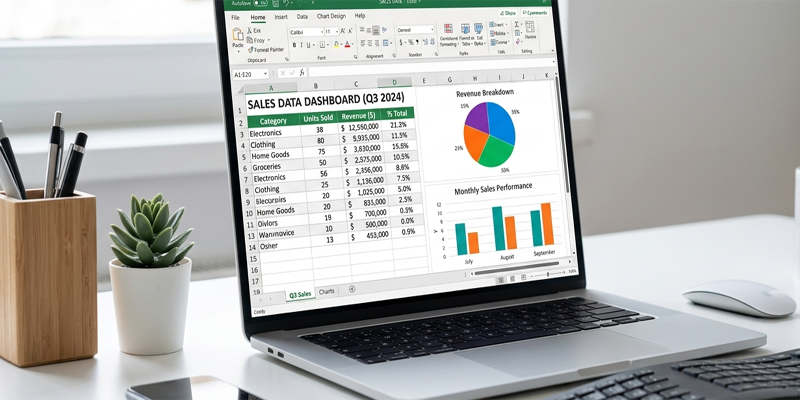
Businesses use it for their sales tracking, inventory, performance analysis, and financial planning.
For beginners, Excel might seem a little complex at first, but its basic concepts are easy to understand.
Once you understand the working of worksheets, rows, columns, formulas, cells, and functions, it becomes easy for you to start creating useful spreadsheets for your daily tasks.
In this post, we are going to explore this extensive guide, Microsoft Excel for Beginners, step-by-step in easy-to-understand language.
Here(Microsoft Excel for Beginners), we will let you know how to create your first workbook where you can enter data, use formulas, format tables, sort information, create a chart, and save your workbook at last.
1. What Is Microsoft Excel?
Microsoft Excel(Microsoft Excel for Beginners) is a spreadsheet application developed by Microsoft. It allows you to store information in a grid of rows and columns, perform calculations, organise records, and present data in a structured format.
Unlike a basic text document, an Excel worksheet can automatically calculate results when you change the underlying values.
For example, if you maintain a monthly expense sheet, you can enter your expenses into separate cells and use a formula to calculate the total. When you change an expense amount, Excel can recalculate the total automatically.
Common uses of Microsoft Excel
Excel is useful for:
- Creating household budgets and expense trackers.
- Managing business sales and customer records.
- Preparing salary and attendance sheets.
- Tracking stock and inventory.
- Calculating marks and preparing student records.
- Creating invoices and financial summaries.
- Analysing survey results.
- Preparing charts and reports.
- Maintaining project schedules and task lists.
- Managing lists of products, employees, or customers.
Excel is available as a desktop application for supported computers and as a web application through Microsoft 365. Features vary by version, platform, licence, and account.
You can explore Excel through the official Microsoft Excel website.
2. Understanding the Excel Interface
When you open Excel, you will usually see a workbook containing one or more worksheets. A worksheet is the grid where you enter and organise information.
Understanding the main interface elements will make it easier to work with spreadsheets.
Workbook
A workbook is the Excel file itself. It can contain multiple worksheets.
For example, you might create one workbook named Business_Records.xlsx and include separate worksheets for Sales, Expenses, Inventory, and Customers.
Worksheet
A worksheet is an individual spreadsheet within a workbook. You can add, rename, move, copy, or delete worksheets using the available sheet controls.
Rows and columns
Rows run horizontally and are identified by numbers such as 1, 2, 3, and 4.
Columns run vertically and are identified by letters such as A, B, C, and D.
Cells
A cell is the box formed where a row and a column intersect.
Every cell has a unique address. For example:
- A1 means column A, row 1.
- B5 means column B, row 5.
- D10 means column D, row 10.
You use cell addresses when entering formulas.
Ribbon
The Ribbon contains tabs and commands for working with data, formatting cells, creating charts, and managing the workbook.
Common tabs include:
| Tab | Main purpose |
|---|---|
| File | Open, save, print, and manage workbooks |
| Home | Format cells, align content, and copy or paste data |
| Insert | Add tables, charts, and other elements |
| Page Layout | Configure printing and page layout |
| Formulas | Find and manage formulas and functions |
| Data | Sort, filter, and work with data |
| Review | Access comments, proofreading, and review tools |
| View | Adjust worksheet views and display settings |
The available tabs and commands may differ between Excel versions.
Formula bar
The formula bar displays the contents or formula of the selected cell. You can use it to view or edit cell values and formulas.
Name box
The Name box typically displays the address of the active cell. You can also use it to move directly to a particular cell or range.
3. How to Create Your First Excel Workbook
Creating a workbook is the first step toward learning Excel.
Step 1: Open Excel
On a Windows computer, open the Start menu, search for Excel, and select the application.
Alternatively, sign in to Microsoft 365 and open Excel in your browser if the web version is available to you.
Step 2: Create a blank workbook
Choose Blank workbook to start with an empty spreadsheet.
You will see a worksheet with rows, columns, and cells.
Step 3: Enter a title and headings
For practice, create a simple monthly expense tracker.
Enter the following information:
| A | B |
|---|---|
| Expense | Amount |
| Groceries | 2500 |
| Electricity | 1200 |
| Internet | 800 |
| Transport | 1500 |
Enter each value into its corresponding cell. For example, Expense goes into A1 and Amount goes into B1.
Step 4: Save your workbook
Open the File menu and select Save As if required.
Choose a location, enter a descriptive filename such asMonthly_Expenses.xlsxand save the workbook.
The standard Excel workbook format is XLSX. In supported Microsoft 365 environments, files saved to compatible cloud locations may also benefit from automatic saving and version history.
4. How to Enter and Edit Data in Excel
Excel can store different types of information, including text, numbers, dates, and formulas.
Enter data
- Select a cell.
- Type the required information.
- Press Enter to confirm the entry.
You can use the Tab key to move to the next cell in the row.
Edit an existing cell
Select the cell and type a replacement value, or edit its contents using the formula bar.
You can also enter editing mode using the available keyboard or mouse commands.
Copy and paste data
Use the familiar keyboard shortcuts:
- Ctrl + C: Copy selected cells.
- Ctrl + X: Cut selected cells.
- Ctrl + V: Paste copied or cut content.
- Ctrl + Z: Undo an action.
Be careful when copying formulas because relative cell references may change when pasted into another location.
Delete data
Select the relevant cell or range and use the available Clear or Delete commands.
Remember that clearing a cell’s contents and deleting an entire row or column are different actions. Deleting a row or column can shift other data and affect formulas.
Fill a series
Excel can recognise many common sequences, such as dates, numbers, or repeated patterns.
For example, enter January in one cell and February in the next, select both cells, and use the fill handle to continue the sequence where supported.
This can save time when preparing monthly schedules or numbered lists.
5. Understand Basic Excel Formulas
One of Excel’s most important features is its ability to calculate results automatically.
A formula generally begins with an equals sign (=).
Add two numbers
If cell A1 contains 10 and cell A2 contains 20, enter this formula in another cell:
=A1+A2
Excel calculates the result as 30.
Subtract values
=A1-A2
This subtracts the value in A2 from the value in A1.
Multiply values
=A1*A2
The asterisk is the multiplication operator.
Divide values
=A1/A2
The forward slash is the division operator. If the divisor is zero or a cell contains an unsuitable value, Excel may return an error.
Calculate a percentage
Suppose B2 contains a sales amount of 5,000 and C2 contains a commission rate of 5%.
You can calculate the commission using:
=B2*C2
If C2 contains the percentage as 5%, Excel calculates a commission of 250.
Why cell references matter
Instead of typing every number directly into a formula, use cell references whenever practical.
For example, =B2*C2 is easier to maintain than =5000*5% when the sales amount and rate may change.
When the underlying values change, Excel recalculates the formula automatically in normal calculation mode.
6. Learn Essential Excel Functions
A function is a predefined formula that performs a particular calculation.
Functions help you complete common tasks without writing long formulas manually.
SUM: Add a range of numbers
The SUM function adds values together.
=SUM(B2:B5)
This calculates the total of the values in cells B2 through B5.
In the expense example, if B2 to B5 contain 2500, 1200, 800, and 1500, the result is 6000.
AVERAGE: Calculate the average
=AVERAGE(B2:B5)
This returns the arithmetic average of the numeric values in the specified range.
MAX: Find the highest value
=MAX(B2:B5)
This returns the largest numeric value in the range.
MIN: Find the lowest value
=MIN(B2:B5)
This returns the smallest numeric value in the range.
COUNT: Count numeric entries
=COUNT(B2:B10)
This counts cells containing numbers in the specified range. It does not count every non-empty cell.
COUNTA: Count non-empty cells
=COUNTA(A2:A10)
This counts non-empty cells in the range, including cells containing text or numbers.
IF: Apply a condition
The IF function returns one result when a condition is true and another when it is false.
For example:
=IF(B2>=40,"Pass","Fail")
If B2 contains 40 or more, Excel displays Pass; otherwise, it displays Fail.
These functions are useful starting points. As you become more comfortable, you can explore functions for text processing, dates, lookups, conditional calculations, and more advanced analysis.
7. Format Cells to Make Your Spreadsheet Easier to Read
Formatting improves the appearance and readability of a worksheet. It can also help distinguish headings, totals, dates, percentages, and other important information.
Change font and font size
Select the relevant cells and use the Home tab to adjust the font, size, or text colour.
Use a consistent style rather than applying many unrelated fonts and colours.
Apply bold formatting
Select a heading or important value and use the Bold command.
For example, you might make the first row of a table bold so readers can distinguish the column headings from the data.
Adjust column width
If a cell’s contents are cut off, increase the column width.
You can drag the boundary between column headings or use the available AutoFit option to adjust the width to the content.
Apply number formats
Excel provides number formats for different kinds of information.
Common examples include:
- Number.
- Currency.
- Percentage.
- Date.
- Time.
For example, if a cell contains 0.15applying percentage formatting generally displays it as 15%.
Number formatting usually changes how a value appears, not the underlying value used in calculations.
Use borders and fill colours
Borders can help separate rows and columns. Fill colours can highlight headings or important totals.
Use formatting consistently so that the worksheet remains easy to understand.
Format a range as a table
Select your data and choose Format as Table from the Home tab, or use the appropriate Insert Table command.
Excel tables can provide built-in formatting, filtering controls, and structured references. They are especially useful when your dataset will grow over time.
8. Sort and Filter Data
When a spreadsheet contains many records, finding particular information can become difficult. Sorting and filtering help you manage larger lists.
Sort data
Sorting arranges records according to a selected column.
For example, you can sort an employee list alphabetically by name or arrange a sales report from highest to lowest value.
To sort:
- Select a cell within the dataset.
- Open the Data tab.
- Choose the appropriate sort option.
- Select the column and sorting order.
- Apply the sort.
Make sure the sort includes the complete dataset so that information from different columns remains associated with the correct record.
Filter data
Filtering temporarily hides rows that do not match your selected criteria.
For example, you can filter a sales table to show only transactions from one city or records above a particular value.
To apply filters, select a cell within the dataset and use the Filter command on the Data tab, where available.
Use the dropdown controls in the column headings to choose which records to display.
When are sorting and filtering useful?
These tools are helpful for:
- Finding a specific employee.
- Reviewing products with low stock.
- Checking transactions for a particular month.
- Identifying sales above a target.
- Analysing selected categories in a large list.
Filtering does not normally delete the hidden records. Clear the filter to display the full dataset again.
9. Use Conditional Formatting to Highlight Important Values
Conditional Formatting changes the appearance of cells when they meet specified rules.
For example, you could highlight expenses above 2,000, identify low inventory, or display different colours for different performance levels.
How to apply conditional formatting
- Select the cells you want to evaluate.
- Open the Home tab.
- Select Conditional Formatting.
- Choose a rule or create a custom rule.
- Configure the condition and formatting.
- Review the result.
Depending on your version, available options may include highlight rules, data bars, colour scales, and icon sets.
Example: Highlight high expenses
Suppose your expense amounts are in B2.
Select the range and create a rule that highlights values greater than 2,000.
Excel can then make qualifying expenses visually prominent.
Practical tip: Use conditional formatting to draw attention to meaningful patterns, not to decorate every cell. Too many competing colours can make a worksheet harder to interpret.
10. Create Charts to Visualise Data
Charts convert numerical information into visual summaries. They can help readers understand trends, comparisons, and distributions more quickly than a table alone.
Common chart types
Column chart: Useful for comparing values across categories.
Bar chart: Useful for comparing categories, particularly when labels are long.
Line chart: Useful for displaying changes over time.
Pie chart: Can show proportions when a dataset contains a small number of meaningful categories that add up to a whole.
How to create a chart
- Arrange your data in a clear table.
- Select the relevant cells, including headings.
- Open the Insert tab.
- Choose a suitable chart type.
- Add a meaningful chart title.
- Review the axis labels, legend, and data range.
For example, you can create a column chart to compare monthly expenses or a line chart to show sales performance across several months.
Choose the right chart
Do not select a chart type simply because it looks attractive. Choose one that makes the data easier to understand.
Avoid unnecessary three-dimensional effects, misleading axis scales, and excessive decoration. Always check that the chart represents the underlying data accurately.
11. Freeze Panes to Navigate Large Worksheets
When you scroll through a large worksheet, the column headings may disappear from view. This makes it difficult to identify what each column represents.
Excel’s Freeze Panes feature keeps selected rows or columns visible while you scroll.
Freeze the top row
Open the View tab and choose Freeze Panes, then select Freeze Top Row where available.
The first row remains visible as you scroll down.
Freeze the first column
Use the corresponding Freeze First Column option to keep the first column visible while scrolling horizontally.
Freeze both rows and columns
To freeze multiple rows or columns, select the cell immediately below the rows and to the right of the columns you want to keep visible. Then use Freeze Panes.
For example, selecting cell B2 before applying Freeze Panes typically keeps row 1 and column A visible.
This feature is useful for inventory sheets, employee lists, financial reports, and other large datasets.
12. Manage Multiple Worksheets
A workbook can contain multiple worksheets, allowing you to organise related information in one file.
For example, a business workbook might contain:
- January Sales.
- February Sales.
- March Sales.
- Annual Summary.
Add a worksheet
Use the plus button near the worksheet tabs or the appropriate Insert Sheet command.
Rename a worksheet
Double-click the sheet tab or use its context menu to rename it.
Use meaningful names such as Sales, Expenses, or Inventory instead of leaving every sheet with a generic name.
Move or copy worksheets
Use the worksheet tab’s available menu options to move or copy a sheet within the workbook or to another workbook.
Reference another worksheet
Excel formulas can refer to cells on other worksheets.
For example:
=January!B2
This refers to cell B2 on a worksheet named January.
If a sheet name contains spaces, Excel generally uses single quotation marks around the name in the reference, such as:
='January Sales'!B2
Cross-sheet references are useful when building summary reports from multiple worksheets.
13. Use Data Validation to Control Data Entry
Data Validation helps restrict the type of information entered into selected cells.
For example, you might want users to select a department from a dropdown list instead of typing department names differently each time.
Create a dropdown list
- Select the cells where the dropdown should appear.
- Open the Data tab.
- Select Data Validation.
- Choose List as the validation type, where available.
- Specify the permitted values or source range.
- Apply the settings.
A dropdown list can help standardise entries such as department names, payment statuses, product categories, or attendance values.
Other validation examples
Depending on your version, validation rules may allow you to restrict entries to numbers within a range, dates within a specified period, or text that meets certain conditions.
Data Validation reduces some common entry errors, but it is not a complete security control. Users may still be able to paste invalid values or change workbook settings depending on permissions and configuration.
14. Print and Export Your Excel Worksheet
A spreadsheet that looks good on screen may not print correctly. Wide tables can be split across pages, headings may be missing, and columns can become difficult to read.
Before printing, review the worksheet’s page layout.
Set the print area
Select the cells you want to print and use the Print Area option under Page Layout, where available.
This can prevent unrelated worksheet content from appearing in the printed output.
Choose page orientation
Portrait orientation is suitable for many narrow tables. Landscape orientation can provide more horizontal space for wide datasets.
Adjust scaling
Excel may provide scaling options such as fitting the sheet to a page. Use these carefully: fitting a very large worksheet onto one page can make the printed text too small to read.
Check print preview
Open the Print screen and review the preview before printing.
Check the page breaks, margins, row and column visibility, and readability of the text.
Export to PDF
Depending on your version, use Save As or Export to create a PDF.
Open the resulting PDF and inspect the pages before sharing the file.
Keep an editable XLSX copy if you need to update the data or formulas later.
15. Essential Excel Keyboard Shortcuts
These shortcuts can help you work more efficiently in Windows desktop Excel.
| Shortcut | Function |
|---|---|
| Ctrl + N | Create a new workbook |
| Ctrl + O | Open a workbook |
| Ctrl + S | Save the workbook |
| Ctrl + P | Open print options |
| Ctrl + C | Copy selected content |
| Ctrl + X | Cut selected content |
| Ctrl + V | Paste content |
| Ctrl + Z | Undo |
| Ctrl + Y | Redo |
| Ctrl + F | Find text or values |
| Ctrl + H | Find and Replace |
| Ctrl + 1 | Open Format Cells |
| Alt + Enter | Start a new line within a cell while editing |
| F2 | Edit the active cell |
| Ctrl + Arrow key | Move to the edge of a data region, where applicable |
| Ctrl + Shift + L | Toggle filters in many desktop versions |
Shortcuts may differ on Mac, the web version, and other platforms. Practise the ones you use most frequently rather than trying to memorise the entire list.
16. Common Excel Mistakes Beginners Should Avoid
Learning to use Excel effectively also means understanding common errors.
Using a calculator for every total: Use formulas and functions so that calculations can update automatically.
Typing formulas incorrectly: Check the equals sign, cell references, parentheses, and operators.
Sorting only one column: Sort the complete dataset so that related information stays together.
Mixing different data types in one column: Keep dates, numbers, and categories consistent wherever possible.
Ignoring leading zeros: Store identification numbers and postal codes appropriately so important digits are not lost.
Overusing colours: Use formatting to highlight useful information rather than making every cell visually different.
Deleting rows without checking formulas: Removing data can affect references and summaries.
Ignoring errors: Review formula errors and confirm that the result makes sense.
Printing without a preview: Check page layout before printing or exporting to PDF.
Sharing sensitive data carelessly: Review workbook contents, hidden sheets, access permissions, and the intended recipients before sharing.
17. A Simple Excel Practice Exercise
The best way to learn Excel is to create a spreadsheet that solves a real problem.
For this exercise, build a monthly expense tracker.
Step 1: Enter your data
Create the following table:
| Expense | Amount |
|---|---|
| Groceries | 2500 |
| Electricity | 1200 |
| Internet | 800 |
| Transport | 1500 |
| Entertainment | 1000 |
These figures are practice examples.
Step 2: Calculate the total
If the expense amounts are in cells B2 through B6, enter the following formula in B7:
=SUM(B2:B6)
The result should be 7,000.
Step 3: Calculate the average
In B8, enter:
=AVERAGE(B2:B6)
The result should be 1,400.
Step 4: Format the worksheet
Make the headings bold, apply an appropriate number or currency format, and adjust the column widths.
Step 5: Create a chart
Select the expense names and their corresponding amounts, then insert a suitable column or bar chart.
Add a clear title such as “Monthly Expenses”.
Step 6: Save the workbook
Save your file as Monthly_Expense_Tracker.xlsx.
You can extend the exercise by adding another month’s expenses, using filters, and creating a separate summary worksheet.
By completing this exercise, you will practise data entry, formulas, formatting, charts, and saving a workbook.
Frequently Asked Questions
1. Is Microsoft Excel easy to learn for beginners?
Yes. Start with entering data, understanding rows and columns, using basic formulas, and formatting cells. Once these skills(Microsoft Excel for Beginners) become familiar, learn functions, sorting, filtering, and charts.
2. What is the difference between a workbook and a worksheet?
A workbook is the Excel file, while a worksheet is an individual spreadsheet inside that file. One workbook can contain multiple worksheets.
3. Which Excel formula should beginners learn first?
Start with SUM, AVERAGE, MIN, MAX, COUNT, and IF. These functions cover many common calculations and provide a foundation for learning more advanced formulas.
4. Can I use Excel for free?
Microsoft offers(Microsoft Excel for Beginners) Excel for the web through Microsoft 365 with a Microsoft account, subject to the available features and terms. Access to the desktop application and additional capabilities may require a suitable paid licence or subscription.
5. Can Excel create charts automatically?
Excel can create charts from selected data using the Insert tab and may offer chart recommendations in supported versions. You should still check that the chosen chart accurately represents the information.
6. What is the difference between Excel and Word?
Word is primarily designed for creating and formatting text documents. Excel is designed for organising data in spreadsheets, performing calculations, analysing information, and creating data-based charts.
7. How do I protect an Excel workbook?
Excel provides features(Microsoft Excel for Beginners) for protecting worksheets and workbook structure, as well as options for password protection in supported versions. Choose the appropriate method for your needs and remember that worksheet protection is not a substitute for secure file storage and access controls.
Conclusion
Friends, in this blog post, “Microsoft Excel for Beginners,” we have gone through a beginner-friendly guide to Microsoft Excel. Excel is a very powerful and amazing spreadsheet application that helps you greatly in automating calculations, organising information, analysing data, and creating some handy reports.
As a beginner, you should put your attention first on interface understanding, data entry, basic formula use, cell formatting, and organisation of data into tables. Then gradually move to learn sorting, conditional formatting, filtering, charts, and worksheet management.
Don’t try to memorise all Excel features at once. Rather, you can choose either a sales sheet or a simple expense tracker as a better starting point. Gradually, once you have built up enough confidence, you can explore some more advanced formulas, dashboards, PivotTables, automation, and data cleaning.
If you practice this amazing tool(Microsoft Excel for Beginners) on a regular basis, then Excel could be a very beneficial tool for office work, education, business management, and personal budgeting.
If you have any queries, you can write to us at support@a5theory.com; we will get back to you ASAP.
Hope! You will have enjoyed this post, “Microsoft Excel for Beginners“.
Please feel free to give your feedback in the comment section below.
Have a great time!