

Hello Friends, in this blog post, we are going to discuss “Microsoft Word advanced features“.
Besides typing letters and creating simple documents, there are many more fascinating things that can be accomplished with this Microsoft Word tool.
It offers many advanced features that greatly help users to prepare academic assignments, professional reports, research papers, business proposals, complex documents, and other manuals.
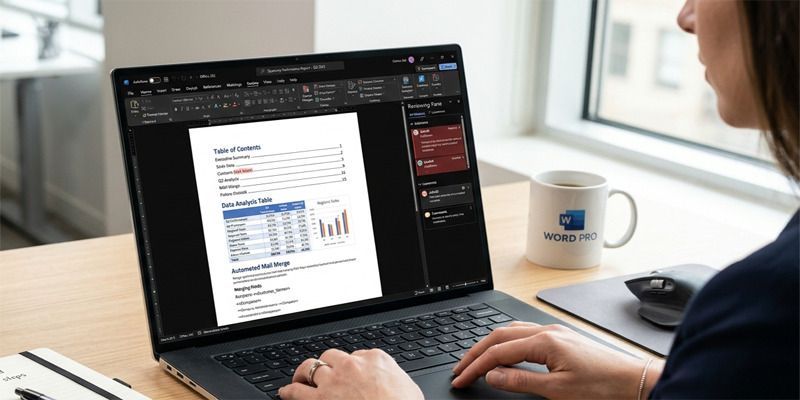
Managing everything manually can be very time-consuming, especially in documents with tables, multiple sections, citations, images, page numbers, and references.
Microsoft Word makes our work simple and consistent by providing some amazing, useful tools such as…
… as styles, automatic tables of contents, captions, cross-references, templates, and reviewing features
In this blog post, we are going to explore “Microsoft Word advanced features” along with an…
… understanding of their uses and improving the productivity of our work in easy-to-understand language.
1. Use Styles to Maintain Consistent Formatting
Styles are among the most useful features in Microsoft Word. A style is a predefined collection of formatting settings that can be applied to text, including font type, font size, colour, spacing, and paragraph alignment.
Instead of formatting every heading manually, you can apply a built-in style and maintain a consistent appearance throughout your document.
How to apply a style
- Open your document in Microsoft Word.
- Select the text you want to format.
- Open the Home tab.
- Locate the Styles section.
- Select an appropriate style, such as Title, Heading 1, Heading 2, or Normal.
For example, you can use Heading 1 for major sections and Heading 2 for subsections.
Why heading styles matter
Heading styles do more than change the appearance of text. They also help Word recognise the structure of your document.
Using heading styles makes it easier to:
- Navigate lengthy documents.
- Generate an automatic table of contents.
- Reorganise sections.
- Maintain consistent formatting.
- Improve accessibility for readers using assistive technology.
Modify a style
If you want every major heading to appear in a different colour or size, you do not need to change each heading individually.
- Find the style in the Styles section.
- Right-click the style, where supported.
- Select Modify.
- Adjust the available formatting options.
- Apply the changes.
Word will update text using that style according to the options you select.
Practical example: If you are preparing a 50-page project report, apply Heading 1 to all main chapters. If you later change the Heading 1 style, the formatting of those chapters can be updated consistently.
2. Create an Automatic Table of Contents
A table of contents helps readers understand the structure of a lengthy document and locate specific sections quickly.
Microsoft Word can generate a table of contents automatically from the document’s heading styles.
Step-by-step instructions
- Apply Heading 1, Heading 2, and other appropriate heading styles to your document.
- Place the cursor where you want the table of contents to appear.
- Open the References tab.
- Select Table of Contents.
- Choose an automatic table of contents option.
Word will create a contents section based on the recognised headings and their locations.
How to update the table of contents
If you add a chapter, rename a heading, or change page breaks, the table of contents may need updating.
- Click inside the table of contents.
- Select Update Table or the equivalent option.
- Choose whether to update page numbers only or the entire table.
Choose the full-table option when headings have been added, removed, or renamed.
Common mistake to avoid
Do not create a lengthy table of contents by typing every heading and page number manually. Page numbers can change as the document grows, making a manually maintained contents page difficult to manage.
Automatic contents are particularly useful for school projects, dissertations, manuals, business reports, and books.
3. Understand Page Breaks and Section Breaks
Page breaks and section breaks serve different purposes. Understanding the difference can prevent many document-formatting problems.
Page breaks
A page break moves the following content to a new page without necessarily changing the document’s layout settings.
To insert one:
- Place the cursor where the new page should begin.
- Open the Insert tab and look for Page Break, or use the keyboard shortcut Ctrl + Enter on Windows.
Page breaks are useful for starting a new chapter, separating a cover page from the main content, or placing an appendix on a new page.
Section breaks
A section break divides a document into sections that can have different layout or formatting settings.
Depending on the type of section break and your Word version, you can use sections to configure:
- Different page orientations.
- Different headers and footers.
- Different page-numbering formats.
- Different column layouts.
- Different page margins.
To insert a section break, open the Layout tab, select Breaks, and choose the appropriate option.
For example, suppose a report is mainly in portrait orientation but contains a wide table. You can place the table in a landscape-oriented section while keeping the surrounding pages in portrait orientation.
Why section breaks can be confusing
Headers, footers, and page numbering may be linked between sections by default. You may need to adjust the Link to Previous setting and section-specific page-numbering options to achieve the desired result.
Before making major layout changes, save a copy of your document. Section breaks can affect the formatting of content that follows them.
4. Insert and Format Professional Tables
Tables are useful for presenting structured information in rows and columns. They are commonly used in reports, project documentation, schedules, comparison charts, and business records.
Insert a table
- Place the cursor where the table should appear.
- Open the Insert tab.
- Select Table.
- Choose the required number of rows and columns.
- Enter your information.
For larger or more specialised tables, Word may offer additional ways to specify the table dimensions.
Format a table
After selecting a table, look for the table-design and layout tools available in your version of Word.
Useful formatting options may include:
- Applying a built-in table style.
- Shading header rows.
- Changing border styles.
- Adjusting column widths.
- Aligning text within cells.
- Adding or deleting rows and columns.
- Merging or splitting cells.
- Repeating a header row across pages.
Use clear table headings
Consider the following example for a project report:
| Task | Responsible person | Status |
|---|---|---|
| Collect information | Research team | Completed |
| Analyse results | Project lead | In progress |
| Prepare report | Writing team | Pending |
The column headings make the information easy to scan.
For accessibility and readability, use descriptive column headings, avoid unnecessary merged cells, and keep the table structure simple whenever possible.
Repeat header rows on multiple pages
Long tables may extend across several pages. Repeating the header row helps readers understand what each column represents.
Select the appropriate header row and use the available table-layout option to repeat it. The precise command location may differ by Word version.
Remember that Word tables are designed primarily for document layout and structured information. If you need complex calculations, extensive data analysis, or advanced charting, Microsoft Excel may be more suitable.
5. Add Captions to Tables, Figures, and Images
Captions identify figures, images, tables, and other numbered objects in a document.
For example:
- Figure 1: Structure of a computer system
- Table 1: Annual expenditure summary
- Figure 2: Experimental setup
Captions make a report easier to understand and help readers identify specific visual elements.
How to insert a caption
- Select the picture, table, or object.
- Open the References tab.
- Select Insert Caption.
- Choose a suitable label, such as Figure or Table.
- Enter the caption text.
- Confirm the insertion.
Word can number captions automatically. If you add or remove figures later, you can update the numbering fields.
Why automatic captions are better
Manually numbering every figure can create errors when you insert new material. Automatic captions help maintain a consistent sequence and can be used to generate a list of figures or tables.
Captions are especially useful in research papers, technical reports, dissertations, laboratory reports, and instructional manuals.
6. Use Cross-References to Connect Document Sections
A cross-reference points readers to another element within the same document, such as a heading, figure, table, numbered item, or caption.
For example, you might write:
“As shown in Figure 2, the process consists of three stages.”
If the figure number changes later, a properly inserted cross-reference can be updated rather than rewritten manually.
How to insert a cross-reference
- Make sure the relevant heading, caption, or numbered item exists.
- Place the cursor where the reference should appear.
- Open the References tab.
- Select Cross-reference.
- Choose the reference type.
- Select the specific item and the information you want to display.
- Insert the reference.
Available options depend on the reference type and the document structure.
Update cross-references
Cross-references use fields that may need refreshing after document changes.
You can select the relevant content and update its fields, or select the entire document and use the appropriate update command. On many Windows desktop versions, Ctrl + A followed by F9 updates selected fields, although the exact behaviour may vary.
Always review the final document to make sure the references display the correct numbers and text.
7. Manage Citations, Bibliographies, Footnotes, and Endnotes
Academic writing and professional research often require references to books, articles, websites, and other sources.
Microsoft Word provides tools for managing citations and creating bibliographies. These tools can reduce repetitive work, although the output should always be checked against the required referencing style.
Add a citation
- Open the References tab.
- Select the available citation-style option.
- Choose a style, such as APA or MLA, if supported by your version.
- Select Insert Citation.
- Add a new source or choose an existing source.
- Enter the requested publication details.
Depending on the Word version and configuration, source information can include the author, title, publication year, publisher, or website details.
Create a bibliography
After adding citations, place the cursor where you want the reference list to appear.
Open the References tab and select Bibliography or the corresponding command. Choose an available format.
Review the generated entries carefully. Word may not automatically resolve incomplete source information, and different institutions may require specific editions or variations of a referencing style.
Add footnotes and endnotes
Footnotes and endnotes provide supplementary information or references without interrupting the main text.
- Footnotes generally appear at the bottom of the relevant page.
- Endnotes generally appear in a separate notes section, often near the end of the document.
To insert one, place the cursor at the appropriate point in the text and use the corresponding command on the References tab.
Word manages note numbering and placement, which makes it easier to insert additional notes or rearrange content.
Important: Always follow the citation and referencing rules required by your school, college, employer, journal, or publisher. Automated formatting is a helpful starting point, not a guarantee of compliance.
8. Work with Headers, Footers, and Page Numbers
Headers and footers display information at the top or bottom of pages. They can make lengthy documents easier to identify and navigate.
Common uses include:
- Document titles.
- Chapter names.
- Author or organisation details.
- Page numbers.
- Report dates.
- Confidentiality labels, where appropriate.
Insert a header or footer
- Open the Insert tab.
- Select Header or Footer.
- Choose a layout or create your own.
- Enter the required information.
- Close the header and footer editing area.
To insert page numbers, use the Page Number command and select an appropriate location and style.
Configure different headers
A cover page may need a different header from the main report. A landscape section may also require a different arrangement.
Word provides options such as Different First Page, Different Odd & Even Pages, and Link to Previous, depending on the document and version.
Use these settings carefully, especially when a document contains multiple sections. Check several pages after making changes to confirm that the headers, footers, and numbering are correct.
9. Create and Use Document Templates
A template is a reusable document starting point that can contain predefined formatting, layouts, styles, and placeholder content.
Templates help users create consistent documents without rebuilding the design every time.
Common uses of templates
- Business letters.
- Project reports.
- Meeting minutes.
- Resumes and cover letters.
- Invoices and forms.
- Training manuals.
- Standard operating procedures.
Start with a template
- Open Microsoft Word.
- Select the option to create a new document.
- Browse the available templates, if offered.
- Choose one that suits your purpose.
- Replace the sample text with your own content.
Templates available to you may depend on your Word version, account, and internet connection.
Create your own template
If you frequently prepare documents with the same layout, create a standard document with your preferred styles, margins, headings, headers, footers, and other reusable elements.
Then use Save As or the equivalent save option to choose the Word template format, commonly DOTX.
The exact steps depend on the platform and version. Keep a clean master template and create individual documents from it rather than overwriting the master each time.
Benefits of templates
Templates can save time, reduce formatting inconsistencies, and help teams follow common document standards.
For organisations, a shared template can also support consistent branding and document presentation.
10. Track Changes and Comments for Collaboration
When several people review a document, it is useful to see what has changed and discuss proposed edits.
Microsoft Word provides Track Changes and Comments to support this process.
Use Track Changes
- Open the Review tab.
- Turn on Track Changes.
- Edit the document as needed.
- Review the changes marked by Word.
- Accept or reject each change when appropriate.
The appearance of tracked changes depends on the selected display and markup settings.
Add comments
Comments allow reviewers to ask questions, suggest improvements, or explain why a change may be necessary.
To add a comment, select the relevant text and choose New Comment from the Review tab or the corresponding command.
Comments are particularly useful for editing reports, reviewing proposals, proofreading articles, and discussing drafts.
Accept or reject changes
Before finalising a document, review tracked changes and decide which edits to accept or reject. Resolve comments as appropriate.
Privacy reminder: Accepting all changes or deleting visible comments does not necessarily remove every kind of hidden document information. If you need to distribute a clean final copy, inspect the document for tracked changes, comments, document properties, and other sensitive information before sharing it.
11. Use the Navigation Pane to Manage Long Documents
The Navigation Pane helps users move through lengthy documents without repeatedly scrolling from the first page to the last.
Depending on your version, you can open it from the View tab or use the Find feature.
When your document uses heading styles, the navigation view can display the document’s structure. You can select a heading to jump to that section, and supported versions may allow you to reorganise sections by moving headings.
The Navigation Pane can also help you find particular words or phrases.
For large reports, books, manuals, and research documents, this feature can make editing significantly more manageable.
12. Practical Tips for Working with Advanced Word Features
To get the most out of Microsoft Word, follow these practices:
Use styles instead of manual formatting. This makes long documents easier to update and helps automatic features recognise headings.
Use automatic numbering and references. Captions, page numbers, contents pages, and cross-references are easier to maintain when generated by Word.
Insert page and section breaks deliberately. Avoid pressing Enter repeatedly to force content onto another page.
Save versions of important documents. Keep a backup before making substantial structural or formatting changes.
Check compatibility. Word for the web, desktop Word, and different operating-system versions may not support the same features.
Review the final output. Inspect the document on screen and, where relevant, check the PDF or print preview before submitting or distributing it.
Protect sensitive information. Review comments, tracked changes, document properties, and sharing permissions before sending a document outside your team.
Frequently Asked Questions
1. What are styles in Microsoft Word?
Styles are reusable formatting settings for text and paragraphs. They help maintain consistency and support features such as automatic tables of contents and document navigation.
2. How do I create an automatic table of contents?
Apply built-in heading styles to your document, place the cursor where the contents should appear, and select an automatic table of contents from the References tab.
3. What is the difference between a page break and a section break?
A page break starts content on a new page. A section break divides a document into sections that can use different layout or formatting settings, such as orientation, headers, footers, or page numbering.
4. Can Microsoft Word automatically number figures and tables?
Yes. Use Insert Caption to create numbered captions. You can then use cross-references and, where supported, generate lists of figures or tables.
5. What is a Word template?
A template is a reusable starting document containing predefined layouts, styles, and other elements. It helps users create consistent documents more efficiently.
6. Are all advanced Word features available in Word for the web?
No. Feature availability can vary between Word for the web, desktop versions, operating systems, and subscription or licence types. Some complex formatting and document-management tasks may require desktop Word.
Conclusion
Friends, in this blog post, we have seen “Microsoft Word advanced features“. A wide range of advanced and fascinating tools capable of transforming document creation from a manual formatting task into a more efficient and organised structure are provided by Microsoft Word.
Navigation gets simplified by automatic tables of contents, consistency is well maintained by styles, Complex layouts get support from section breaks, and captions and cross-references greatly help in keeping the documents organised. Track changes help in making collaborative review easier, templates save our time, and academic writing is well assisted by citation tools.
You are not required to get a full grip over all the features at once. Rather, you should start with the basics like applying heading styles and creating an automatic table of contents. Then, as your needs grow, you can move towards the uses of section breaks, captions, cross-references, templates, and reviewing tools.
If you learn these features step by step in a proper way, then creating more professional, accurate, and easy-to-maintain documents that are used in education, business, research, and daily work would be just your cup of coffee.
If you have any queries, you can write to us at support@a5theory.com; we will get back to you ASAP.
Hope! You will have enjoyed this post, “Microsoft Word advanced features“.
Please feel free to give your feedback in the comment section below.
Have a great time!