

Hello Friends, in this blog post, we are going discuss an amazing “Microsoft Outlook complete guide“.
Microsoft Outlook is a very fascinating and productive application that greatly helps in scheduling…
…meetings, managing emails, organising contacts, and keeping a complete track of tasks.
Outlook is widely used in educational institutions, offices, and businesses where communication and time management are high priorities.
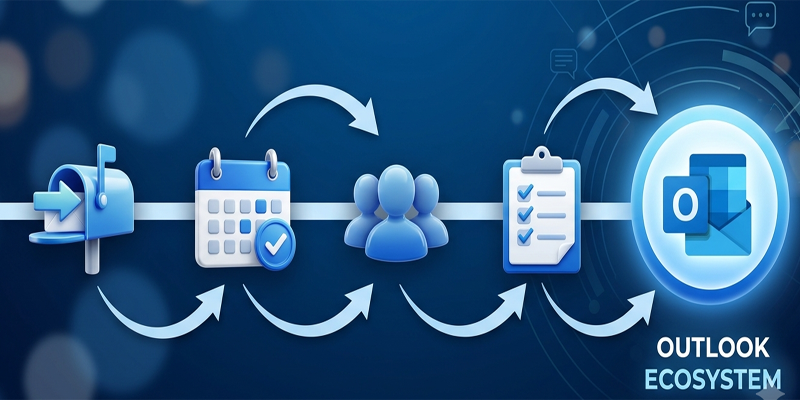
Outlook is not limited to emails but has much more to explore.
Using its calendar, you can easily plan your appointments; contacts help you store user…
…information, and you can easily organise your workload using amazing task-management features.
Outlook save you a valuable time generally spent on the message searching and greatly help to stay organised whole day if it is used wisely and effectively.
In this post, we are going to explore an amazing “Microsoft Outlook complete guide” along with its working and main features.
Here we will also learn to organise email, schedule meetings, manage contacts and tasks, and improve overall productivity at ease.
1. What Is Microsoft Outlook?
Microsoft Outlook(Microsoft Outlook Complete Guide) is an email and personal information management application available through different Microsoft products and services. Depending on your account, subscription, and version, you may use Outlook as a desktop application, a web application, or a mobile app.
Its main features include:
- Email management: Send, receive, reply to, and organise messages.
- Calendar: Schedule appointments, meetings, and events.
- Contacts: Store names, email addresses, phone numbers, and other details.
- Tasks and to-do lists: Track work that needs to be completed.
- Meeting invitations: Invite participants and manage responses.
- Rules and filters: Automatically organise incoming messages.
- Search: Find emails, appointments, and other information.
- Integration: Work with other Microsoft services and applications where supported.
The exact features and interface can differ between classic Outlook for Windows, the new Outlook for Windows, Outlook on the web, and mobile versions.
2. How to Set Up Microsoft Outlook
Before using Outlook(Microsoft Outlook Complete Guide), you need an email account that the application supports.
This might be a personal Microsoft account, a work or school account, or another supported email account.
How to Add an Email Account
The steps may vary by version, but the general process is:
- Open Microsoft Outlook.
- Choose the option to add an account.
- Enter your email address.
- Follow the sign-in instructions.
- Complete any required verification.
- Allow Outlook to configure the account.
- Check that your inbox and folders appear correctly.
Some accounts require additional settings or administrator assistance, particularly in business environments.
Understanding Outlook’s Interface
Outlook typically includes several important areas:
- Navigation pane: Provides access to Mail, Calendar, Contacts or People, and other available tools.
- Folder pane: Displays folders such as Inbox, Sent Items, Drafts, and Deleted Items.
- Message list: Shows emails in the selected folder.
- Reading pane: Displays the selected email without necessarily opening it in a separate window.
- Toolbar or ribbon: Contains commands for composing, organising, searching, and managing messages.
Learning where these features are located makes everyday tasks faster.
3. How to Send and Receive Emails in Outlook
Email is Outlook’s primary function. You can use it for personal communication, workplace correspondence, customer support, project updates, and file sharing.
How to Compose an Email
- Open Outlook.
- Select New Mail or New Email, depending on your version.
- Enter the recipient’s email address in the To field.
- Add a subject that clearly describes the message.
- Write your message in the body.
- Attach files if required.
- Review the recipient, subject, attachments, and content.
- Select Send.
A good email should have a clear purpose, an informative subject line, and concise wording.
For example, instead of using the subject “Hello,” a workplace email could use “Request for Project Update – October Report.”
Understanding To, CC, and BCC
Outlook provides several recipient fields.
- To: The primary recipient or recipients who need to act on the message.
- CC: People who should receive a copy for information.
- BCC: Recipients whose addresses are hidden from other recipients in the message.
Use CC when others need visibility into a conversation. BCC can be useful when sending a message to a large group, and you do not want recipients to see one another’s email addresses.
Always check the recipient fields before sending confidential or sensitive information.
Reply, Reply All, and Forward
Outlook provides three common ways to respond to messages.
- Reply: Sends a response to the sender.
- Reply All: Sends a response to the sender and other relevant recipients in the conversation.
- Forward: Sends an existing message to another person.
Reply All should be used only when everyone included genuinely needs the response. This reduces unnecessary email traffic.
4. How to Organise Emails in Outlook
A crowded inbox makes it difficult to identify important messages. Outlook offers several tools to keep your email organised.
Use Folders
Folders allow you to group emails by topic, project, department, customer, or priority.
For example, you might create folders named:
- Projects
- Finance
- Customers
- Training
- Personal
- Completed Work
To create a folder, locate the folder pane, open the relevant menu, and select the option to create a new folder. The exact command may vary by version.
Moving messages into the appropriate folders when doing so helps you retrieve them later.
Use Categories
Categories let you assign colours or labels to emails and other Outlook items where supported.
For example, you could use one category for urgent work, another for finance, and another for customer communication.
Categories are particularly useful when the same email folder contains messages related to several different projects.
Flag Important Messages
Flags help identify messages that require follow-up.
You can flag an email that needs a reply, a document that requires review, or a request that must be completed by a certain date.
Depending on your Outlook version and account, you may also be able to assign follow-up dates or connect flagged messages with task-management features.
Archive Old Emails
Archiving helps reduce inbox clutter without necessarily deleting messages.
The behaviour of the Archive command depends on your account and configuration, but it generally moves a message out of the active inbox while retaining it for later access.
Before archiving important correspondence, make sure you understand your organisation’s email retention requirements.
5. Using Outlook Search and Filters
Searching is often faster than manually browsing folders.
Outlook’s search tools can help you find messages by sender, recipient, subject, date, keywords, and other supported criteria.
Search Tips
Try searching with a combination of terms that are likely to identify the message.
For example:
- A person’s name and a project keyword.
- A distinctive phrase from the subject.
- A company name and an approximate date.
- A filename or phrase related to an attachment.
Some Outlook versions support search operators that narrow results by sender, subject, or attachment status. The exact syntax and available operators may vary.
Use Filters and Sorting
You can often sort messages by date, sender, subject, or other fields. Filtering options can help you focus on unread messages, flagged items, or emails with attachments.
These tools are useful when dealing with a large inbox or trying to locate an older conversation.
6. Automating Email with Outlook Rules
Outlook rules can automatically handle certain incoming or outgoing messages according to conditions you define.
For example, you might create a rule that moves messages from a particular sender into a project folder.
How to Create a Rule
The process varies between Outlook versions, but a typical workflow is:
- Open Outlook’s settings or message-management menu.
- Locate the Rules option.
- Choose to create a new rule.
- Select the conditions, such as sender or subject.
- Choose an action, such as moving a message to a folder.
- Save the rule.
- Test it using suitable messages.
Available conditions and actions depend on your account and version. Some rules may work only when Outlook is running, while others can be processed by the email service.
Examples of Useful Rules
- Move newsletters into a separate folder.
- Organise messages from a particular customer.
- Flag emails containing a specific project keyword.
- Move automated notifications away from the main inbox.
Be careful with broad rules. A poorly configured rule can hide important messages or move emails to unexpected folders. Review your rules periodically.
7. Managing Attachments in Outlook
Outlook allows you to attach files to messages and open or download attachments you receive.
How to Attach a File
- Compose a new email or reply.
- Select the attachment option, usually represented by a paperclip.
- Choose the file or supported cloud-storage option.
- Wait for the attachment to be added.
- Confirm that the correct file is attached.
- Send the email.
Sending Large Files
Email services usually impose attachment-size limits. The limits depend on your account, service, and organisation’s settings.
For large files, cloud sharing through OneDrive or another approved service may be more practical than sending the file directly. Where available, you can share a link and manage access permissions.
Before sending a cloud link, verify that the intended recipients have the correct permissions. Avoid sharing sensitive documents through public links unless your organisation’s policies explicitly allow it.
Attachment Security
Do not open unexpected attachments from unfamiliar senders without checking their legitimacy. Be especially cautious with executable files, unexpected archives, and documents asking you to enable macros or perform unusual actions.
When in doubt, verify the message with the sender through a trusted channel.
8. Using the Outlook Calendar
Outlook Calendar helps you organise appointments, meetings, events, and reminders.
It can be used for personal scheduling or for coordinating work with colleagues.
How to Create an Appointment
- Open the Calendar section.
- Select New event, New appointment, or the equivalent command.
- Enter a title.
- Choose the date and start and end times.
- Add a location or online meeting details if needed.
- Set a reminder where available.
- Save the event.
An appointment generally refers to an event in your own calendar. A meeting involves inviting other people.
Schedule Meetings
To arrange a meeting:
- Create a new calendar event.
- Add a meaningful title.
- Enter the meeting date and time.
- Add the required participants.
- Include a location or online meeting link.
- Add an agenda or supporting information.
- Send the invitation.
Participants may be able to accept, tentatively accept, decline, or suggest another time, depending on the meeting system and settings.
Recurring Meetings
For regular meetings, use the recurrence option where available.
You can configure events to repeat daily, weekly, monthly, or according to a supported custom pattern.
Recurring events are useful for team meetings, classes, weekly reviews, and regular project updates. Check the end date and time zone carefully to avoid creating unnecessary invitations.
Calendar Views
Outlook commonly provides different calendar views, such as Day, Work Week, Week, and Month. Available views vary by version.
Use a day view for detailed scheduling, a week view to manage workload, and a month view to review deadlines and upcoming events.
9. Managing Contacts in Outlook
Outlook’s contact-management features help you store and retrieve information about people you communicate with.
Depending on your version and account, contacts may be labelled People or accessed through a dedicated contacts area.
A contact can contain information such as:
- Name
- Email address
- Phone number
- Organisation
- Job title
- Address
- Notes or additional details
How to Add a Contact
- Open the Contacts or People area.
- Choose the option to create a new contact.
- Enter the person’s details.
- Review the information for accuracy.
- Save the contact.
Saving frequently used contacts reduces typing and helps avoid mistakes when addressing messages.
Contact Lists and Groups
Some Outlook environments support contact lists or groups. These can help you send messages to a defined set of people without entering every address individually.
Use meaningful names for lists and review membership regularly, particularly when the list contains customers or colleagues whose roles may change.
Be mindful of privacy when using group email features. For external recipients, BCC may be appropriate if the addresses should not be shared with the entire group.
10. Managing Tasks and To-Do Lists
Task-management features help you keep track of work that needs to be completed.
Depending on your Outlook version and Microsoft account, tasks may be available through Microsoft To Do, flagged emails, or integrated task tools.
A task can include a title, due date, reminder, and completion status, with additional options available in some versions.
How to Create a Task
- Open the Tasks or To Do area.
- Select the option to add a task.
- Enter a short, descriptive title.
- Set a due date if required.
- Add a reminder or other details where available.
- Save the task.
- Mark it complete when the work is finished.
Turn Emails into Follow-Up Actions
When an email requires action, you can flag it or create a corresponding task, depending on the available features.
For example, if a manager requests a report by Friday, you could flag the email and add a task called “Complete weekly report” with the appropriate due date.
This approach helps prevent important requests from disappearing in a crowded inbox.
11. Outlook Productivity Tips and Tricks
A few simple habits can make Outlook much more effective.
Use Keyboard Shortcuts
Common shortcuts in supported Outlook desktop versions include:
- Ctrl + N: Create a new item in the current context; the exact item depends on the active view.
- Ctrl + R: Reply to a selected message.
- Ctrl + Shift + M: Create a new email message in many Windows desktop versions.
- Ctrl + Enter: Send a message in supported configurations, sometimes after confirmation or additional setup.
- Ctrl + 1: Switch to Mail in classic Outlook for Windows.
- Ctrl + 2: Switch to Calendar in classic Outlook for Windows.
Shortcuts can differ between classic Outlook, new Outlook, web, and Mac versions. Confirm the shortcuts for the version you use before relying on them.
Use a Consistent Email Routine
Instead of checking email continuously, consider reviewing it at planned intervals when your role allows it.
For each message, decide whether to respond, delegate, schedule a task, archive, or retain it for reference.
Keep Subject Lines Clear
A specific subject line makes it easier for recipients to understand the message and find it later.
For example, “Meeting Request” is less informative than “Marketing Review Meeting – 5 November.”
Keep Your Calendar Updated
Record meetings, deadlines, and important appointments. Allow time between meetings when possible, and review the next day’s schedule before finishing work.
Review Rules and Notifications
Disable unnecessary notifications and remove outdated rules. This can reduce distractions and help important messages stand out.
12. Outlook Security and Privacy Best Practices
Email accounts often contain confidential conversations, business information, personal details, and documents. Protecting the account is essential.
Follow these practices:
- Use a strong, unique password.
- Enable multifactor authentication when available.
- Be cautious with unexpected links and attachments.
- Verify requests involving payments, passwords, or confidential information.
- Review forwarding rules and connected account settings.
- Keep your software and devices updated.
- Follow your organisation’s retention and data-handling policies.
- Check recipients before sending sensitive messages.
For business accounts, administrators may apply additional security, retention, and access policies. Follow those requirements rather than changing settings without approval.
13. Common Microsoft Outlook Problems and Solutions
Outlook Is Not Receiving Emails
Check your internet connection, account status, storage limits, spam or junk folder, and any filters or rules that could be moving messages.
If you use a work account, your organisation’s administrator may need to investigate service or account problems.
Emails Are Going to Junk
Review the Junk Email folder and the sender’s address. If a legitimate message was incorrectly classified, use the available option to mark it as not junk. Avoid adding unknown senders to trusted lists without verification.
Outlook Is Running Slowly
Large mailboxes, add-ins, outdated software, network issues, or synchronisation problems can affect performance. Try restarting the application, installing updates, and reviewing unnecessary add-ins where supported.
Calendar Events Have the Wrong Time
Check the event’s time zone, your calendar settings, and any recurring-event configuration. When inviting participants in different locations, verify the displayed local time before sending the invitation.
Attachments Will Not Open
Check the file type, the application’s availability, file permissions, and any security restrictions. If the file is from an unfamiliar sender, verify it before opening it.
14. Frequently Asked Questions
1. Is Microsoft Outlook only an email application?
No. Outlook(Microsoft Outlook Complete Guide) can also provide calendar, contacts, meeting scheduling, and task-related features, depending on the version and account.
2. Is Outlook free to use?
Outlook(Microsoft Outlook Complete Guide) is available in different forms, including web and mobile experiences. Some desktop applications and advanced features require a qualifying Microsoft 365 subscription or licence. Availability depends on the product and account.
3. Can I use Outlook with a Gmail account?
Outlook(Microsoft Outlook Complete Guide) can support certain third-party email accounts, including Gmail, depending on the Outlook version and account configuration. Follow the sign-in and setup instructions provided by the application.
4. Can Outlook automatically organise emails?
Yes. Rules and other organisation tools can sort or process messages according to supported conditions and actions.
5. Can I share my Outlook calendar?
Calendar-sharing options depend on your account type, organisation settings, and Outlook version. Some accounts allow you to share calendar details or delegate access.
6. What is the difference between an appointment and a meeting?
An appointment is generally an event in your own calendar. A meeting includes other participants who receive invitations.
7. Can I access Outlook on my phone?
Yes. Outlook(Microsoft Outlook Complete Guide) has mobile applications for supported devices, although the interface and available features may differ from desktop and web versions.
Conclusion
Friends, in this blog post, we have gone through an extensive “Microsoft Outlook complete guide“. For managing email, scheduling meetings, maintaining contacts, and organising tasks, Microsoft Outlook is a very amazing and productive application tool. Learning to use categories, folders, rules, search, calendar events, and task management features can ultimately reduce clutter and help you manage your everyday work and responsibilities more effectively.
You can start with some key(Microsoft Outlook Complete Guide) improvements: Create calendar events, organise your inbox, flag messages that need action, and review your upcoming tasks regularly. Once you are familiar with Outlook basics, you can gradually move to some advanced features and integrations to create a workflow as per your desire.
Using Outlook(Microsoft Outlook Complete Guide) needs a consistent approach to email and scheduling to stay organised and productive, whether you use it for personal communication, office work, college, or business.
If you have any queries, you can write to us at support@a5theory.com; we will get back to you ASAP.
Hope! You would have enjoyed this post, “Microsoft Outlook Complete Guide“.
Please feel free to give your feedback in the comment section below.
Have a great time!