

Hello, in this blog post, we are going to discuss the “Microsoft OneNote complete guide” in detail.
Microsoft OneNote is a digital note-capturing tool or application that greatly helps in collecting, organising, searching, and sharing information in one single place.
Using the OneNote application, you can easily keep important information accessible whether you are a student busy with exam preparation,…
…a professional rushing to make urgent meeting notes, a teacher dedicatedly preparing lessons, or a business person organising various ideas in their mind.
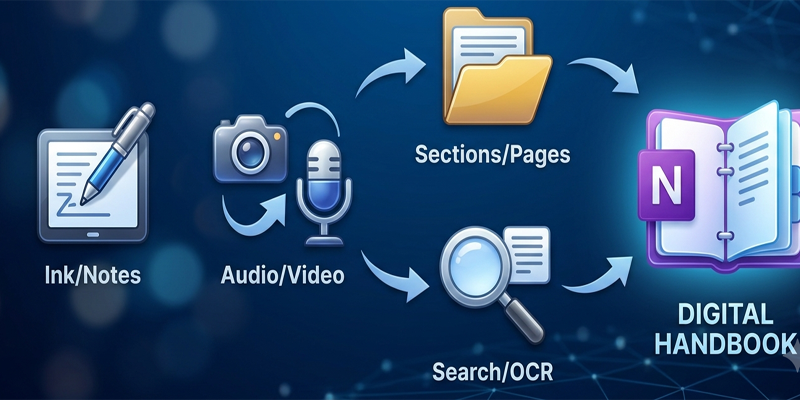
OneNote is quite different from your traditional text document. In OneNote, a notebook is well structured and divided into sections and pages.
You can easily type notes, insert images, add tables, attach files, create checklists, record audio in supported versions, and organise information as per your desire.
Besides being productive, Microsoft has a vast ecosystem full of various useful applications.
And OneNote, being a part of this ecosystem, can also work alongside applications such as Excel, Word, Outlook, and OneDrive.
However, you can experience a variation in its interface and features depending on the different platforms like Windows, Mac, Mobile versions, and the web.
In this post, “Microsoft OneNote Complete Guide,” we will explore how the OneNote application works and learn to create and organise it.
We will also cover its essential features and how to build a practical digital note-taking system with ease.
1. What Is Microsoft OneNote?
Microsoft OneNote(Microsoft OneNote Complete Guide) is a digital notebook application designed to collect information from different sources and organise it into searchable notes.
You can use it for:
- Class notes and exam preparation.
- Meeting notes and action items.
- Research and project planning.
- Personal journals and daily planning.
- Business procedures and reference information.
- Shopping lists and checklists.
- Ideas, brainstorming, and creative writing.
- Organising information collected from the internet.
OneNote allows you to place content in different areas of a page rather than forcing everything into a strictly linear document. This makes it useful for combining text, pictures, lists, and other content in a single workspace.
Key Features of OneNote(Microsoft OneNote Complete Guide)
Some of its most useful features include:
- Notebooks, sections, and pages: Organise information into a hierarchy.
- Flexible note-taking: Add text and other supported content to a page.
- Search: Find words and information across your notes.
- Drawing and handwriting: Write or sketch using supported devices and versions.
- Checklists: Track tasks and to-do items.
- Cloud synchronisation: Access synced notebooks across supported devices.
- Collaboration: Share notebooks and work with other people when supported.
- Integration: Use OneNote alongside other Microsoft applications.
2. Understanding the OneNote Notebook Structure
The first step to using OneNote effectively is understanding how its content is organised.
OneNote(Microsoft OneNote Complete Guide) generally uses three main levels: notebooks, sections, and pages.
Notebooks
A notebook is the main container for your notes.
You might create separate notebooks for:
- College and studies.
- Office work.
- Personal planning.
- Business projects.
- Research and learning.
Keeping unrelated information in separate notebooks can make your system easier to manage.
Sections
Sections divide a notebook into categories or topics.
For example, a notebook called “College Notes” could contain sections for Mathematics, Computer Science, English, and Exam Preparation.
Similarly, a notebook called “Office Work” might contain sections for Meetings, Projects, Training, and Procedures.
Pages
Pages hold the actual notes.
A section called “Computer Science” could contain pages for lecture notes, programming concepts, assignment instructions, and revision questions.
Some OneNote versions also support subpages, which help organise related notes beneath a main page.
Example of a OneNote Structure
| Level | Example | Purpose |
|---|---|---|
| Notebook | College Notes | Stores study information |
| Section | Computer Science | Groups related subjects |
| Page | Database Management | Contains detailed notes |
| Subpage | SQL Revision Questions | Organises supporting material |
The best structure is the one that matches how you naturally search for information. Avoid creating so many categories that finding a note becomes more complicated than writing it.
3. How to Get Started with Microsoft OneNote
OneNote is available through different Microsoft platforms. You may be able to use it through a desktop application, a web browser, or a mobile application, depending on your device and account.
Step 1: Open OneNote
Install or open OneNote using an official Microsoft source or the application already available on your device. You can also check Microsoft’s OneNote website for current access options.
Step 2: Sign In
Sign in with the Microsoft account or supported work or school account you intend to use.
Using the appropriate account is important because notebook availability and sharing permissions may depend on that account.
Step 3: Create or Open a Notebook
Choose an existing notebook or create a new one. Give it a descriptive name, such as “Project Planning” or “Study Notes 2026.”
If OneNote asks where to store the notebook, review the available storage options and choose one suitable for your needs.
Step 4: Create Sections and Pages
Add sections for major subjects and pages for individual topics.
For example, in a “Digital Marketing” notebook, you could create sections for SEO, Content Writing, Analytics, and Social Media. Each section could contain pages for lessons, research, and project notes.
Step 5: Start Taking Notes
Select a page and begin typing. You can also add supported images, lists, tables, links, and other content.
Give each page a clear title so that you can identify it quickly later.
4. How to Take and Format Notes in OneNote
OneNote offers several formatting tools to make notes easier to read.
Use Headings
Use a clear page title and headings to separate topics.
For example, a page about Excel formulas might contain headings such as:
- Basic Formulas.
- Logical Functions.
- Lookup Functions.
- Practical Examples.
A consistent heading structure helps you scan long pages.
Apply Text Formatting
Depending on your version, you can apply common formatting options such as:
- Bold and italic text.
- Underlining.
- Font size and colour.
- Bulleted and numbered lists.
- Highlighting.
- Paragraph alignment.
Use formatting to show importance and structure rather than decorating every line.
For example, bold important terms and highlight only the most essential definitions.
Use Lists and Checklists
Lists are useful when notes contain several steps or requirements.
A checklist is especially helpful for tasks such as preparing for a meeting, completing an assignment, or launching a project.
For example:
- Collect the required information.
- Prepare the first draft.
- Review the draft.
- Submit the final document.
OneNote provides tagging and to-do options in supported versions, which may offer additional functionality beyond a simple typed checklist.
Use Tables
Tables can organise information into rows and columns.
For example, you could create a comparison table for software tools, a study timetable, or a list of project responsibilities.
Tables work best when the information has a clear relationship between rows and columns. For longer structured datasets, Excel may be more appropriate.
5. Adding Images, Files, Links, and Other Content
OneNote can store more than typed text. Combining different content types helps you keep related information together.
Insert Images
Images can be useful for lecture diagrams, screenshots, product references, handwritten notes, and visual explanations.
To add an image, use the available Insert or picture controls and select the image source supported by your version.
After inserting it, position the image appropriately and add a caption or explanation where useful.
Attach or Print Files
Depending on the version, OneNote may let you attach files or insert printouts of supported documents.
This can be helpful when you want to keep reference material alongside your notes.
However, attaching a file and inserting its printable pages are not the same thing. An attachment may open in another application, while a printout displays page content inside OneNote.
Be aware that inserting large files or many printout pages can increase notebook size.
Add Links
You can add hyperlinks to websites, online resources, or other useful information.
For research notes, include a source link beside the relevant explanation. This makes it easier to revisit the original information and verify details later.
Record Audio or Use Dictation
Some OneNote versions support audio recording or dictation features. Availability depends on the platform, application version, language, and account.
Audio can help capture lectures or meetings when recording is permitted. Dictation can be useful when typing is inconvenient.
Always obtain the necessary permission before recording other people, and follow workplace, educational, and privacy rules.
6. Using OneNote for Students and Exam Preparation
OneNote can become a useful study system when notes are organised by subject and reviewed regularly.
Organise Notes by Subject
Create a notebook for a course or academic year. Use sections for subjects and pages for chapters, lectures, assignments, and revision.
For example:
- Notebook: Class 12 Studies
- Section: Physics
- Page: Laws of Motion
- Page: Important Formulas
- Page: Practice Questions
This structure makes it easier to locate specific information before examinations.
Create Revision Notes
After studying a chapter, summarise its main concepts in your own words.
Include important definitions, formulas, diagrams, examples, and questions you still need to answer.
Avoid copying entire textbooks into OneNote without processing the information. Short summaries and clear examples often make revision more effective.
Use Checklists for Exam Planning
Create a page listing the topics you need to study. Mark each item as completed when you have reviewed it.
You can also organise topics according to priority, difficulty, or the time remaining before the exam.
Combine Handwritten and Typed Notes
On supported devices, OneNote allows handwriting and drawing with a stylus or other input method.
This can be useful for mathematical equations, diagrams, mind maps, and handwritten explanations.
Typed notes may be better for longer text, while handwriting can help when the subject requires diagrams or free-form working.
7. Using OneNote for Office Work and Business
OneNote is also useful for managing professional information.
Meeting Notes
Create a section for meetings and a separate page for each meeting.
A practical meeting-note template can include:
Meeting title: Project Review
Date and participants: Record when the meeting took place and who attended.
Discussion points: Summarise the important topics.
Decisions: Record what the team agreed.
Action items: List tasks, owners, and deadlines.
Follow-up: Note questions or issues that require another discussion.
This structure makes meeting notes more actionable than an unorganised collection of paragraphs.
Project Planning
Use OneNote to collect requirements, ideas, research links, decisions, and supporting documents.
For example, a website project notebook might include sections for Planning, Content, Design, Development, and Launch.
OneNote can be an effective information hub, but it is not a complete replacement for dedicated project-management software when you need advanced task dependencies, resource planning, or formal reporting.
Standard Operating Procedures
Businesses can use OneNote to document recurring processes, training notes, internal guidelines, and frequently asked questions.
Use descriptive page titles and a consistent structure so that colleagues can locate information quickly.
When sharing internal documentation, review access permissions and avoid storing sensitive information in notebooks that are accessible to unauthorised people.
8. Searching and Finding Information in OneNote
A major benefit of digital note-taking is the ability to search instead of browsing through pages manually.
OneNote’s search functionality can help you find words and phrases within your notes. Depending on the version and content, it may also find text in supported images or other inserted material.
Search Tips
- Use a distinctive word or phrase from the note.
- Search for a project name or person’s name.
- Include a subject keyword to narrow your search.
- Use a clear naming convention for pages.
- Add meaningful titles rather than generic labels such as “Notes” or “New Page.”
For example, if you recorded a meeting about a website redesign, searching for “website redesign” may help you locate the relevant page faster than searching through every meeting notebook.
Use Tags to Identify Important Notes
Tags help classify specific information within pages.
Depending on the version, you may be able to mark items as to-dos, important points, questions, or other categories.
Use a small, consistent set of tags. If you apply many different tags without a clear system, they can become difficult to manage.
9. Syncing OneNote Across Devices
OneNote can synchronise notebooks across supported devices when they are stored in a compatible cloud location, and the account has appropriate access.
This allows you to write notes on a computer and review them later on a phone, tablet, or another computer.
How Synchronisation Helps
- Access notes from multiple supported devices.
- Continue working while moving between locations.
- Share selected notebooks with other people.
- Reduce the need to transfer notes manually.
Important Synchronisation Tips
- Confirm that you are signed in with the correct account.
- Check your internet connection if recent changes do not appear.
- Allow time for synchronisation to complete.
- Review any sync warnings or error messages.
- Avoid making conflicting edits in multiple places when a notebook is experiencing sync problems.
Cloud synchronisation is not the same as an independent backup. If the information is important, maintain an appropriate backup or export strategy where supported.
Offline access also varies by platform, notebook location, and the content already stored on the device.
10. Sharing and Collaborating in OneNote
OneNote can support collaboration when notebooks are shared with other users and the account or storage configuration allows it.
For example, a group of students might share project research, while a team might maintain common meeting notes.
How to Share a Notebook
The available process depends on your version and where the notebook is stored. In general:
- Open the notebook you want to share.
- Select the Share option.
- Choose the available sharing method.
- Enter the intended recipients or create a sharing link if supported.
- Review the permissions.
- Send the invitation or link.
Manage Permissions Carefully
Before sharing, decide whether recipients should be able to edit the notebook or only view it, where those options are available.
Avoid public or broadly accessible links for confidential material. Remove access when a collaborator no longer needs it, subject to your organisation’s policies.
When multiple people edit a notebook, agree on page naming and section organisation. This reduces duplication and makes collaboration easier.
11. OneNote Tips and Tricks for Better Productivity
A few simple habits can improve your note-taking system.
Use Descriptive Page Titles
A title such as “Client Meeting – Website Changes – 12 October” is more useful than “Meeting Notes.”
Specific titles make searching and browsing faster.
Create Reusable Templates
If you frequently write the same type of note, create a reusable structure.
Examples include meeting notes, lecture summaries, research records, and weekly reviews. Template features vary by OneNote version, so you may also duplicate a well-formatted page when built-in template tools are unavailable.
Keep Related Information Together
Use a consistent notebook structure, but avoid excessive nesting. If you create too many notebooks, sections, and subpages, the system may become harder to navigate.
Review Notes Regularly
Schedule a short review to organise recent notes, complete outstanding actions, and remove unnecessary duplication.
For meeting notes, convert important commitments into tasks with clear owners and deadlines.
Use Keyboard Shortcuts
OneNote supports keyboard shortcuts, although some differ by operating system and version. Common Windows desktop shortcuts include:
- Ctrl + N: Create a new page in many OneNote desktop configurations.
- Ctrl + B: Apply or remove bold formatting.
- Ctrl + I: Apply or remove italic formatting.
- Ctrl + K: Insert or edit a hyperlink in supported contexts.
- Ctrl + F: Search within the current notebook or available search scope, depending on the version.
- Ctrl + Z: Undo the previous action.
Check the shortcuts for your version, especially if you use OneNote on the web, Mac, or mobile.
12. Microsoft OneNote vs Microsoft Word
OneNote and Word are both useful Microsoft applications, but they serve different purposes.
| Feature | OneNote | Microsoft Word |
|---|---|---|
| Main purpose | Collect and organise notes | Create structured documents |
| Organisation | Notebooks, sections, and pages | Documents, headings, and sections |
| Content placement | Flexible note-taking canvas | Primarily document-based layout |
| Best for | Research notes, meetings, ideas, and reference material | Reports, letters, essays, and formal documents |
| Collaboration | Shared notebooks where supported | Shared documents and co-authoring where supported |
| Printing and final formatting | Useful for notes and reference pages | Better suited to polished, print-ready documents |
You can use both applications together. For example, collect research in OneNote, organise your findings, and then prepare the final report in Word.
13. Common OneNote Problems and Solutions
Notes Are Not Syncing
Check the internet connection, account status, notebook location, and any synchronisation warnings. Allow time for changes to upload and download.
A Notebook Is Missing
Confirm that you are signed into the correct account and check whether the notebook is available through the supported notebook-opening options. A work or school notebook may be subject to organisational access controls.
Search Cannot Find a Note
Try a distinctive keyword, check the correct notebook, and confirm that the relevant content has synchronised. Search behaviour may vary depending on the content type and application version.
OneNote Is Becoming Disorganised
Create a manageable notebook structure, rename unclear pages, remove redundant sections, and use consistent naming conventions.
Sharing Does Not Work
Check the notebook’s storage location, the recipient’s account, sharing permissions, and any organisational restrictions. Some sharing options may not be available in every environment.
14. Frequently Asked Questions
1. Is Microsoft OneNote free?
OneNote(Microsoft OneNote Complete Guide) is available through several Microsoft platforms, including options that can be used without a separate paid OneNote purchase. Some capabilities, storage arrangements, or integrations may depend on your Microsoft account and subscription.
2. Can I use OneNote offline?
Offline access may be available for notebooks and content already stored on a supported device. Synchronisation with other devices generally requires a connection, and offline behaviour varies by platform.
3. Can I convert OneNote notes into a Word document?
Depending on your OneNote(Microsoft OneNote Complete Guide) version and available export options, you may be able to export or copy note content into Word. Some formatting may require adjustment after transfer.
4. Can I write by hand in OneNote?
Yes, on supported devices and versions, you can use a stylus, touchscreen, or other drawing input to write and sketch.
5. Is OneNote suitable for business use?
Yes. It can be used for meeting notes, project research, training information, and internal documentation. Businesses should follow their security, retention, and access-control policies.
6. Can multiple people edit the same OneNote notebook?
Collaboration is supported in compatible configurations when the notebook is shared, and users have appropriate permissions. The exact experience depends on the account, platform, and storage setup.
Conclusion
Friends, in this post, we have gone through an extensive “Microsoft OneNote complete guide“. For collecting, organising, and finding information, OneNote turns out to be a very flexible digital notebook. Some of its amazing features are very useful for students, professionals, and businesses, such as notebook structure, formatting tools, search capabilities, multimedia support, and cloud collaboration
Remember(Microsoft OneNote Complete Guide)! Always start with a simple structure; notebook creation should be focused on major areas of your life or work. Try to organise them into meaningful sections, and don’t forget to use descriptive page titles. Make sure to add checklists, images, links, and tags, as they will genuinely improve your notes to the next level.
OneNote(Microsoft OneNote Complete Guide) can be a practical central place for your research, ideas, meeting records, and daily reference stuff for sure if you follow some important habits related to OneNote, such as reviewing your notebook regularly, carefully managing sharing permissions, and keeping proper backups of important information.
If you have any queries, you can write to us at support@a5theory.com; we will get back to you ASAP.
Hope! You would have enjoyed this post, “Microsoft OneNote Complete Guide“.
Please feel free to give your feedback in the comment section below.
Have a great time!