

Hello Friends, in this blog post, we are going to discuss an amazing guide on “Microsoft Access for beginners“.
Microsoft Access is known as a database management application that greatly helps users in storing, retrieving, organising, and analysing structured information.
It is of great use and handles data very smoothly when it comes to managing employee details, inventory, customer records, student data, business transactions, and orders.
This database application is quite different from Microsoft Excel, which is primarily used for calculations and spreadsheets; Access is purely designed around the database.
Using Access, you can easily organise related information into tables, establish relationships between them,…
…retrieve desired records or data using queries, and build various reports and forms, which is very user-friendly.
Microsoft Access offers users a very practical way to design a database without developing a complete application from scratch.
Educational institutions, small businesses, and individuals can easily manage their structured data or records using Microsoft Access at ease.
In this post, we are going to explore a fascinating guide on “Microsoft Access for beginners“.
Here we will see the overall working of a database, along with creating tables, establishing relationships, using queries, generating reports, and designing forms.
1. What Is Microsoft Access(Microsoft Access for beginners)?
Microsoft Access(Microsoft Access for beginners) is a relational database management system (RDBMS) that combines a database engine with tools for designing forms, queries, reports, and database applications.
It is part of some Microsoft Office and Microsoft 365 offerings, but availability depends on the licence and platform. The full Access desktop application is primarily a Windows application; it is not offered as a full native Access desktop application for macOS.
Access is commonly used for projects that require structured data storage and straightforward reporting.
Common Uses of Microsoft Access(Microsoft Access for beginners)
You can use Access to manage:
- Customer and supplier information.
- Product inventories.
- Employee records.
- Student registrations and attendance.
- Sales and purchase transactions.
- Library book records.
- Appointment schedules.
- Project information.
- Membership databases.
- Small-business administrative records.
For example, a shop might use Access to store product details, supplier information, customer orders, and sales records. Relationships between these tables help connect the information without repeatedly entering the same details.
Key Features of Microsoft Access
Important Access features include:
- Tables: Store structured records.
- Relationships: Connect related tables.
- Queries: Retrieve, filter, calculate, and analyse data.
- Forms: Provide an interface for entering and reviewing records.
- Reports: Present information in an organised, printable format.
- Macros: Automate selected actions.
- VBA: Support more advanced custom automation and programming.
- Import and export: Exchange data with compatible sources, including Excel and text files.
These components work together to create a functional database application.
2. Understanding Databases and Relational Database Concepts
Before creating an Access database, it is important to understand a few basic concepts.
A database is an organised collection of information. A relational database stores data in tables that can be connected through common fields.
What Is a Table?
A table stores information about a particular subject.
For example, a customer database might contain a Customers table with information about each customer.
A table is made up of rows and columns.
What Is a Record?
A record is a single row in a table.
In a Customers table, one record might represent one customer, including their customer ID, name, phone number, and email address.
What Is a Field?
A field is a column that stores one type of information.
Examples include CustomerID, CustomerName, PhoneNumber, and EmailAddress.
What Is a Primary Key?
A primary key uniquely identifies each record in a table.
For example, CustomerID can be the primary key in a Customers table. Each customer receives a different ID, so the database can distinguish between customers who have similar names.
Access can generate an AutoNumber field to create unique identifiers automatically.
What Is a Foreign Key?
A foreign key is a field used to connect a record in one table with a related record in another table.
For example, an Orders table may contain CustomerID to identify the customer who placed each order. CustomerID is the primary key in the Customers table and a foreign key in the Orders table.
This structure helps avoid repeatedly storing a customer’s name and contact details in every order record.
3. How to Create a Database in Microsoft Access
Creating a database is the first step in building an Access application.
Step 1: Open Microsoft Access
Launch Microsoft Access on a supported Windows computer. If it is not installed, check whether your Office or Microsoft 365 licence includes it.
Step 2: Create a Blank Database
- Open Access.
- Select the option to create a blank database.
- Enter a descriptive database name.
- Choose a suitable storage location.
- Select Create.
Access generally saves desktop databases using the .accdb file extension.
For example, you could name a database ShopManagement.accdb.
Step 3: Plan the Database Structure
Before entering data, decide what information you need to store and how the different subjects relate to one another.
For a simple shop database, you might create these tables:
- Customers
- Products
- Orders
- OrderDetails
The Customers table stores customer information, Products stores product details, Orders records each order, and OrderDetails records the individual products included in each order.
Planning the structure reduces duplication and makes reporting easier.
Step 4: Save and Review the Database
Save your work regularly and use meaningful names for tables, queries, forms, and reports.
Keep database files in an appropriate location, particularly when they contain business or personal information.
4. Creating Tables in Microsoft Access
Tables are the foundation of an Access database. A well-designed table stores information about one subject and uses suitable data types for its fields.
How to Create a Table
You can create a table using Datasheet View or Design View.
A typical process is:
- Open your database.
- Select the option to create a table.
- Choose Design View if you want to define the fields first.
- Enter a name for each field.
- Choose an appropriate data type.
- Set a primary key.
- Save the table.
Common Access Data Types
| Data type | Purpose | Example |
|---|---|---|
| Short Text | Names, codes, and short descriptions | ProductName |
| Long Text | Longer notes and descriptions | CustomerNotes |
| Number | Numeric values used in calculations | Quantity |
| Date/Time | Dates and times | OrderDate |
| Currency | Monetary values | ProductPrice |
| AutoNumber | Automatically generated unique identifiers | CustomerID |
| Yes/No | True-or-false values | IsActive |
| Hyperlink | Web or email links | Website |
| Attachment | Files attached to records | SupportingDocument |
Available types and capabilities can vary with Access versions and settings.
Choose data types carefully. For example, a phone number is usually better stored as Short Text than Number because it may contain a leading zero, a country code, or formatting characters. Phone numbers are identifiers, not values used in arithmetic.
Example: Creating a Customers Table
A simple Customers table could contain:
| Field name | Data type | Purpose |
|---|---|---|
| CustomerID | AutoNumber | Unique customer identifier |
| CustomerName | Short Text | Customer’s name |
| PhoneNumber | Short Text | Contact number |
| EmailAddress | Short Text | Email address |
| City | Short Text | Customer’s city |
Set CustomerID as the primary key. Each new customer can then receive a unique identifier.
Use Validation Rules
Access lets you configure field properties and validation rules to reduce data-entry errors.
For example, you may require a customer’s name or prevent a quantity from being negative.
Validation rules should match the real business requirement. Avoid rules that reject legitimate data, such as international phone numbers or unusual but valid names.
5. Establishing Relationships Between Tables
Relationships allow tables to share information in a structured way.
Without relationships, a database may contain repeated information and inconsistent records. A well-designed relational database stores each subject in an appropriate table and connects related records using keys.
Types of Relationships
One-to-one relationship: One record in a table is associated with at most one record in another table, and vice versa. This is useful in certain specialised designs.
One-to-many relationship: One record in a table can be related to multiple records in another table. For example, one customer can place many orders.
Many-to-many relationship: Multiple records in one table can relate to multiple records in another. For example, an order can contain many products, and a product can appear in many orders. This is commonly implemented through a linking table such as OrderDetails.
How to Create a Relationship
- Open the database.
- Go to the Database Tools tab.
- Open Relationships.
- Add the tables you want to connect.
- Drag the primary-key field from one table to the corresponding foreign-key field in another.
- Review the relationship settings.
- Enable referential integrity where appropriate.
- Save the relationship layout.
For example, connect Customers.CustomerID to Orders.CustomerID.
What Is Referential Integrity?
Referential integrity helps ensure that a foreign-key value refers to an existing record in the related table, subject to the relationship’s configuration.
It can prevent certain data problems, such as creating an order for a customer who does not exist.
Options such as cascading updates or deletes should be used carefully. A cascading delete can remove related records, so enable it only when that behaviour is intended and appropriate for your data-retention requirements.
6. Understanding Queries in Microsoft Access
Queries retrieve or process information stored in tables. They allow you to display selected records, combine information from related tables, calculate values, and perform certain data changes.
Queries are among the most powerful features of Access because they let you ask questions about your data.
For example:
- Which customers live in a particular city?
- Which products cost more than ₹1,000?
- How many orders were placed this month?
- What is the total value of each customer’s purchases?
- Which products have low stock?
What Is a SELECT Query?
A SELECT query retrieves records without directly changing the underlying data.
You can use it to choose fields, apply filters, sort results, and combine related tables.
How to Create a Basic Query
- Open the Create tab.
- Select Query Design.
- Add the relevant table or tables.
- Choose the fields you want to display.
- Enter criteria where needed.
- Set sorting options if required.
- Run the query.
- Save it with a meaningful name.
For example, a query that displays customers from Bhopal could use the City field as a criterion.
Query Criteria Examples
| Requirement | Example criterion |
|---|---|
| Exact city match | "Bhopal" |
| Price greater than ₹1,000 | >1000 |
| Quantity less than 10 | <10 |
| Date within a range | Use suitable date criteria |
| Non-empty field | Is Not Null |
Criteria syntax depends on the field’s data type and the query design. Dates, text, and numeric fields require appropriate expressions.
Using SQL View
Access also supports SQL for defining queries.
For example, a basic query could be:
SELECT CustomerName, City
FROM Customers
WHERE City = "Bhopal";
This query retrieves customer names and cities for records where the City field equals Bhopal. The table and field names must match your actual database.
SQL View is useful when you want more control over query logic or need to learn database query syntax.
Other Query Types
Access supports several query types, including:
- Select queries: Retrieve and display data.
- Parameter queries: Ask the user for a value before running the query.
- Totals queries: Group records and calculate sums, counts, averages, and other aggregates.
- Append queries: Add records to an existing table.
- Update queries: Modify values in multiple records.
- Delete queries: Remove selected records.
- Make-table queries: Create a new table from query results.
Action queries can change or remove data. Review the criteria and, where practical, inspect the affected records before running them. Maintain suitable backups before performing major changes.
7. Creating Forms for Data Entry
Forms provide a user-friendly way to enter, review, and edit database records.
Instead of entering data directly into a table, users can interact with labelled fields, buttons, lists, and other controls.
Benefits of Forms
- Simplify data entry.
- Make fields easier to understand.
- Reduce accidental edits to the wrong field.
- Provide a more organised interface.
- Support navigation between records.
- Allow additional controls and automation where appropriate.
How to Create a Form
- Select the table or query that will supply the form’s data.
- Open the Create tab.
- Choose Form or Form Wizard.
- Select the fields you need.
- Follow the design steps.
- Save the form with a descriptive name.
- Test adding, viewing, and editing records.
For example, a Customer Entry form could display CustomerName, PhoneNumber, EmailAddress, and City in a clean layout.
Forms can also include combo boxes, checkboxes, buttons, and subforms, depending on the design.
Forms and Subforms
A subform displays related records inside another form.
For example, a Customer form could display a subform containing that customer’s orders. When configured correctly, the relationship between the main form and subform helps users view related information together.
8. Creating Reports in Microsoft Access
Reports present data in a structured format suitable for review, printing, or distribution.
While queries determine which information to retrieve, reports control how that information is presented.
Reports can include headings, grouped records, page numbers, totals, dates, and other formatting elements.
Common Uses of Reports
- Customer lists.
- Sales summaries.
- Inventory reports.
- Student records.
- Monthly transaction summaries.
- Employee directories.
- Outstanding-payment reports.
How to Create a Report
- Choose the table or query containing the required information.
- Open the Create tab.
- Select Report or Report Wizard.
- Choose the fields to include.
- Configure grouping and sorting where required.
- Review the layout.
- Save the report.
- Preview it before printing or exporting.
Grouping and Summarising Data
Suppose a business wants to review sales by city.
You can create a query that retrieves the relevant sales records, then design a report that groups records by city and displays suitable totals.
Reports are most useful when the underlying data and query logic are accurate. Always check totals, date ranges, and grouping before distributing a report.
9. Importing and Exporting Data
Access can exchange data with several supported formats and sources, making it useful when information already exists in spreadsheets or text files.
Importing Data from Excel
A typical workflow is:
- Open the Access database.
- Select the External Data tab.
- Choose the Excel import option.
- Browse to the workbook.
- Select the worksheet or named range.
- Review field names and data types.
- Specify whether to create a new table or use another supported import option.
- Complete the process and inspect the imported records.
Before importing, check for inconsistent column names, blank rows, duplicate records, and mixed data types.
Exporting Data
Access can export selected data to supported formats, including Excel and text-based formats, depending on the chosen object and version.
Exporting query results is often helpful when colleagues need a spreadsheet for additional analysis.
Remember that exporting data does not necessarily preserve all database features. Relationships, forms, queries, and application logic are not transferred as a fully functioning Access database when you export only the records.
10. Access Macros and VBA Automation
Access includes tools for automating common database tasks.
What Are Macros?
Macros let you configure sequences of supported actions without writing a complete programming solution.
They can be useful for opening forms, running queries, displaying messages, or performing other supported operations.
What Is VBA?
Visual Basic for Applications (VBA) is a programming language used to extend Access and other Microsoft Office desktop applications.
VBA can support more advanced tasks, such as custom validation, specialised workflows, and automated processing.
For beginners, it is usually best to start with tables, relationships, queries, forms, and reports before introducing macros or VBA.
When using automation from downloaded databases or external sources, follow security guidance and do not enable potentially unsafe content unless you trust its origin.
11. Microsoft Access vs Microsoft Excel
Access(Microsoft Access for beginners) and Excel can both store and analyse data, but they serve different purposes.
| Feature | Microsoft Access | Microsoft Excel |
|---|---|---|
| Main purpose | Relational database management | Spreadsheet calculations and analysis |
| Data structure | Related tables | Worksheets containing rows and columns |
| Relationships | Designed to connect tables | Possible through data models and other features |
| Data entry | Forms and tables | Cells, forms, and other tools |
| Analysis | Queries and reports | Formulas, PivotTables, and charts |
| Best suited for | Structured records and small database applications | Calculations, modelling, and flexible data analysis |
Choose Excel when you need flexible calculations, charts, and spreadsheet analysis. Consider Access when you need structured tables, relationships, forms, and repeatable database queries.
The applications can also complement each other: Access can store and relate records, while Excel can analyse exported data.
12. Microsoft Access Best Practices
A well-designed database is easier to maintain and less likely to develop data-quality problems.
Follow these recommendations:
- Plan before building: Identify the main subjects and their relationships.
- Use primary keys: Give every record a reliable identifier.
- Choose appropriate data types: Store dates as dates, amounts as currency where suitable, and phone numbers as text.
- Avoid unnecessary duplication: Store each type of information in an appropriate table.
- Use meaningful names: Choose clear names for fields, tables, queries, forms, and reports.
- Validate input: Prevent invalid or incomplete records where appropriate.
- Test queries: Confirm that filters and calculations return the expected results.
- Back up important databases: Keep suitable backups before major changes.
- Protect sensitive information: Restrict access and follow applicable privacy policies.
- Growth plan: Access has practical limits and is not designed to replace every enterprise-scale database system.
For databases used by multiple people, evaluate file-sharing, concurrency, reliability, and security requirements carefully. A split-database design or a server-based database may be more appropriate as usage grows.
13. Common Microsoft Access Problems and Solutions
1. Duplicate Records
Duplicates may appear when a table lacks suitable uniqueness constraints, or data is imported repeatedly. Use appropriate primary keys, unique indexes where suitable, and checks before importing data.
2. Incorrect Query Results
Review field names, joins, criteria, data types, and grouping settings. Test the query with a small set of known records to confirm that the logic is correct.
3. Relationship Errors
Relationship problems may occur when matching fields have incompatible data types or when foreign-key values refer to records that do not exist. Review the field definitions and the intended relationship.
4. Slow Database Performance
Large tables, inefficient queries, excessive data, network limitations, and poorly designed relationships can affect performance. Optimise queries, review indexes, and evaluate whether Access remains suitable for the workload.
5. Database File Problems
Unexpected shutdowns or storage issues may damage a database. Maintain backups and use Access’s built-in repair or compact-and-repair options when appropriate. Work on a backup first when the data is important.
14. Frequently Asked Questions
Is Microsoft Access easy to learn?
Beginners can start with tables, forms, and simple queries. Understanding relationships and database design takes practice, but learning the fundamentals step by step makes the process manageable.
Is Microsoft Access free?
Access is included with certain Microsoft Office and Microsoft 365 licences. Availability depends on the specific plan. Check Microsoft’s current product information before purchasing a subscription or licence.
Can Microsoft Access replace Excel?
Not in every situation. Access is better suited to structured relational databases, while Excel is particularly useful for calculations, charts, and flexible spreadsheet analysis.
Can Access connect multiple tables?
Yes. Access supports relationships between tables and queries that combine related information.
Can I use Microsoft Access on a Mac?
The full Access desktop application is designed for Windows. Mac users may need access to a supported Windows environment or an alternative database application.
Is Access suitable for a large business?
Access(Microsoft Access for beginners) can support certain departmental and small-business applications, but it is not the right solution for every large-scale or high-concurrency workload. Evaluate security, reliability, performance, and multi-user requirements before choosing a database platform.
Conclusion
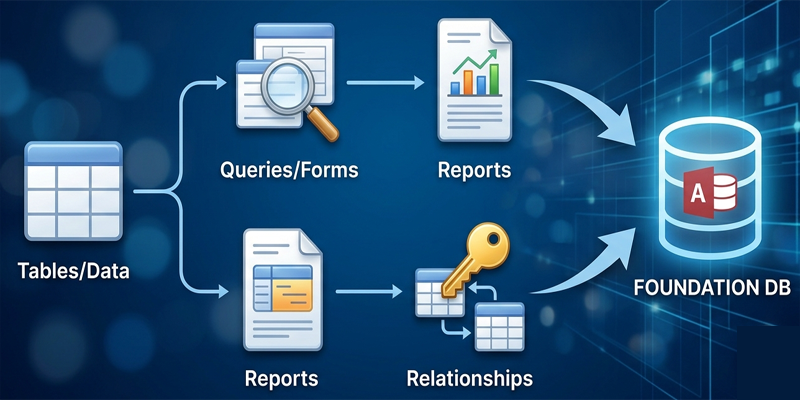
Friends, in this blog post, we have gone through an extensive guide on “Microsoft Access for beginners“. It is very useful application helping us manage and create structured databases without building an application from scratch. Tables are used to store information; relationships define the connection between related records; queries are used to analyse and retrieve the data; forms simplify data entry work; and reports are used to put and present data in an organised manner.
Try creating small projects, such as inventory database, customer register. Learn to design tables correctly, establish the relationship between them, and before moving on to the forms, automation, and reports, properly learn to create queries correctly useful for retrieving the data.
For various everyday administrative and business tasks, users can easily manage accurate information efficiently using Microsoft Access(Microsoft Access for beginners). But to do it the right way, you need to follow effective database-design practices along with maintaining appropriate backups and access controls.
If you have any queries, you can write to us at support@a5theory.com; we will get back to you ASAP.
Hope! You will have enjoyed this post, “Microsoft Access for beginners“.
Please feel free to share your feedback in the comments below.
Have a great time!