

Hello Friends, in this blog post, we are going to discuss “How to use Microsoft Office“.
Microsoft Office is very popular & useful software application suites which is very productive and used across the world.
It provides various fascinating applications that greatly help users to manage information, create documents,…
…prepare presentations, communicate through email, collaborate with others or a team, and organise data.
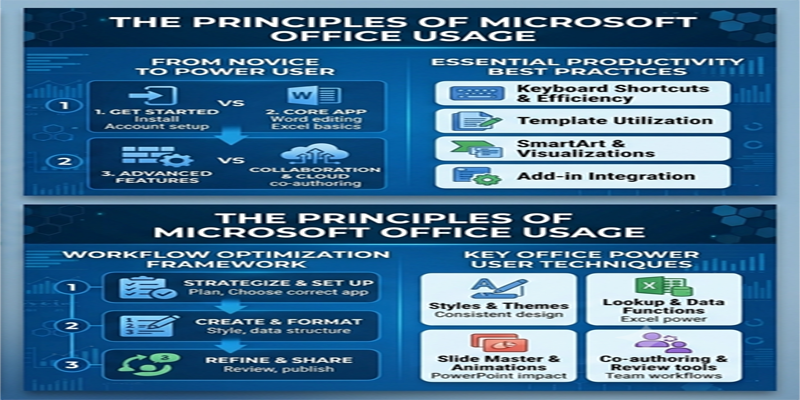
Microsoft Office includes numerous useful tools for different requirements. It greatly helps school students prepare an assignment…
…College students working on a project, an employee handling office responsibilities, or a business person managing everyday operations or tasks.
One can easily organise work more efficiently and improve productivity using these amazing…
…applications or services such as Microsoft Word, Excel, PowerPoint, Outlook, OneNote, Access, and Microsoft 365.
Being aware of only the names of applications is not enough; Microsoft Office will only be worth…
…you for its amazing value when you fully understand when and how each application can be used.
In this post, we are going to see “How to use Microsoft Office“.
Here we will explore the use of Microsoft Office related to school, college, office work, and business, along with some practical examples, useful workflows, and a few productive tips.
1. Understanding Microsoft Office and Its Applications
Microsoft Office traditionally refers to Microsoft’s productivity applications, including Word, Excel, and PowerPoint. Microsoft 365 is Microsoft’s subscription-based productivity service, which includes Office applications and additional cloud-based services depending on the plan.
The available applications and features depend on your Office edition, subscription, device, and account.
Here are some of the most commonly used applications:
| Application | Main purpose |
|---|---|
| Microsoft Word | Creating and editing documents |
| Microsoft Excel | Managing data and calculations |
| Microsoft PowerPoint | Creating presentations |
| Microsoft Outlook | Managing emails and calendars |
| Microsoft OneNote | Taking and organising notes |
| Microsoft Access | Managing relational databases |
| Microsoft Forms | Creating surveys and quizzes |
| Microsoft OneDrive | Storing and sharing files |
| Microsoft SharePoint | Managing organisational content and collaboration |
Each application solves a different type of problem. You can also combine multiple applications to complete larger tasks.
2. How to Use Microsoft Office for School Students
Microsoft Office can help school students complete assignments, organise study materials, prepare presentations, and practise basic computer skills.
Students do not need advanced knowledge to start. Learning the basic functions of Word, Excel, and PowerPoint can provide a strong foundation.
A. Use Microsoft Word for School Assignments
Word is useful for preparing homework, essays, reports, applications, and written projects.
For example, a student preparing a science assignment can use Word to:
- Create a title page.
- Add headings and subheadings.
- Insert pictures and diagrams.
- Create tables for observations.
- Add page numbers.
- Check spelling and grammar.
- Save or export the assignment as a PDF.
Practical example: Suppose a student needs to prepare a 10-page project on environmental pollution. Word can be used to organise the project into sections such as introduction, causes, effects, prevention, conclusion, and references.
Using consistent headings and formatting makes the assignment easier to read.
B. Use Microsoft PowerPoint for Classroom Presentations
PowerPoint helps students explain topics visually.
Students can create presentations for subjects such as science, history, geography, mathematics, and computer studies.
Useful features include:
- Ready-made presentation themes.
- Text and image insertion.
- Charts and diagrams.
- Transitions and animations.
- Speaker notes.
- Slide layouts.
Practical example: A student preparing a presentation about the solar system can create separate slides for the Sun, planets, moons, and other objects. Images and diagrams can make the topic easier to understand.
C. Use Microsoft Excel for Basic Calculations
Excel can help students understand numbers, organise information, and perform calculations.
Students can use it for:
- Maintaining marksheets.
- Calculating percentages.
- Creating attendance records.
- Preparing simple budgets.
- Creating charts.
- Organising examination results.
For example, students can enter marks for different subjects and calculate the total using:
=SUM(B2:F2)
To calculate a percentage when the maximum marks are 500:
=G2/500*100
Excel also helps students learn basic data analysis and spreadsheet concepts.
D. Use OneNote for Study Notes
OneNote is useful for organising digital study material.
Students can create separate notebooks for different subjects and organise their notes into sections and pages.
For example:
- Mathematics notebook
- Science notebook
- English notebook
- Computer studies notebook
Students can add typed notes, pictures, links, and other supported content. Depending on the device, handwriting and drawing features may also be available.
3. How to Use Microsoft Office for College Students
College students often handle more complex academic responsibilities than school students. They may need to prepare research papers, project reports, presentations, datasets, surveys, and group assignments.
Microsoft Office provides tools for these activities.
A. Prepare College Projects and Reports in Word
Word is useful for creating structured academic documents.
Common college documents include:
- Project reports.
- Research papers.
- Internship reports.
- Laboratory records.
- Seminar reports.
- Assignments and dissertations.
Some useful Word features include:
Styles: Apply consistent heading formats throughout a document.
Table of Contents: Generate a table of contents using heading styles.
References: Insert citations and manage bibliographies using supported referencing tools.
Page Layout: Configure margins, page size, orientation, and spacing.
Headers and Footers: Add page numbers, document titles, and other information.
Track Changes: Review edits and collaborate with other people.
Using these features can make lengthy academic documents more professional and easier to manage.
B. Analyse Research Data in Excel
College students studying commerce, economics, science, statistics, management, and other subjects may need to analyse data.
Excel can help with:
- Survey result analysis.
- Statistical calculations.
- Graphs and charts.
- Budget preparation.
- Experimental observations.
- Financial calculations.
- Data sorting and filtering.
For example, a management student conducting a customer satisfaction survey can enter responses into Excel, calculate average ratings, and create charts to present the findings.
Students working with larger datasets can also explore PivotTables, lookup functions, and Power Query.
C. Create Professional Seminar Presentations
PowerPoint is useful for college seminars, project demonstrations, viva presentations, and classroom discussions.
A professional academic presentation generally includes:
- Title and introduction.
- Problem statement or objective.
- Main concepts or methodology.
- Research findings or results.
- Charts, diagrams, or examples.
- Conclusion.
- References or acknowledgements, where appropriate.
Avoid putting too much text on one slide. Use clear headings, readable fonts, and relevant visuals.
D. Conduct Surveys Using Microsoft Forms
Microsoft Forms can be used to create online questionnaires, quizzes, and feedback forms, depending on account availability.
For example, students conducting a research project can create a questionnaire, share it with participants, and collect responses.
Responses can be reviewed through Forms and, where supported, exported to Excel for further analysis.
This creates a useful workflow:
Microsoft Forms → Excel → PowerPoint
Forms collects the data, Excel analyses it, and PowerPoint presents the findings.
4. How to Use Microsoft Office for Office Work and Professional Jobs
Microsoft Office is important in many professional environments. Employees use its applications for documentation, reporting, communication, scheduling, and data management.
Different departments may use Office in different ways.
A. Microsoft Word for Official Documentation
Word is commonly used for preparing professional documents.
Examples include:
- Business letters.
- Office notices.
- Meeting minutes.
- Project reports.
- Proposals.
- Contracts and agreements.
- Employee documentation.
- Standard operating procedures.
Employees can use templates, tables, styles, page numbers, and headers to create consistent documents.
Mail Merge is particularly useful when an organisation needs to generate multiple personalised letters, labels, or certificates.
B. Microsoft Excel for Office Reporting
Excel is one of the most useful applications for handling office data.
Employees can use it for:
- Attendance tracking.
- Employee records.
- Sales reports.
- Expense management.
- Inventory management.
- Monthly performance reports.
- Financial calculations.
- Data analysis.
Some important Excel functions include:
| Function | Use |
|---|---|
| SUM | Adds numbers |
| AVERAGE | Calculates an average |
| COUNT | Counts cells containing numbers |
| IF | Performs logical tests |
| COUNTIF | Counts cells matching a condition |
| SUMIF | Adds values matching a condition |
| XLOOKUP | Searches for a value and returns a corresponding result |
| IFERROR | Handles formula errors |
Practical example: Employee attendance report
An HR employee can create an Excel workbook containing:
- Employee ID.
- Employee name.
- Department.
- Working days.
- Present days.
- Absent days.
- Attendance percentage.
An attendance percentage can be calculated using:
=E2/D2*100
The employee can then use conditional formatting to highlight attendance below a specified percentage.
C. PowerPoint for Meetings and Business Reports
PowerPoint is useful for presenting information during office meetings, management reviews, client discussions, and training sessions.
Employees can create presentations covering:
- Monthly sales performance.
- Project progress.
- Business strategies.
- Financial summaries.
- Department targets.
- Product demonstrations.
Excel charts can be used in PowerPoint to present numerical information visually.
A good presentation should focus on important information rather than displaying every detail from the original report.
D. Outlook for Professional Communication
Outlook helps employees manage professional emails and schedules.
Common uses include:
- Sending and receiving emails.
- Managing contacts.
- Scheduling meetings.
- Sending calendar invitations.
- Organising messages into folders.
- Managing tasks and reminders, where supported.
Employees should use clear subject lines, professional language, and appropriate email etiquette.
E. OneNote for Meeting Notes
OneNote can help employees maintain organised digital notes.
For example, an employee can create separate sections for:
- Daily meetings.
- Project planning.
- Client discussions.
- Training notes.
- Department activities.
It can be useful for keeping information organised and accessible across supported devices.
5. How to Use Microsoft Office for Business
Businesses can use Microsoft Office to manage daily operations, prepare financial reports, communicate with customers, organise information, and collaborate with employees.
Small businesses can begin with Word, Excel, and PowerPoint. Organisations with more complex requirements may also use Microsoft 365, SharePoint, Access, Forms, and other services.
A. Use Word for Business Documents
Business owners can use Word to create:
- Quotations.
- Invoices and billing documents.
- Business proposals.
- Company policies.
- Customer letters.
- Employee offer letters.
- Agreements and reports.
Templates can help maintain consistent formatting across documents.
For repetitive documents, Mail Merge can generate personalised letters or labels using information stored in an Excel list.
B. Use Excel for Accounting and Financial Management
Excel can support many basic business calculations and record-keeping activities.
A small business can use Excel to maintain:
- Daily sales.
- Purchase records.
- Expenses.
- Customer details.
- Stock information.
- Profit and loss estimates.
- Monthly budgets.
For example, a shop owner can create an inventory workbook with columns for product name, opening stock, purchases, sales, and closing stock.
A simple closing-stock formula could be:
=B2+C2-D2
Where:
- B2 represents opening stock.
- C2 represents purchased quantity.
- D2 represents sold quantity.
Excel is useful for basic financial tracking, but it is not a complete replacement for dedicated accounting, tax, inventory, or enterprise resource planning software where those systems are required.
C. Use PowerPoint for Marketing and Sales
Businesses can use PowerPoint to prepare:
- Product presentations.
- Sales proposals.
- Company introductions.
- Investor presentations.
- Training materials.
- Marketing campaign summaries.
For example, a company launching a new product can create a presentation containing product features, benefits, pricing, target customers, and contact information.
D. Use Microsoft Forms for Customer Feedback
Microsoft Forms can help businesses collect customer feedback, registration details, and survey responses.
A business can create a customer satisfaction questionnaire containing questions about:
- Product quality.
- Service experience.
- Delivery time.
- Customer support.
- Overall satisfaction.
The collected responses can help identify areas that need improvement.
E. Use OneDrive and SharePoint for Team Collaboration
OneDrive is useful for storing and sharing files, while SharePoint provides organisational content management and collaboration capabilities.
Businesses can use these services to:
- Store shared documents.
- Collaborate on files.
- Manage document access.
- Organise team resources.
- Maintain document libraries.
- Review supported file versions.
Access permissions should be configured carefully, particularly when documents contain confidential business information.
6. Practical Microsoft Office Workflows
The real value of Microsoft Office becomes clearer when multiple applications are used together.
Here are some practical workflows.
Workflow 1: Student Project Preparation
Applications: Word, Excel, PowerPoint, OneDrive.
- Collect research information.
- Organise numerical information in Excel.
- Prepare the written report in Word.
- Create the final presentation in PowerPoint.
- Store the project files in OneDrive.
This workflow helps students manage research, documentation, calculations, and presentations in an organised way.
Workflow 2: Monthly Office Performance Report
Applications: Excel, Word, PowerPoint, Outlook.
- Collect monthly performance data.
- Organise and calculate results in Excel.
- Create charts and summaries.
- Prepare a detailed report in Word.
- Present the main findings in PowerPoint.
- Send the report through Outlook.
This process can make monthly reporting more structured and efficient.
Workflow 3: Small Business Sales Management
Applications: Excel, Word, Outlook, OneDrive.
- Maintain customer and sales information in Excel.
- Prepare quotations and business documents in Word.
- Communicate with customers through Outlook.
- Store important files in OneDrive.
- Review sales performance using Excel charts.
As the business grows, dedicated business software may be needed for more advanced accounting, inventory, and customer relationship management.
Workflow 4: Employee Recruitment
Applications: Word, Excel, Forms, Outlook.
- Prepare a job description in Word.
- Create an application form using Microsoft Forms.
- Organise candidate details in Excel.
- Schedule interviews using Outlook.
- Prepare selection documents in Word.
This workflow can help an HR team organise recruitment activities.
7. Microsoft Office Skills That Can Improve Your Career
Learning Microsoft Office can be useful when applying for jobs and performing professional responsibilities.
Many employers expect candidates to have basic computer and productivity skills. The level of proficiency required depends on the role.
Here are some valuable skills to develop:
| Skill | Useful applications |
|---|---|
| Document formatting | Word |
| Spreadsheet management | Excel |
| Formulas and functions | Excel |
| Data analysis | Excel |
| Presentation design | PowerPoint |
| Email communication | Outlook |
| Digital note-taking | OneNote |
| File sharing | OneDrive |
| Team collaboration | Microsoft 365 and SharePoint |
| Database fundamentals | Access |
Beginner-Level Skills
Start with:
- Creating and saving documents.
- Basic text formatting.
- Creating simple spreadsheets.
- Performing calculations.
- Creating basic presentations.
- Sending and receiving emails.
- Organising files and folders.
Intermediate-Level Skills
After learning the basics, practise:
- Word styles and page formatting.
- Excel formulas and functions.
- Sorting and filtering.
- Charts and PivotTables.
- PowerPoint themes and layouts.
- Outlook calendar management.
- Cloud file sharing.
Advanced-Level Skills
For more specialised roles, explore:
- Advanced Excel functions.
- Power Query.
- Macros and VBA.
- Word Mail Merge.
- PowerPoint Slide Master.
- Access databases.
- Microsoft 365 collaboration tools.
- Microsoft Copilot features, where available.
You do not need to master every application. Focus on the tools most relevant to your education, job, or business.
8. Useful Microsoft Office Productivity Tips
You can improve your productivity by following a few simple habits.
Learn Keyboard Shortcuts
Keyboard shortcuts reduce the time spent navigating menus.
Some useful shortcuts include:
| Shortcut | Function |
|---|---|
| Ctrl + C | Copy |
| Ctrl + V | Paste |
| Ctrl + X | Cut |
| Ctrl + Z | Undo |
| Ctrl + S | Save |
| Ctrl + A | Select all |
| Ctrl + P | |
| Ctrl + F | Find |
| Ctrl + H | Replace |
| Ctrl + B | Bold |
| Ctrl + I | Italic |
| Ctrl + U | Underline |
Use Templates
Templates can save time when creating frequently used documents, reports, presentations, and spreadsheets.
Instead of designing every file from scratch, use a suitable template and customise it.
Organise Files Properly
Create folders based on subjects, projects, departments, or financial years.
For example:
- School Projects
- College Assignments
- Office Reports
- Business Documents
- Financial Records
- Presentations
Use meaningful file names so documents are easy to locate.
Save and Back Up Important Work
Save your work regularly and maintain backups of important files.
If you use OneDrive or SharePoint, understand how synchronisation, version history, and file recovery work. Cloud synchronisation is useful, but it should not be treated as the only backup for critical information.
Practise with Real Projects
The best way to learn Microsoft Office is through practical use.
Create a marksheet, prepare a report, design a presentation, maintain an expense tracker, or build a simple customer database.
Practical projects help you understand how features work in real situations.
9. Which Microsoft Office Applications Should You Learn First?
If you are new to Microsoft Office, learning every application at once can be confusing.
A sensible learning order is:
| Learning order | Application | Why learn it? |
|---|---|---|
| 1 | Word | Essential document creation |
| 2 | Excel | Calculations and data management |
| 3 | PowerPoint | Presentations and communication |
| 4 | Outlook | Email and scheduling |
| 5 | OneNote | Organising notes |
| 6 | OneDrive | Cloud storage and sharing |
| 7 | Forms | Surveys and data collection |
| 8 | Access | Database management |
For most beginners, Word, Excel, and PowerPoint provide the strongest starting point.
After becoming comfortable with these applications, learn the tools that match your specific requirements.
10. Microsoft Office vs Microsoft 365: What Should You Use?
Microsoft offers different ways to access its productivity applications.
Microsoft 365 is a subscription-based service that provides access to applications and services according to the selected plan. Some plans include desktop applications, cloud storage, collaboration features, and additional services.
Standalone Office editions are generally purchased for a one-time licence and provide the applications and features included in that specific edition.
Consider Microsoft 365 if you need subscription-based access, cloud services, collaboration features, or multiple supported devices.
Consider a standalone Office edition if you prefer a one-time purchase and its included applications meet your requirements.
Before purchasing, check the current plan details, supported devices, licence conditions, storage allowances, and included features on Microsoft’s official website.
11. Frequently Asked Questions (FAQs)
1. Which Microsoft Office application is most important for students?
Word, Excel, and PowerPoint are particularly useful for students. Word helps prepare assignments, Excel supports calculations and data management, and PowerPoint helps create classroom presentations.
2. Is Microsoft Office useful for getting a job?
Yes. Microsoft Office skills are useful in many roles, including administration, accounting, HR, sales, management, education, and data-related work. However, the required skill level depends on the job.
3. Can a small business run using Microsoft Office?
Microsoft Office can support many basic business activities, such as documentation, sales tracking, expense records, presentations, and communication. Businesses with more complex requirements may need dedicated accounting, inventory, or management software.
4. Should I learn Word or Excel first?
Beginners can start with Word to understand document creation and formatting. However, Excel is particularly valuable for roles involving data, calculations, accounts, and reporting. Learning both is recommended.
5. Can Microsoft Office be used on mobile phones?
Yes. Microsoft provides mobile applications for supported devices. Available features depend on the application, device, account, and subscription.
6. What is the difference between OneDrive and SharePoint?
OneDrive is primarily designed for individual file storage and sharing, while SharePoint is designed for organisational content management, shared document libraries, and team collaboration. Both can support collaborative work.
7. How long does it take to learn Microsoft Office?
Basic skills can be learned relatively quickly with regular practice. Developing intermediate and advanced skills may take several weeks or months, depending on your learning schedule and the complexity of the features.
Conclusion
Friends, in this blog post, we have fully understood “How to use Microsoft Office“. For students, college learners, professionals, and businesses, Microsoft Office proves to be an amazing and valuable productivity toolkit. You can easily create documents using Word; Excel helps you manage data and calculations; and PowerPoint lets you communicate your ideas in an interactive way. And OneNote, Outlook, Forms, OneDrive, and SharePoint are some of those applications that truly support additional work requirements.
If you want to get a good command over these amazing Microsoft Office applications, you should first focus on the basic features and gradually learn some advanced functions. Regular practice with real assignments, reports, presentations, spreadsheets, and business activities will greatly help you develop useful skills with ease.
Microsoft Office offers you various outstanding tools that greatly help you to make your daily work organised and efficient. It could greatly help you complete school projects, prepare college reports, improve workplace productivity, or manage a small business effortlessly.
Start with Word, Excel, and PowerPoint, practise regularly, and expand your skills according to your needs.
If you have any questions, email us at support@a5theory.com, and we will get back to you ASAP.
Hope! You will have enjoyed this post.
Please feel free to share your feedback in the comments below.
Have a great time!