

Hello Friends! In this blog post, we are going to talk about “Microsoft Office Security and Troubleshooting“.
Microsoft Office is a very fascinating and popular application across the world.
Users frequently use it for creating documents, preparing presentations, managing spreadsheets, handling business information, and sending emails.
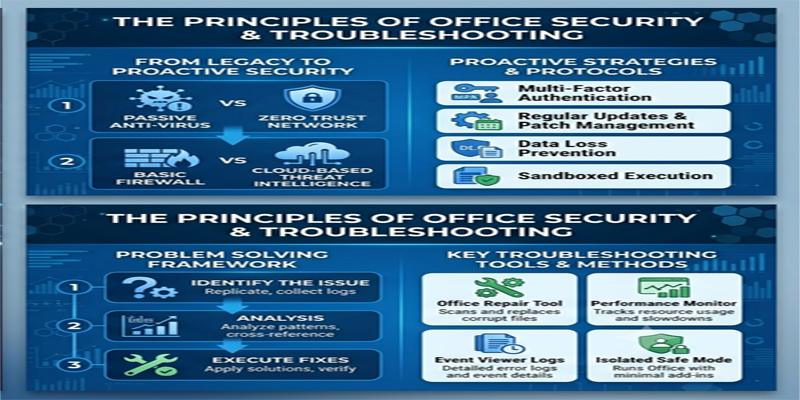
These amazing and useful applications such as Word, Excel, PowerPoint, and Outlook make our daily work very simple and easy.
But it is equally essential to have proper security practices and occasional troubleshooting using these applications.
The protection of your files and account is very important and should be kept top of mind while using either Microsoft 365 or a standalone version of Microsoft Office.
We should watch for suspicious email attachments, weak passwords, unsafe downloads, or outdated applications, as these can increase the risk of exposing our information.
At the same time your work can be interrupted by some problems such as Office activation errors, application crashes, formatting issues, and missing files.
In this post, we are going to dive deep into “Microsoft Office security and troubleshooting“.
Here we will see the process of Microsoft Office security improvement, documents protection, and step by step solution of common problems.
1. Why Microsoft Office Security Is Important
Office documents often contain personal, educational, financial, and business information. For example:
- Word documents may contain contracts, reports, personal details, and business plans.
- Excel workbooks may contain budgets, salary information, customer records, and financial calculations.
- PowerPoint presentations may include confidential business strategies or project information.
- Outlook may contain private emails, attachments, contacts, and calendar details.
If these files or the account used to access them are compromised, sensitive information could be exposed or lost.
Good security practices help reduce risks such as unauthorised access, phishing attacks, malicious attachments, accidental file sharing, and data loss.
2. Protect Your Microsoft Account
Your Microsoft account may provide access to Microsoft 365, OneDrive, Outlook, and other Microsoft services. Protecting it is one of the most important steps in securing your Office environment.
Use a Strong Password
Create a password that is difficult to guess. Avoid using your name, date of birth, mobile number, or simple combinations such as 123456.
A strong password should:
- Be long and difficult to predict.
- Avoid commonly used words and personal information.
- Be different from passwords used on other websites.
- Be stored securely in a trusted password manager if necessary.
Never share your password through email, messages, or phone calls.
Enable Two-Step Verification
Two-step verification, also called multifactor authentication (MFA), adds another layer of protection to your account.
When enabled, signing in may require an additional verification method, such as an authentication app, security key, or another supported method.
Even if someone obtains your password, the additional verification step can make unauthorised access more difficult.
Review Account Activity
Periodically review your Microsoft account’s recent sign-in activity. Look for unfamiliar devices, locations, or sign-in attempts.
If you notice suspicious activity, secure your account by changing your password, reviewing verification methods, and following Microsoft’s account recovery and security guidance.
3. Download and Install Office from Trusted Sources
One common security mistake is downloading Microsoft Office from unofficial websites.
Unofficial installers may contain unwanted software, modified application files, or malware. Some websites also distribute fake activation tools that can compromise your computer.
Follow these precautions:
- Download Microsoft 365 or Office from Microsoft’s official website or an authorised retailer.
- Avoid unknown websites offering free premium Office versions.
- Do not install suspicious activation tools or modified installers.
- Check the publisher before installing software.
- Keep your Windows operating system and security software updated.
If you already have Office installed, use your Microsoft account or the official Microsoft installation process to manage your subscription or installation.
4. Avoid Phishing Emails and Suspicious Attachments
Phishing is a common online threat in which attackers try to trick users into revealing passwords, financial information, or other sensitive details.
You may receive an email pretending to come from Microsoft, a bank, a delivery company, or a colleague. It may ask you to verify your account, download an attachment, or click a link urgently.
Be careful when an email:
- Creates unnecessary urgency or threatens account closure.
- Requests your password or verification code.
- Contains unexpected attachments.
- Uses an unfamiliar sender address.
- Includes links to websites that do not match the claimed organisation.
Do not open suspicious attachments or enable macros just because an email tells you to do so. If a message claims to be from Microsoft, visit Microsoft’s website directly rather than following an unexpected sign-in link.
5. Keep Microsoft Office Updated
Software updates can provide security fixes, bug fixes, and improvements. Using outdated Office applications may leave known problems unresolved.
For Microsoft 365 desktop applications, you can generally check for updates through an Office application:
- Open Word, Excel, or PowerPoint.
- Select File.
- Open Account or Office Account.
- Select Update Options.
- Choose Update Now, if available.
The exact options may vary by Office version and installation type.
Standalone Office editions may receive updates through different mechanisms, including Windows Update, depending on the version and configuration.
You should also keep Windows, your web browser, and your security software updated.
6. Protect Word, Excel, and PowerPoint Documents
Office provides several features that can help protect documents and reduce accidental changes.
Protect Word Documents
If you are working with an important Word document, consider using the available editing restrictions or password-protection options.
Depending on your version, you can explore:
- Restrict Editing to limit certain changes.
- Password protection to control access to a file.
- Read-only recommendations to discourage accidental editing.
- Document permissions when working through supported Microsoft 365 services.
Remember that password protection and editing restrictions serve different purposes. A read-only recommendation does not provide strong security, and anyone who can access an unencrypted copy may still be able to share it.
Protect Excel Workbooks
Excel includes worksheet and workbook protection features.
You can use them to:
- Prevent accidental changes to formulas.
- Restrict editing of selected cells.
- Protect workbook structure.
- Control which areas users can modify.
To protect a worksheet, open the Review tab and select Protect Sheet. Follow the available options to configure protection.
Worksheet protection is primarily intended to control editing, not to provide strong encryption for confidential data.
Protect PowerPoint Presentations
PowerPoint presentations may contain confidential business information. Consider using supported password-protection features or appropriate sharing permissions.
Before sending a presentation externally, check for confidential notes, hidden slides, comments, and other information that should not be shared.
7. Share Files Safely Through OneDrive and SharePoint
Microsoft 365 users often collaborate through OneDrive and SharePoint. These services make it easier to share documents and work with other people, but incorrect sharing settings can expose files to unintended recipients.
Follow these practices:
- Share files only with people who need access.
- Prefer specific-person sharing links when appropriate.
- Avoid public or organisation-wide links for confidential information.
- Review access permissions regularly.
- Remove access when a project or collaboration ends.
- Be careful when forwarding links outside your organisation.
Before sharing a file, check the link settings and confirm who can open or edit it. Your organisation may also apply sharing restrictions through its administrator.
8. Common Microsoft Office Problems and Their Solutions
Even when Office is installed correctly, you may occasionally experience technical problems. The following solutions can help resolve common issues.
Problem 1: Microsoft Office Is Not Opening
Sometimes Word, Excel, or PowerPoint may fail to start or close immediately.
Possible solutions:
- Restart your computer.
- Check whether Windows has pending updates.
- Try opening the application in Safe Mode, if supported.
- Disable recently installed add-ins if they appear to be causing the problem.
- Repair your Office installation.
To open an Office application in Safe Mode on Windows, press Windows + R, enter winword /safe for Word or excel /safe for Excel, and press Enter.
If the application works in Safe Mode, an add-in or customised setting may be responsible.
Problem 2: Microsoft Office Activation Error
You may see an activation warning even after installing Office.
Possible reasons include:
- You signed in with the wrong Microsoft account.
- Your Microsoft 365 subscription has expired.
- Your product key was entered incorrectly.
- The installed Office edition does not match your licence.
- Your internet connection or activation service is temporarily unavailable.
How to troubleshoot:
- Open Word or Excel.
- Go to File → Account.
- Check which account is signed in.
- Confirm that the account has the required licence or subscription.
- Check your internet connection.
- Sign out and sign in again if appropriate.
If you use a product key, confirm that it belongs to the Office edition installed on your computer. Avoid unofficial activation software.
Problem 3: Word, Excel, or PowerPoint Is Running Slowly
Office applications may become slow when working with large files, multiple applications, or complex documents.
Try these steps:
- Close unnecessary applications.
- Restart your computer.
- Install available Office updates.
- Disable unnecessary add-ins.
- Check available disk space.
- Reduce unnecessary formatting and oversized images in documents.
- Check whether the problem occurs with only one file or with every file.
If only one document is slow, it may contain complex formatting, large images, embedded objects, or damaged content.
Problem 4: Excel Formulas Are Not Calculating
If Excel displays an old result instead of updating a formula, check the calculation settings.
- Open the Formulas tab.
- Select Calculation Options.
- Choose Automatic if appropriate.
- Press F9 to recalculate the workbook.
Also check whether the formula contains correct cell references and whether numbers have accidentally been stored as text.
Problem 5: Word Document Formatting Changes
Formatting may change when a document is opened on another computer or in a different Office version.
Possible causes include missing fonts, different page settings, incompatible features, or changes to the document’s styles.
To reduce formatting problems:
- Use commonly available fonts.
- Apply Word styles consistently.
- Check margins and page layout.
- Use PDF when you need to share a document in a format that preserves its appearance.
- Keep an editable DOCX copy when further changes may be required.
Problem 6: PowerPoint Presentation Is Not Playing Properly
A presentation may show missing fonts, unsupported media, or playback problems.
Try updating PowerPoint, checking the inserted media files, and testing the presentation on the computer that will be used for the actual presentation.
If you use audio or video, verify that the media is supported and available. Consider using PowerPoint’s compatibility and media optimisation options where appropriate.
9. How to Repair Microsoft Office
If Office applications continue crashing, freezing, or displaying errors, repairing the installation may help.
On supported Windows installations:
- Open Windows Settings.
- Select Apps → Installed apps.
- Find Microsoft 365 or Microsoft Office.
- Select the three-dot menu or the available modification option.
- Choose Modify.
- Select Quick Repair and follow the instructions.
If Quick Repair does not solve the issue, try Online Repair, if available.
Online Repair may require an internet connection and can take longer. The exact options depend on your Office installation and Windows version.
After the repair process, restart the computer and test the applications again.
10. Recover Deleted or Unsaved Office Files
Losing an important document can be frustrating, but several recovery options may be available.
Recover Unsaved Word Documents
Open Word and look for the document recovery options under:
File → Info → Manage Document → Recover Unsaved Documents
The exact menu may vary by version.
Use OneDrive Version History
If your document is stored in OneDrive or SharePoint, you may be able to restore an earlier version.
Find the file, open its version history, and review available versions before restoring one.
Check the Recycle Bin
If a file was deleted from OneDrive or Windows, check the relevant Recycle Bin. Recovery availability depends on the service, account settings, and retention period.
For important work, do not rely on recovery features alone. Maintain separate backups of essential files.
11. Best Practices for Microsoft Office Security
Follow this checklist to improve the security and reliability of your Office applications.
- Use a strong, unique Microsoft account password.
- Enable multifactor authentication.
- Keep Office and Windows updated.
- Download software only from trusted sources.
- Avoid suspicious email links and attachments.
- Do not enable unknown macros.
- Protect confidential documents appropriately.
- Review OneDrive and SharePoint sharing permissions.
- Back up important documents regularly.
- Use trusted security software and scan suspicious files.
- Remove unnecessary add-ins and applications.
- Keep recovery information for your Microsoft account up to date.
These simple habits can help prevent many common security and technical problems.
12. Frequently Asked Questions (FAQs)
1. Is Microsoft Office safe to use?
Yes. Genuine Microsoft Office applications include security features and receive updates according to their product lifecycle. However, users should still follow safe computing practices, use trusted downloads, and protect their accounts.
2. How can I protect an Excel file with a password?
In supported Excel desktop versions, open the workbook and select File → Info → Protect Workbook → Encrypt with Password. Enter and confirm your password. Store it securely because Microsoft may not be able to recover a forgotten password.
3. Why does Microsoft Office keep asking me to activate?
This may happen because you are signed in with an account that does not have the required licence, your subscription has expired, or the installed edition does not match your licence. Check your account and activation status under File → Account.
4. Can I recover a deleted Word document?
Possibly. Check the Recycle Bin, OneDrive version history, and Word’s unsaved document recovery options. Recovery depends on where the file was stored and whether a recoverable copy exists.
5. What should I do if Microsoft Office keeps crashing?
Restart your computer, update Office, disable problematic add-ins, and try repairing the installation. If the problem continues, check whether a particular document or application is causing it.
6. Is it safe to enable macros in Excel?
Only enable macros when you trust the source and understand why the macro is required. Malicious macros can execute harmful actions, so never enable them simply because an unexpected document asks you to.
Conclusion
Friends, in this post, we have fully understood the concept of “Microsoft Office security and troubleshooting“. Installing antivirus software or creating a password could be basic protection steps, but not enough to provide complete security. However, it also requires protecting your Microsoft account, downloading software from trusted sources, keeping applications updated, handling email attachments carefully, and controlling access to important documents.
You should be aware of some basic and common errors or problems, such as activation errors, application crashes, slow performance, file recovery, and formatting issues, and their troubleshooting methods(Microsoft Office security and troubleshooting).
Students, professionals, and businesses can easily use Microsoft Office safely and reduce interruptions to their everyday work if they closely follow the useful practices(Microsoft Office security and troubleshooting) explained in this extensive blog post.
If you have any questions, email us at support@a5theory.com, and we will get back to you ASAP.
Hope! You will have enjoyed this post, “Microsoft Office security and troubleshooting“.
Please feel free to share your feedback in the comments below.
Have a great time!