

Hello Friends, in this blog post, we are going to let you know about “Microsoft Office Keyboard Shortcuts“.
These keyboard shortcuts are key factors in boosting the productivity of Microsoft Office with ease.
Using these amazing key combinations, you can easily get rid of certain problems like searching for commands, repeatedly opening menus, and clicking through options.
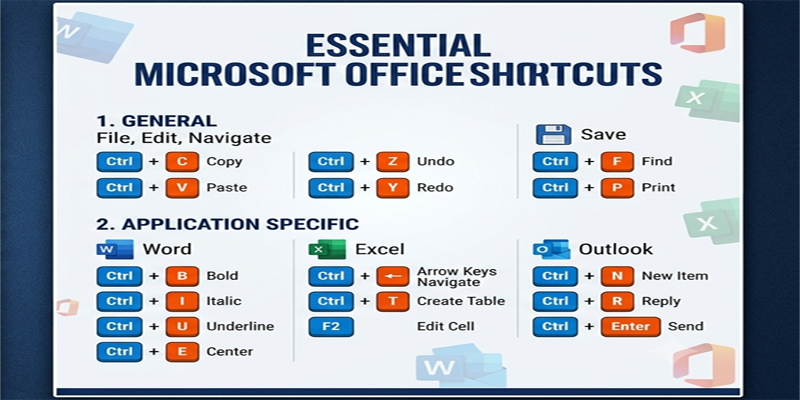
Learning these fascinating keyboard shortcuts definitely saves you time and makes your work more efficient, whether it is to…
…analyse information in Excel, write documents in Microsoft Word, create presentations in PowerPoint, or manage emails in Outlook.
For formatting, editing, navigating, managing files, and performing advanced operations, there are hundreds of keyboard shortcuts provided by Microsoft Office.
But you don’t need to memorise all of them at once. You can start with frequently used combinations and gradually learn the keyboard shortcuts that are relevant to your everyday work.
In this post, we are going to explore some amazing and useful “Microsoft Office Keyboard Shortcuts“. Here we will see their working along with some practical examples.
1. What Are Microsoft Office Keyboard Shortcuts?
A keyboard shortcut is a combination of keys that performs a particular action in an application.
For example:
- Ctrl + C: Copy selected content.
- Ctrl + V: Paste copied content.
- Ctrl + X: Cut selected content.
- Ctrl + Z: Undo the previous action.
- Ctrl + S: Save the current file.
- Ctrl + A: Select all content.
These shortcuts are commonly supported across Microsoft Office applications and many other Windows programs.
Keyboard shortcuts are useful because they:
- Reduce dependence on the mouse.
- Save time when performing repetitive tasks.
- Improve document editing speed.
- Make spreadsheet navigation easier.
- Help create presentations more efficiently.
- Support smoother email management.
Note: This guide primarily covers Windows keyboard shortcuts. On Mac computers, the Command key is commonly used instead of Ctrl for many equivalent actions. Some shortcuts may also differ depending on the Office version, application, keyboard layout, and settings.
2. Essential Keyboard Shortcuts for All Office Applications
These are some of the most important shortcuts to learn first. Many work in Word, Excel, PowerPoint, Outlook, and other Windows applications.
| Shortcut | Function |
|---|---|
| Ctrl + C | Copy selected content |
| Ctrl + X | Cut selected content |
| Ctrl + V | Paste content |
| Ctrl + Z | Undo the last action |
| Ctrl + Y | Redo or repeat an action |
| Ctrl + A | Select all |
| Ctrl + S | Save |
| Ctrl + P | |
| Ctrl + F | Find |
| Ctrl + H | Find and replace |
| Ctrl + N | Create a new file or window, depending on the app |
| Ctrl + O | Open a file |
| Ctrl + W | Close the current document or window |
| Ctrl + B | Apply bold formatting |
| Ctrl + I | Apply italic formatting |
| Ctrl + U | Apply underline formatting |
| Ctrl + K | Insert or edit a hyperlink in supported Office apps |
| Ctrl + Home | Move to the beginning of a document or relevant content area |
| Ctrl + End | Move to the end of a document or relevant content area |
| Alt + Tab | Switch between open applications |
| F1 | Open Help |
These shortcuts form the foundation of efficient computer use. If you are a beginner, practise them regularly before moving to application-specific shortcuts.
3. Microsoft Word Keyboard Shortcuts
Microsoft Word is used to create letters, reports, assignments, resumes, proposals, and professional documents. Keyboard shortcuts make typing, editing, formatting, and navigating documents much faster.
A. Text Formatting Shortcuts
| Shortcut | Function |
|---|---|
| Ctrl + B | Bold text |
| Ctrl + I | Italic text |
| Ctrl + U | Underline text |
| Ctrl + Shift + D | Double underline |
| Ctrl + Shift + W | Underline words but not spaces |
| Ctrl + Shift + > | Increase font size |
| Ctrl + Shift + < | Decrease font size |
| Ctrl + ] | Increase font size by one point |
| Ctrl + [ | Decrease font size by one point |
| Ctrl + Shift + C | Copy formatting |
| Ctrl + Shift + V | Paste formatting |
| Ctrl + Spacebar | Remove direct character formatting |
B. Paragraph Formatting Shortcuts
| Shortcut | Function |
|---|---|
| Ctrl + L | Align text left |
| Ctrl + E | Centre-align text |
| Ctrl + R | Align text right |
| Ctrl + J | Justify text |
| Ctrl + 1 | Single line spacing |
| Ctrl + 2 | Double line spacing |
| Ctrl + 5 | 1.5 line spacing |
| Ctrl + M | Increase paragraph indentation |
| Ctrl + Shift + M | Decrease paragraph indentation |
| Ctrl + T | Create a hanging indent |
| Ctrl + Shift + T | Reduce a hanging indent |
| Ctrl + Shift + N | Apply Normal style |
C. Document Navigation Shortcuts
| Shortcut | Function |
|---|---|
| Ctrl + Home | Go to the beginning of the document |
| Ctrl + End | Go to the end of the document |
| Ctrl + Left Arrow | Move one word to the left |
| Ctrl + Right Arrow | Move one word to the right |
| Ctrl + Up Arrow | Move to the previous paragraph |
| Ctrl + Down Arrow | Move to the next paragraph |
| Ctrl + Enter | Insert a page break |
| Ctrl + F | Open the Navigation pane or Find feature |
| Ctrl + H | Open Find and Replace |
| Shift + F5 | Move among recent editing locations |
D. Useful Editing Shortcuts
| Shortcut | Function |
|---|---|
| Ctrl + Backspace | Delete the previous word |
| Ctrl + Delete | Delete the next word |
| Shift + F3 | Change selected text between uppercase, lowercase, and title case |
| F7 | Check spelling and grammar |
| Ctrl + Alt + 1 | Apply Heading 1 style |
| Ctrl + Alt + 2 | Apply Heading 2 style |
| Ctrl + Alt + 3 | Apply Heading 3 style |
| Ctrl + Shift + L | Apply a bullet-list style |
Practical example: Suppose you are preparing a 20-page report. You can use Ctrl + Enter to create a new page, Ctrl + E to centre the title, Ctrl + B to highlight important headings, and Ctrl + J to justify paragraphs. These combinations help you format the document without repeatedly opening the ribbon.
4. Microsoft Excel Keyboard Shortcuts
Excel is one of the most widely used spreadsheet applications. It helps users manage data, perform calculations, prepare reports, and analyse information.
Keyboard shortcuts are particularly valuable in Excel because large worksheets can contain thousands of rows and columns.
A. Basic Excel Shortcuts
| Shortcut | Function |
|---|---|
| Ctrl + N | Create a new workbook |
| Ctrl + O | Open a workbook |
| Ctrl + S | Save the workbook |
| Ctrl + P | Print the worksheet or workbook |
| Ctrl + C | Copy selected cells |
| Ctrl + V | Paste copied cells |
| Ctrl + X | Cut selected cells |
| Ctrl + Z | Undo |
| Ctrl + Y | Redo |
| Ctrl + F | Find data |
| Ctrl + H | Find and replace |
B. Cell Formatting Shortcuts
| Shortcut | Function |
|---|---|
| Ctrl + 1 | Open Format Cells dialog box |
| Ctrl + B | Bold selected cells |
| Ctrl + I | Italic formatting |
| Ctrl + U | Underline |
| Ctrl + Shift + $ | Apply currency format |
| Ctrl + Shift + % | Apply percentage format |
| Ctrl + Shift + # | Apply date format |
| Ctrl + Shift + @ | Apply time format |
| Ctrl + Shift +! | Apply number format |
| Ctrl + 5 | Apply strikethrough |
| Alt + H, O, I | AutoFit column width |
| Alt + H, O, A | AutoFit row height |
Some Excel ribbon shortcuts use sequential key presses rather than a simultaneous key combination.
C. Data Navigation Shortcuts
| Shortcut | Function |
|---|---|
| Ctrl + Arrow Key | Move to the edge of a data region |
| Ctrl + Home | Go to the beginning of the worksheet |
| Ctrl + End | Go to the last used cell |
| Home | Move to the beginning of the current row |
| Page Up | Move one screen up |
| Page Down | Move one screen down |
| Ctrl + Page Up | Move to the previous worksheet |
| Ctrl + Page Down | Move to the next worksheet |
| F5 | Open the Go To dialog box |
| Ctrl + G | Open the Go To dialog box |
D. Formula and Calculation Shortcuts
| Shortcut | Function |
|---|---|
| F2 | Edit the active cell |
| Alt + = | Insert AutoSum |
| F4 | Repeat the last action or cycle through reference types while editing a formula |
| Ctrl + ` | Show or hide formulas |
| Shift + F3 | Open the Insert Function dialog box |
| Ctrl + Shift + Enter | Enter an array formula in versions that require this method |
| Ctrl + ; | Insert the current date |
| Ctrl + Shift + ; | Insert the current time |
| Ctrl + D | Fill down |
| Ctrl + R | Fill right |
E. Row and Column Shortcuts
| Shortcut | Function |
|---|---|
| Ctrl + Spacebar | Select the entire column |
| Shift + Spacebar | Select the entire row |
| Ctrl + Shift + + | Insert cells, rows, or columns |
| Ctrl + – | Delete selected cells, rows, or columns |
| Ctrl + 9 | Hide selected rows |
| Ctrl + Shift + 9 | Unhide rows |
| Ctrl + 0 | Hide selected columns |
| Ctrl + Shift + 0 | Unhide columns, subject to Windows settings |
Practical example: Imagine you have an Excel sales report containing 5,000 records. You can use Ctrl + Arrow Key to navigate through data, Ctrl + Shift + Arrow Key to select a large range, Ctrl + 1 to format cells, and Alt + = to calculate totals quickly.
These shortcuts are especially useful for accountants, data analysts, office administrators, and business professionals.
5. Microsoft PowerPoint Keyboard Shortcuts
PowerPoint helps users create presentations for meetings, classroom teaching, business proposals, training sessions, and seminars.
Keyboard shortcuts make it easier to create slides, arrange objects, format text, and deliver presentations.
A. Presentation Creation Shortcuts
| Shortcut | Function |
|---|---|
| Ctrl + N | Create a new presentation |
| Ctrl + M | Insert a new slide |
| Ctrl + D | Duplicate the selected slide or object |
| Ctrl + S | Save the presentation |
| Ctrl + O | Open a presentation |
| Ctrl + P | Print the presentation |
| Ctrl + Z | Undo |
| Ctrl + Y | Redo |
| Ctrl + A | Select all objects in the current context |
| Ctrl + K | Insert a hyperlink |
B. Text and Object Formatting
| Shortcut | Function |
|---|---|
| Ctrl + B | Bold text |
| Ctrl + I | Italic text |
| Ctrl + U | Underline text |
| Ctrl + E | Centre-align text |
| Ctrl + L | Left-align text |
| Ctrl + R | Right-align text |
| Ctrl + Shift + > | Increase font size |
| Ctrl + Shift + < | Decrease font size |
| Ctrl + G | Group selected objects |
| Ctrl + Shift + G | Ungroup selected objects |
| Ctrl + D | Duplicate selected object |
C. Slide Show Shortcuts
| Shortcut | Function |
|---|---|
| F5 | Start slideshow from the beginning |
| Shift + F5 | Start slideshow from the current slide |
| Esc | End the slideshow |
| Right Arrow | Move to the next slide or animation |
| Left Arrow | Move to the previous slide or animation |
| Spacebar | Advance to the next animation or slide |
| Home | Go to the first slide |
| End | Go to the last slide |
| B | Display a black screen during a slideshow |
| W | Display a white screen during a slideshow |
| Number + Enter | Jump to a specific slide |
Practical example: If you are preparing a business presentation, use Ctrl + M to create slides, Ctrl + D to duplicate a slide layout, and Ctrl + G to group related objects. When presenting, F5 starts the slideshow and Shift + F5 starts from the current slide.
6. Microsoft Outlook Keyboard Shortcuts
Outlook is used for managing emails, calendars, contacts, meetings, and tasks. Shortcuts can make email management faster, particularly when you receive a large number of messages.
The available shortcuts may vary between classic Outlook for Windows and the new Outlook experience.
A. Email Management Shortcuts
| Shortcut | Function |
|---|---|
| Ctrl + N | Create a new email in common Outlook contexts |
| Ctrl + R | Reply to the selected email |
| Ctrl + Shift + R | Reply to all |
| Ctrl + F | Forward the selected email |
| Ctrl + Enter | Send the current email, subject to settings |
| Ctrl + S | Save the email draft |
| Delete | Delete the selected message |
| Ctrl + Shift + M | Create a new email in classic Outlook |
| Ctrl + Shift + I | Open the Inbox in classic Outlook |
| Ctrl + Shift + O | Open the Outbox in classic Outlook |
B. Navigation and Organisation Shortcuts
| Shortcut | Function |
|---|---|
| Ctrl + 1 | Switch to Mail |
| Ctrl + 2 | Switch to Calendar |
| Ctrl + 3 | Switch to Contacts or People |
| Ctrl + 4 | Switch to Tasks or To Do, depending on version |
| Ctrl + E | Search |
| Ctrl + Shift + V | Move an item to a folder in supported contexts |
| Ctrl + Shift + K | Create a new task in classic Outlook |
Important: Outlook shortcuts differ more noticeably between versions than Word or Excel shortcuts. Check the keyboard shortcut reference for the Outlook version you use.
7. Windows Keyboard Shortcuts That Improve Office Productivity
You can also use Windows shortcuts alongside Microsoft Office to manage files, switch applications, and organise your workspace.
| Shortcut | Function |
|---|---|
| Windows + E | Open File Explorer |
| Windows + D | Show or hide the desktop |
| Windows + L | Lock the computer |
| Windows + S | Open Windows Search |
| Windows + V | Open clipboard history, if enabled |
| Windows + Shift + S | Capture a selected area of the screen |
| Windows + Left Arrow | Snap window to the left |
| Windows + Right Arrow | Snap window to the right |
| Windows + Tab | Open Task View |
| Alt + Tab | Switch between open applications |
| Ctrl + Shift + Esc | Open Task Manager |
| Windows + P | Choose a display mode |
Practical example: If you are preparing a report using Word and collecting information from a website, you can use Alt + Tab to switch between applications. Windows + E opens File Explorer, while Windows + Shift + S helps capture a screenshot for your document.
8. Advanced Keyboard Shortcuts and Productivity Techniques
Once you understand basic shortcuts, you can combine them to perform more complex tasks.
A. Use Shift with Arrow Keys to Select Text
Press Shift with the arrow keys to select characters or lines of text. Combine Shift with Ctrl and an arrow key to select text word by word.
This is useful when editing paragraphs without using the mouse.
B. Use Ctrl + Shift with Navigation Keys
In many Office applications, Ctrl + Shift with an arrow key selects content across words, cells, or data regions.
For example, in Excel, Ctrl + Shift + Down Arrow can select cells from the active cell down through a contiguous data region.
C. Learn Ribbon Key Tips
Microsoft Office applications provide keyboard access to ribbon commands.
Press Alt to display Key Tips, then follow the letters shown on the screen. This allows you to access commands without navigating the ribbon with a mouse.
The exact key sequences can vary by application and version.
D. Use the Quick Access Toolbar
The Quick Access Toolbar can contain frequently used commands such as Save, Undo, and Redo. In desktop Office applications, you can often access its commands using Alt followed by the displayed number or key tip.
E. Create a Personal Shortcut Reference
If you regularly perform a particular task, keep a small list of the shortcuts that help you most. For example, an Excel user may prioritise navigation, formatting, and formula shortcuts, while a Word user may focus on editing, paragraph formatting, and document navigation.
9. How to Learn and Remember Keyboard Shortcuts
You do not need to memorise hundreds of shortcuts at once. A gradual learning approach is more effective.
Step 1: Start with common shortcuts
Learn Ctrl + C, Ctrl + V, Ctrl + X, Ctrl + Z, Ctrl + S, and Ctrl + F first. These are useful in many applications.
Step 2: Focus on one Office application
If you use Word every day, begin with Word shortcuts. Once you are comfortable, move to Excel, PowerPoint, or Outlook.
Step 3: Practise during real work
Use keyboard shortcuts when writing assignments, preparing reports, analysing data, or creating presentations.
Step 4: Learn five shortcuts each week
A small number of shortcuts practised regularly is easier to remember than a long list studied in one sitting.
Step 5: Reduce mouse dependence gradually
Try completing common tasks using the keyboard. You can still use the mouse whenever it is more convenient.
10. Frequently Asked Questions
1. What are the most important Microsoft Office keyboard shortcuts?
The most useful shortcuts for beginners include Ctrl + C, Ctrl + V, Ctrl + X, Ctrl + Z, Ctrl + S, Ctrl + A, Ctrl + F, and Ctrl + P. They help with copying, pasting, saving, searching, and printing.
2. Are Microsoft Office keyboard shortcuts the same in Word and Excel?
Some shortcuts are common across applications, but others are specific to the application. For example, Ctrl + B applies bold formatting in both Word and Excel, while F2 edits the active cell in Excel.
3. How can I find keyboard shortcuts in Microsoft Office?
You can check Microsoft’s official keyboard shortcut documentation or press Alt in supported desktop applications to display ribbon Key Tips. The application’s Help section can also provide guidance.
4. Can I use Microsoft Office shortcuts on a laptop?
Yes. Most standard shortcuts work on laptops. However, some function-key shortcuts may require pressing the Fn key, depending on your laptop’s keyboard configuration.
5. Do Microsoft Office shortcuts work on Mac?
Yes, Microsoft Office for Mac supports many keyboard shortcuts, but the key combinations often differ. The Command key replaces Ctrl in many common operations, although some shortcuts use different combinations.
6. Can I customise keyboard shortcuts in Microsoft Office?
Customisation options depend on the application. Classic desktop Word for Windows provides options for assigning custom keyboard shortcuts to commands. Other applications may offer different levels of customisation.
7. Which keyboard shortcuts are most useful for Excel professionals?
Excel professionals frequently use Ctrl + Arrow Keys, Ctrl + Shift + Arrow Keys, F2, F4, Alt + =, Ctrl + 1, Ctrl + Page Up, and Ctrl + Page Down. These help with navigation, formulas, formatting, and worksheet management.
Conclusion
Friends, in this blog post, we have learned some amazing “Microsoft Office Keyboard Shortcuts“. These simple-to-use tools significantly improve the productivity of Microsoft Office. If you get a good command of frequently used shortcuts, then it will definitely reduce repetitive actions and make your work faster, whether you work with Word documents, Excel spreadsheets, PowerPoint presentations, or Outlook emails
It is good to practice common shortcuts for application-specific combinations first. Gradually move on to your own reference list. If you use these keyboard shortcuts on a daily basis, they will become a natural part of your everyday computer work with ease.
If you have any queries, you can write to us at support@a5theory.com; we will get back to you ASAP.
Hope! You will have enjoyed this post, “Microsoft Office Keyboard Shortcuts“.
Please feel free to give your feedback in the comment section below.
Have a great time!