

Hello Friends, in this blog post, we are going to let you know “How to format professional documents in Word“.
Besides the collection of words, a professional document has much more to manage and show.
How users understand and respond to the information in any document is totally dependent on it’s readability, appearance, structure, and consistency very much.
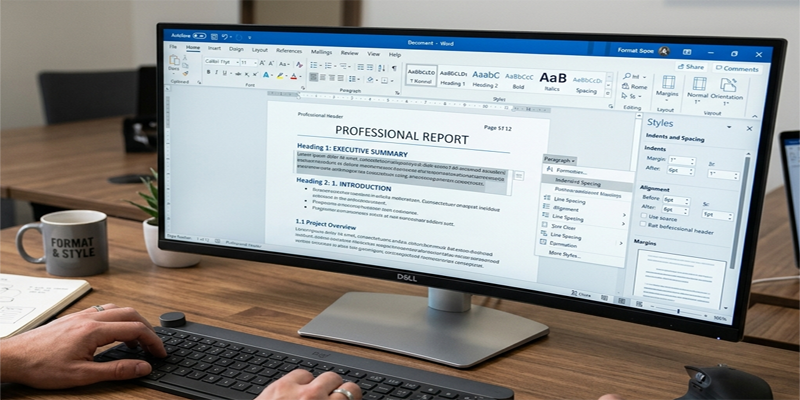
To make your document well presentable and organised, Microsoft Word provides several fascinating tools.
And using these tools, you can easily prepare a school assignment, business report, official application, project proposal, resume, or company letter.
Though, it is seen that many users make the mistake by putting their focus only on font size, bold text, and colours.
There is much more stuff that you can make using professional formatting.
It may include heading styles, page layout, paragraph spacing, alignment, tables, page numbering, and consistent design.
In this post, we are going to explore “How to format professional documents in Word“.
We will also see how to avoid common mistakes and prepare documents that are more suitable for workplace use, sharing, and printing.
1. Choose the Right Document Structure
Before formatting a document, decide how the information should be organised. A clear structure makes it easier for readers to find important details.
The structure depends on the document type.
For example, a formal letter may contain the sender’s details, date, recipient’s details, subject, greeting, main message, closing, and signature. A business report may require a title page, executive summary, introduction, findings, recommendations, and conclusion.
A school project may include a cover page, acknowledgement, contents, objectives, methodology, observations, conclusion, and references.
Start by organising the content before applying detailed formatting. This reduces the need to redesign the document later.
2. Set Up the Page Layout
Page layout is the foundation of a professional-looking document. It controls the space around your content and how the document appears on the screen and on paper.
Set appropriate page margins
Margins are the blank spaces around the edges of a page.
To adjust them:
- Open your document in Microsoft Word.
- Select the Layout tab.
- Click Margins.
- Choose a suitable preset or select Custom Margins.
- Apply the settings required for your document.
For many general-purpose documents, the default margins are a good starting point. However, always follow the specific requirements provided by your school, organisation, employer, or recipient.
Avoid making margins unnecessarily narrow just to fit more text on a page. Readability is more important than squeezing in additional content.
Choose the correct page orientation
Word generally offers two page orientations:
- Portrait: Suitable for letters, reports, essays, and most text-heavy documents.
- Landscape: Useful for wide tables, schedules, charts, and documents requiring more horizontal space.
To change the orientation, open Layout → Orientation and choose the required option.
Select the correct paper size
For many documents prepared in India, A4 paper is commonly used. However, the appropriate size depends on the intended use and printing requirements.
Open Layout → Size and select the required paper size.
Before printing, confirm that your document’s page size matches the printer settings.
3. Use Professional Fonts and Font Sizes
Typography affects readability and the overall appearance of a document. You do not need decorative fonts to create an impressive result.
Choose a readable font
Common professional choices include Arial, Calibri, Aptos, and Times New Roman, depending on your Word version and document requirements.
Use one font family for most of the document. A second font may be appropriate for specific design purposes, but using many different fonts often creates visual inconsistency.
Choose suitable font sizes
The following are practical starting points, not mandatory rules.
| Document element | Suggested font size |
|---|---|
| Main document title | 20–26 pt |
| Major section headings | 14–16 pt |
| Subheadings | 12–14 pt |
| Body text | 10.5–12 pt |
| Footnotes or supporting details | 9–10 pt, where appropriate |
Adjust these sizes according to the document’s purpose, accessibility requirements, and any prescribed formatting rules.
Use bold and italics carefully
Bold text helps readers identify important headings, labels, or key information. Italics can be useful for emphasis or specific conventions.
Avoid bolding entire paragraphs or underlining large sections unnecessarily. Too much emphasis reduces the impact of the text you actually want readers to notice.
4. Create Consistent Headings with Word Styles
One of the most useful features for professional document formatting is the built-in Styles system.
Instead of manually changing the font, size, and colour of every heading, you can apply predefined styles that maintain consistency throughout the document.
How to apply heading styles
- Select the heading text.
- Open the Home tab.
- Locate the Styles section.
- Choose an appropriate style, such as Heading 1 or Heading 2.
A typical hierarchy might look like this:
- Document title: The main title of the document.
- Heading 1: Major sections.
- Heading 2: Subsections within major sections.
- Heading 3: Smaller sections within a subsection.
Use heading levels in logical order. For example, a Heading 2 should normally belong under a Heading 1 section.
Why styles matter
Styles provide several benefits:
- They make headings consistent.
- They help readers scan the document.
- They support Word’s Navigation pane.
- They make automatic tables of contents easier to generate.
- They allow you to change the appearance of many headings by modifying a style.
For long reports, manuals, and project documents, using styles is much more efficient than formatting each heading separately.
5. Improve Paragraph Spacing and Alignment
Even well-written content can look unprofessional if the paragraphs are crowded together or spaced inconsistently.
Set consistent paragraph spacing
Use Word’s paragraph-spacing options to control the space before and after paragraphs.
To adjust spacing:
- Select the relevant paragraphs.
- Open the Home tab.
- Find the Paragraph settings.
- Adjust line spacing and paragraph spacing as needed.
For general business documents, slightly more space between paragraphs can improve readability. For academic documents, follow the prescribed spacing requirements.
Avoid creating paragraph spacing by pressing Enter multiple times. This can cause unpredictable gaps when the document changes.
Choose the right alignment
Different document elements may need different alignment.
- Left-align ordinary paragraphs in most English-language business documents.
- Centre a title page title when appropriate.
- Use right alignment for selected details when required by the layout.
- Use justified alignment only when it improves the appearance and readability of the text.
Justified text can create uneven spaces between words, particularly in narrow columns. Check the result carefully before using it throughout a document.
6. Format Lists, Tables, and Important Information
Lists and tables help readers understand structured information quickly.
Use bullets and numbering
Use bullets for items where order does not matter, such as a list of requirements or benefits.
Use numbered lists for ordered instructions, procedures, or steps.
For example, a report might include:
- Project objectives
- Research methodology
- Key findings
- Recommendations
Use Word’s built-in list commands rather than manually typing bullets or numbers. This makes editing and rearranging content easier.
Format tables clearly
Tables are useful for presenting comparisons, schedules, costs, responsibilities, and other structured information.
To improve table readability:
- Use descriptive column headings.
- Keep cell content concise.
- Apply consistent alignment.
- Use borders and shading sparingly.
- Avoid splitting important information awkwardly across pages.
- Ensure the table fits within the page margins.
For example, a project report may include a table showing activities, responsible persons, deadlines, and current status.
Do not use tables simply to create empty spaces or force text into a particular position. Use them when the information genuinely benefits from a row-and-column structure.
7. Add Headers, Footers, and Page Numbers
Headers and footers are useful for documents that extend beyond one or two pages.
A header appears at the top of a page, while a footer appears at the bottom.
They can contain information such as:
- Document title
- Organisation name
- Author or department
- Date or version number
- Page numbers
Insert page numbers
- Open the Insert tab.
- Select Page Number.
- Choose the position and style.
- Review the document to ensure the numbering is correct.
For formal reports, page numbers can make the document easier to navigate.
If you have a cover page, Word’s header and footer options may allow you to hide the number on the first page or configure numbering for separate sections.
Keep headers and footers simple
Avoid filling headers and footers with unnecessary information. Use a restrained design that supports navigation without distracting readers from the main content.
For instructions on page numbering and layout, consult Microsoft Word Support.
8. Create a Professional Cover Page and Table of Contents
Long reports, research projects, proposals, and manuals often benefit from a cover page and table of contents.
Design a clean cover page
A cover page may include:
- Document title
- Subtitle, if necessary
- Author or organisation
- Department or course
- Submission date
- Relevant logo, if permitted
Keep the design simple. Use a clear title, consistent typography, and adequate white space. Avoid adding decorative elements that do not support the document’s purpose.
Word provides cover-page templates through the Insert tab in supported desktop versions.
Generate an automatic table of contents
For a long document, an automatic table of contents is generally better than typing page numbers manually.
To create one:
- Apply Word’s built-in heading styles to your sections.
- Place the cursor where the contents page should appear.
- Open the References tab.
- Select Table of Contents.
- Choose an available automatic style.
When you change the document, update the table of contents so the headings and page numbers reflect the latest version.
This feature is especially useful for academic reports, manuals, proposals, and lengthy business documents.
9. Insert Images, Charts, and Other Visual Elements
Visual elements can improve a document when they explain or support the written information.
For example, a business report may contain a chart showing sales trends, while a training manual may include screenshots demonstrating a procedure.
Follow these formatting principles
- Use clear, high-quality images.
- Maintain consistent image sizes where appropriate.
- Keep images aligned with nearby text.
- Add captions when they help readers understand the visual.
- Avoid placing images over text or important headings.
- Include source information where required.
If your document contains charts created in Excel, choose an insertion method that suits your needs. An embedded or linked chart may remain editable, while a picture is usually more fixed.
Always review image placement after making changes to surrounding text. Text wrapping and page breaks can shift visual elements unexpectedly.
10. Use Page Breaks and Section Breaks Correctly
Page breaks and section breaks solve different layout problems.
A page break moves subsequent content to the next page. It is useful when a new chapter or major section should begin on a fresh page.
A section break divides a document into sections that can have different layout settings. Depending on the break type, you may be able to use different headers, footers, page orientations, columns, or page-numbering arrangements.
For example, a report may use portrait orientation for most pages but landscape orientation for a wide table.
Use the Layout tab to access the available break options. If your formatting becomes confusing, the Show/Hide formatting marks option can help you identify breaks and paragraph marks.
Avoid repeatedly pressing Enter to push content onto a new page. Proper breaks are more reliable and easier to maintain.
11. Review and Proofread the Final Document
Formatting is not complete until the document has been checked.
Before sharing or printing, review the following:
- Spelling, grammar, punctuation, and sentence clarity.
- Consistency of headings and fonts.
- Paragraph spacing and alignment.
- Table dimensions and image placement.
- Page numbering and headers.
- Blank pages and unexpected page breaks.
- Dates, names, figures, and references.
- File name and document version.
Word’s spelling and writing tools can help identify potential issues, but they cannot guarantee accuracy. Verify facts and technical details yourself, especially in official or business documents.
For collaborative documents, Track Changes and comments can help reviewers suggest edits without immediately replacing the original text.
12. Save and Export the Document Correctly
The final step is choosing the right format.
DOCX: Use this format when the document needs to remain editable in Word.
PDF: Use PDF when you want to distribute a document with a relatively fixed layout, such as a final report or formal letter.
Other formats: If the recipient requires another format, check which elements may change during conversion.
Before sending a PDF, open it and check that the pages, images, tables, and page numbers look correct.
Use a descriptive filename, such as,Annual_Project_Report_2026.docx, rather than a vague name such as Final2.docx.
If the document contains confidential information, review its contents and sharing permissions before distributing it. Remove comments, tracked changes, or other information that should not be shared when appropriate.
13. Common Formatting Mistakes to Avoid
Even a document with excellent content can look untidy if formatting is inconsistent.
Using too many fonts: This makes the document visually distracting. Limit font choices and maintain consistency.
Using spaces to align text: Repeated spaces can shift unpredictably when fonts or margins change. Use paragraph settings, tabs, or tables when appropriate.
Manually formatting every heading: This creates inconsistency and makes global changes difficult. Use built-in styles.
Using excessive colours and borders: Decorative formatting should not compete with the message.
Ignoring page breaks: A heading left at the bottom of a page or a table split awkwardly can make a document difficult to read.
Shrinking text to fit everything: Smaller text may technically fit more content, but it can reduce readability. Edit unnecessary content or adjust the layout sensibly.
Forgetting to check the PDF: Exporting does not guarantee that the final document will look exactly as intended. Inspect the exported file.
Conclusion
Friends, in this post, we have seen “How to format professional documents in Word“. Formatting using Microsoft Word is all about consistency, clarity, and usability. You don’t need to be an expert in advanced design skills to produce an effective document. A strong foundation of a document requires A logical structure, readable font, consistent headings, suitable spacing, and clean page layout
You should carefully format tables, use built-in styles, add page number where needed, chose breaks rather than creating space manually. Always remember to proofread the content and review the final layout(How to format professional documents in Word) before sharing your work.
These simple but amazing practices(How to format professional documents in Word) will greatly help you to prepare documents that are easier to read, easier to maintain, and look more professional, whether it is a school assignment, official application, business report, or project proposal
If you have any questions, write to us at support@a5theory.com; we will get back to you ASAP.
Hope! You will enjoy this post, “How to format professional documents in Word“.
Please feel free to share your feedback in the comments below.
Have a great time!