

Hello Friends, in this blog post, we are going to let you know the process of “Mail Merge in Microsoft Word”.
As most of you know, for writing reports, letters, applications, and other documents, Microsoft Word is a widely used application software.
But what if you have to prepare the same document for hundreds of people separately?
It would definitely take a considerable amount of time.
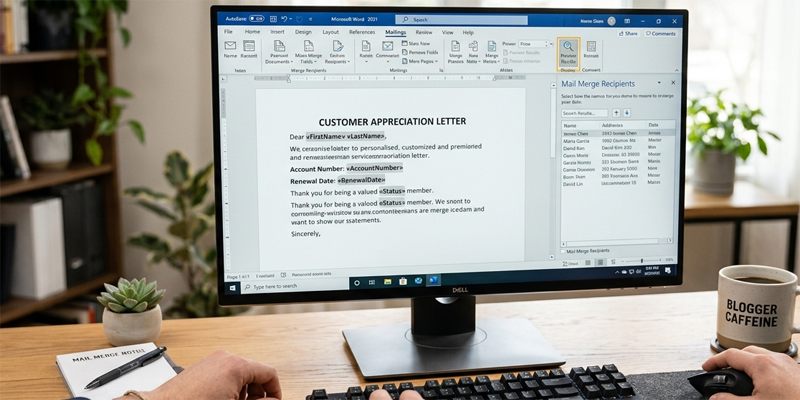
And for this type of problem Mail Merge feature comes in picture and make your work very easy and simple.
If you have a list of recipient information ready, then you can easily create multiple personalised documents using one main document using Mail Merge.
This Mail Merge feature automatically fills the details of each person, like name, address, designation, or other…
… important info, correctly and separately in one single document. You don’t need to type it manually for each person.
For example, a school can use Mail Merge to develop student certificates; a business can forward…
… personalised letters to customers, and an organisation can produce address labels for mailing.
In this post, we are going to explore “Mail Merge in Microsoft Word“.
We will dive deep to find out how it works, how to connect Word with an Excel data source, and how to create letters, labels, certificates, and other personalised documents.
Here we will go through its complete working in easy-to-understand language.
1. What Is Mail Merge in Microsoft Word?
Mail Merge is a Microsoft Word feature that combines a main document with a data source to generate multiple personalised documents.
The main document contains the common text and formatting. The data source contains the information that changes for each recipient.
For example, imagine you need to send appointment letters to 100 employees. Every letter contains the same general message, but each employee has a different name, designation, joining date, and department.
Without Mail Merge, you would need to prepare and check 100 separate letters. With Mail Merge, you can prepare one template, connect it to your employee list, and generate personalised letters using the information in each record.
Common uses of Mail Merge
Mail Merge is useful for:
- Personalised business letters.
- School and college certificates.
- Student report or information letters.
- Invitations and event announcements.
- Customer correspondence.
- Address labels and envelopes.
- Appointment and offer letters.
- Membership cards and notices.
- Bulk personalised documents for administrative work.
Mail Merge can also support email campaigns through compatible Word and Outlook workflows. Email functionality depends on the applications, accounts, and configuration available to you.
2. How Does Mail Merge Work?
A typical Mail Merge workflow has three main components.
Main document
The main document contains the text and layout that remain mostly the same for every recipient.
For example:
“Dear [Name],
We are pleased to inform you that your application has been received. Your reference number is [Reference Number].”
In an actual Word document, you would insert Mail Merge fields rather than manually typing the square-bracket placeholders.
Data source
The data source contains recipient information, usually organised into columns and rows in Microsoft Excel.
For example:
| Name | Department | Reference Number |
|---|---|---|
| Rahul Sharma | Accounts | REF001 |
| Priya Verma | Marketing | REF002 |
| Amit Patel | IT | REF003 |
Each column represents a field, and each row represents a record.
Merge fields
Merge fields are placeholders inserted into the main document. Word replaces each field with the corresponding information from the selected record.
For example, a document containing Dear «Name» becomes Dear Rahul Sharma for the first record and Dear Priya Verma for the second.
The result is a collection of personalised documents generated from a common template.
3. Prepare Your Excel Data Before Starting
Preparing clean recipient data is one of the most important steps in Mail Merge. Incorrect or inconsistent information can cause errors in the final documents.
Step 1: Create an Excel worksheet
Open Microsoft Excel and create a new workbook.
Add a separate column for each type of information you need.
For a business letter, your headings might include:
| FirstName | LastName | Address | City | |
|---|---|---|---|---|
| Rahul | Sharma | 15 Park Road | Bhopal | rahul@example.com |
| Priya | Verma | 22 Lake View | Indore | priya@example.com |
| Amit | Patel | 8 Market Street | Jabalpur | amit@example.com |
The names and email addresses in this example are illustrative.
Step 2: Use clear column headings
Give every column a meaningful heading, such as FirstName, Address, Department, or CertificateNumber.
Avoid blank column headings and unnecessarily complicated names. Clear headings make it easier to identify fields inside Word.
Step 3: Keep each recipient in one row
Each row should represent one complete recipient record.
Do not place several recipients in one row or split one person’s information across multiple rows unless your data structure specifically requires it.
Step 4: Check your data
Before connecting the worksheet to Word:
- Remove unnecessary blank rows.
- Correct spelling mistakes.
- Check for duplicate records.
- Make sure names and addresses are in the correct columns.
- Check that required fields are not empty.
- Confirm that dates and numbers appear in the intended format.
Step 5: Save the Excel workbook
Save the workbook in a location that you can easily find. The standard Excel workbook format is XLSX.
Close the workbook before connecting it to Word if your setup or file-access permissions require it.
Important: For identification numbers, postal codes, and other values that may contain leading zeros, use appropriate text formatting in Excel. Otherwise, a value such as 00125 might be interpreted as the number 125.
4. How to Start Mail Merge in Microsoft Word
Once your data is ready, open Microsoft Word and create the main document.
The exact commands can vary between desktop Word, Word for the web, Mac, and different application versions. The following workflow describes the common desktop experience.
Step 1: Open a new document
Open Word and select a blank document, or open an existing letter or template that you want to personalise.
Prepare the parts that will remain the same for every recipient.
For example:
Subject: Confirmation of Registration
Dear recipient,
Thank you for registering for our programme. We are pleased to confirm that your registration has been received.
The recipient’s name and other changing details will be inserted as merge fields.
Step 2: Open the Mailings tab
Select the Mailings tab in the Word ribbon.
Look for the Start Mail Merge command.
Depending on your version, the available options may include letters, email messages, envelopes, labels, and directory-style documents.
Step 3: Choose the document type
Select the type that matches your task.
- Letters: For personalised letters and notices.
- Email Messages: For personalised email content through a supported workflow.
- Envelopes: For printing recipient addresses on envelopes.
- Labels: For address labels or other label-based output.
- Directory: For creating a combined document containing information from multiple records.
For this tutorial, select Letters.
Step 4: Select your recipients
Choose Select Recipients from the Mailings tab.
Common options include:
- Use an Existing List: Connect to an Excel workbook or another supported data source.
- Type a New List: Create recipient records through Word’s available interface.
- Choose from Outlook Contacts: Use contacts where this option is supported and configured.
Select Use an Existing List if you have already prepared an Excel worksheet.
Browse to the workbook, select it, and choose the appropriate worksheet or named range when prompted.
Check the option indicating whether the first row contains column headings, if your version displays it.
Once connected, Word can use the worksheet’s records for the merge.
5. Insert Mail Merge Fields into Your Document
After connecting the data source, you can insert fields wherever personalised information should appear.
Step 1: Place the cursor
Click where the recipient’s name should appear in your letter.
Step 2: Insert a merge field
Open the Mailings tab and select Insert Merge Field.
Choose the relevant field, such as FirstName or LastName.
Your document may now contain something like:
Dear «FirstName» «LastName»,
The chevrons indicate merge fields; they are not ordinary text that you need to type yourself.
Step 3: Add other fields
Insert additional fields wherever necessary.
For example:
«FirstName» «LastName»
«Address»
«City»
Dear «FirstName»,
We are pleased to confirm your registration. Your reference number is «ReferenceNumber».
Please retain this reference number for future communication.
Regards,
Registration Team
The information will change according to each recipient’s record.
Step 4: Format the document
Apply appropriate fonts, headings, margins, paragraph spacing, and alignment.
Format the merge fields just as you would format ordinary text. The final output should look professional and be easy to read.
6. Preview and Check Your Mail Merge Results
Never generate a large batch of documents without checking the preview first.
Word provides a Preview Results option that lets you see how the main document looks when populated with actual recipient information.
How to preview the records
- Open the Mailings tab.
- Select Preview Results.
- Review the first record.
- Use the navigation controls to move between recipients.
- Check names, addresses, dates, numbers, and other fields.
Pay attention to long names, missing addresses, unusual characters, and records containing blank fields.
Filter or select recipients
You may not always want to create a document for every record in your Excel workbook.
Use Edit Recipient List, where available, to sort or filter the records or exclude specific recipients.
For example, a company might need to send a notice only to employees in the Accounts department. If the data contains a Department column, the recipient list can be filtered using the relevant field and value.
Review the selected records before completing the merge.
Why previewing matters
Previewing can help identify problems such as:
- Incorrect field mapping.
- Missing recipient information.
- Unexpected date or number formats.
- Duplicate records.
- Incorrect spacing caused by long names or addresses.
Correct the source data or document layout before proceeding.
7. Complete the Merge and Generate Letters
Once the document and recipient data are ready, you can generate the personalised output.
Step 1: Select Finish & Merge
Open the Mailings tab and choose Finish & Merge.
Depending on your version, common options include editing individual documents, printing documents, or completing a supported email merge.
Step 2: Choose Edit Individual Documents
Select Edit Individual Documents if you want to create a new Word document containing the merged results.
You may be able to choose all records, the current record, or a specific range.
Word generates a separate result for each selected record within the merged document.
Step 3: Review the generated document
Check the final output for:
- Correct recipient names.
- Correct addresses and reference numbers.
- Consistent page layout.
- Unexpected blank pages.
- Incorrect page breaks.
- Missing information.
The generated document can usually be edited separately from the original main document.
Step 4: Save the result
Save the merged output with a clear filename, such as Personalised_Registration_Letters.docx.
If the recipients need a fixed-layout version, you can export the completed document to PDF.
For sensitive correspondence, check that each recipient will receive only the information intended for them.
8. Create Certificates Using Mail Merge
Mail Merge can help schools, colleges, training centres, and event organisers prepare personalised certificates.
Suppose an organisation needs to issue certificates to 200 participants. Every certificate has the same design, but the participant’s name, course title, and completion date vary.
Step 1: Prepare the certificate data
Create an Excel worksheet with columns such as:
| ParticipantName | CourseName | CompletionDate |
|---|---|---|
| Neha Singh | Basic Computer Skills | 15 October 2026 |
| Rohan Gupta | Digital Marketing | 16 October 2026 |
| Kavita Jain | Excel Training | 17 October 2026 |
These are sample records for illustration.
Step 2: Design the certificate
Create a Word document with the certificate heading, description, organisation name, signature area, and any approved logo or decorative elements.
Set the page orientation and margins according to the certificate design.
Step 3: Insert the merge fields
Place the cursor where the participant’s name should appear and insert the ParticipantName field.
Insert CourseName and CompletionDate wherever needed.
For example:
CERTIFICATE OF COMPLETION
This certificate is presented to
«ParticipantName»
for completing
«CourseName»
on «CompletionDate».
Step 4: Preview and merge
Preview multiple records to ensure that long names fit the layout and that course titles do not overlap other elements.
Complete the merge and inspect the generated certificates.
If you intend to print one certificate per page, check the page breaks and ensure that the design remains consistent for every participant.
Practical tip: Use a high-quality logo and a consistent layout, but avoid adding decorative elements that make the recipient’s name difficult to read.
9. Create Address Labels with Mail Merge
Address labels are another common use of Mail Merge. They are useful for sending invitations, newsletters, notices, and other printed correspondence.
Step 1: Prepare the recipient list
Create an Excel worksheet with columns for the recipient’s name, street address, city, state, and postal code.
Check the postal codes carefully, particularly if they contain leading zeros.
Step 2: Start a label merge
In Word, open the Mailings tab and select Start Mail Merge, then choose Labels.
Select the label vendor and product number that match your physical label sheets, or configure the dimensions if your version supports custom labels.
Using the wrong label dimensions may cause the printed addresses to misalign with the label sheets.
Step 3: Select recipients
Connect your Excel workbook through Select Recipients and choose the relevant worksheet.
Step 4: Insert the address fields
Insert the required merge fields into the first label.
For example:
«FirstName» «LastName»
«StreetAddress»
«City», «State» «PostalCode»
Use the available Update Labels command to copy the layout to the remaining label positions, where supported.
Step 5: Preview and print
Preview the label records and check the alignment.
Before using an actual label sheet, print a test page on ordinary paper. Hold the test sheet against the label sheet to check whether the addresses line up.
This simple step can help prevent wasted labels and printing supplies.
10. Use Mail Merge to Create Envelopes
If you need to send a large number of letters, Word can also help print recipient addresses on envelopes.
- Open the Mailings tab.
- Select Start Mail Merge and choose Envelopes.
- Select the appropriate envelope size and printing options.
- Connect the recipient list.
- Insert the required address fields.
- Preview the records.
- Test the printer alignment before printing the complete batch.
Printer feed direction and envelope settings vary between models. Consult your printer’s instructions if the envelope is not feeding or printing correctly.
11. Common Mail Merge Problems and How to Fix Them
Even a correctly prepared merge can produce unexpected results if the data source or document settings are not configured properly.
Problem 1: Merge fields display instead of recipient details
If you see fields such as «FirstName» in the output, check that you have previewed the results or completed the merge correctly.
Make sure the correct data source is connected and that the field names match the available columns.
Problem 2: Dates appear in the wrong format
Excel may store dates in a format that Word displays differently during the merge.
Check the source values and the resulting output. If necessary, adjust the formatting of the relevant merge field or prepare the source data in a consistent format.
For important documents, inspect several dates before generating the full batch.
Problem 3: Postal codes lose leading zeros
Excel may interpret a postal code as a number instead of text.
Format the relevant column as text and ensure the stored values include all required digits. Reconnect or refresh the data source if necessary, then preview the results.
Problem 4: Labels are misaligned
Check the selected label vendor, product number, page size, printer settings, and label layout.
Print a test on ordinary paper before using label sheets.
Problem 5: Some recipients are missing
Open the recipient list and check whether records have been filtered out or excluded. Also confirm that you selected the intended record range when completing the merge.
Problem 6: A long name breaks the layout
Use a suitable font size, adjust the available text area, or redesign the document to accommodate longer names.
Always preview records that contain unusually long names or addresses.
Problem 7: The Excel file cannot be accessed
Confirm that the workbook is saved in an accessible location and that you have permission to open it. Check whether the correct worksheet was selected and whether the file is available to the version of Word you are using.
If necessary, close and reopen the applications, reconnect the data source, and try again.
12. Best Practices for Safe and Efficient Mail Merge
Mail Merge can save time, but it also makes it possible to distribute incorrect or sensitive information to many recipients at once. A careful workflow is essential.
- Verify the recipient list: Check names, addresses, email addresses, and other important details.
- Use a small test batch: Generate a few sample documents before processing hundreds of records.
- Keep a backup: Save the original Excel workbook and main Word document.
- Use clear field names: Simple column headings make the merge easier to manage.
- Protect personal information: Only include data that is necessary for the intended document.
- Check access permissions: Store recipient lists and generated files in appropriate locations.
- Review the final output: Inspect the merged document before printing, sharing, or sending it.
- Keep records organised: Use clear filenames and separate draft documents from final output.
When merging emails, take extra care with recipient selection, message content, attachments, and privacy. Test the process with an appropriate internal or test recipient before sending a large campaign.
Frequently Asked Questions
1. Can I use Excel data in Word Mail Merge?
Yes. Microsoft Word can use an Excel worksheet as a recipient data source. Organise the information into columns with headings and place each recipient’s information in a separate row.
2. Can Mail Merge create certificates?
Yes. You can design a certificate in Word, connect it to an Excel list of participants, and insert merge fields for names, course titles, dates, and other details.
3. Can I use Mail Merge for address labels?
Yes. Word supports label-based Mail Merge workflows. Select a label layout that matches your physical label sheets, insert address fields, preview the results, and test the print alignment.
4. Can Mail Merge send personalised emails?
Yes, through supported email-merge workflows. Availability and requirements depend on your Word version, email application, account configuration, and organisation’s policies.
5. Does Mail Merge work with Word for the web?
Mail Merge capabilities vary by platform and version. Some advanced merge tasks may require the desktop version of Word. Check the commands available in your current application before starting.
6. What is the difference between a mail merge document and the merged result?
The main document contains the shared content and merge fields. The merged result contains the personalised documents generated from the selected recipient records.
7. Can I edit the letters after completing Mail Merge?
Yes. If you choose the option to edit individual documents, Word can generate a new document containing the merged output. You can review and edit that result before saving, printing, or exporting it.
Conclusion
Friends, in this post, we have understood “Mail Merge in Microsoft Word“. One who prepare personalised documents on regular basis, this Mail Merge feature within Microsoft Word is one of the most practical ways to do it. It allows you to produce certificates, letters, addresses, labels, envelopes, and other customised materials more efficiently just by combining a reusable Word document with structured recipient data.
Make sure to keep your Excel data well organised, use clear column headings, insert the correct merge fields, and remember to preview the output before completing the process. Proper preparation is the key to success in Mail Merge(Mail Merge in Microsoft Word).
Try some small exercises at the start, such as creating five personalised letters or certificates. Once you get a grip on the workflow, you can repeat the same approach for large educational, administrative, and business tasks.
Mail Merge can save plenty of your important time, reduce your repetitive typing work, and help you produce accurate and professional documents if you carefully manage your data and document template consistently.
If you have any queries, you can write to us at support@a5theory.com; we will get back to you ASAP.
Hope! You will enjoy this post, “Mail Merge in Microsoft Word“.
Please feel free to give your feedback in the comment section below.
Have a great time!