

Hello Friends, in this blog post, we are going to discuss “Excel charts, PivotTables, and dashboards“.
Whether it is to enter numbers and perform some calculations, Microsoft Excel has been a very fascinating and useful tool.
Using Excel, you can also compare performance, summarise large datasets, understand trends, and demonstrate information in visual form.
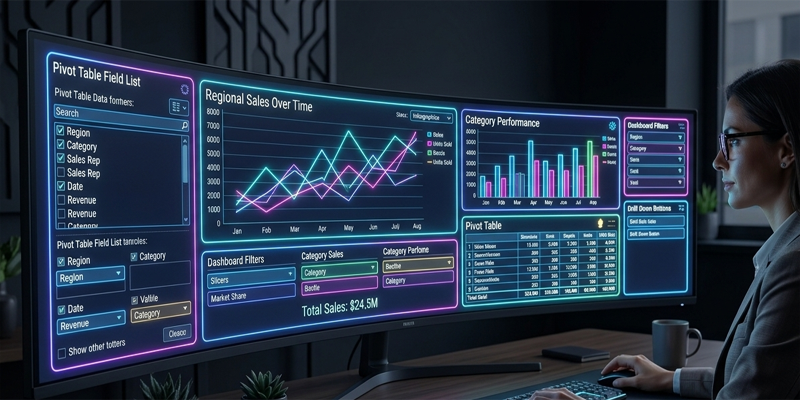
Charts, PivotTables, and dashboards are its three most amazing and useful data analysis features.
Using PivotTables, you can easily summarise a large amount of information.
Charts greatly help you to do the visual representation of numbers in an easy-to-understand way.
And with the use of a dashboard, you can club all important metrics together in one place.
If these tools are used effectively in an appropriate way, then they could be a great help to…
…business owners, students, managers, accountants, and data analysts in making better-informed decisions.
In this post, we are going to explore “Excel charts, PivotTables, and dashboards” in easy-to-understand language.
Here, we will understand the process of creating Excel charts, PivotTables, and interactive…
… dashboards, along with creating a practical report system combining all these features.
What Are Excel Charts, PivotTables, and Dashboards?
Although these features work together, each serves a different purpose.
- Excel charts: Display information visually through columns, bars, lines, pie charts, and other formats.
- PivotTables: Summarise and analyse datasets without requiring you to write complex formulas for every calculation.
- Dashboards: Combine charts, summary metrics, tables, and filters into a single view for monitoring performance.
For example, a retail business might use a PivotTable to calculate sales by product and region, a chart to compare regional performance, and a dashboard to display total sales, monthly trends, and top-selling products.
The first step is preparing your data correctly.
1. Prepare Your Excel Data for Analysis
Charts and PivotTables work best when the source data follows a consistent structure.
Suppose you maintain a sales worksheet containing these columns:
| Date | Product | Region | Salesperson | Sales |
|---|---|---|---|---|
| 01-Oct-2026 | Laptop | North | Amit | 45,000 |
| 02-Oct-2026 | Printer | South | Neha | 12,000 |
| 03-Oct-2026 | Monitor | North | Rahul | 18,000 |
| 04-Oct-2026 | Laptop | West | Priya | 50,000 |
| 05-Oct-2026 | Printer | East | Amit | 15,000 |
This structure makes it possible to analyse sales by date, product, region, or salesperson.
Before creating reports, follow these practices:
- Use a single header row with unique, descriptive column names.
- Keep each row as one record and each column as one field.
- Avoid completely blank rows and columns within the dataset.
- Store dates as genuine Excel dates and sales amounts as numeric values.
- Use consistent spelling for categories such as product names and regions.
- Remove duplicate records when they are not legitimate transactions.
- Convert the dataset into an Excel Table by selecting the data and choosing Insert → Table.
Give the table a meaningful name, such as "SalesData" using the Table Design tab where available.
Excel Tables are particularly useful because their ranges usually expand automatically when you add new records. This makes reports easier to maintain, although you may still need to refresh PivotTables or adjust chart sources depending on how your workbook is configured.
2. How to Create a Chart in Excel
Charts help you communicate information quickly. Instead of asking readers to interpret a long list of numbers, you can show comparisons, trends, and proportions visually.
Step 1: Select your data
Enter the information into a worksheet with clear column headings. Select the relevant data, including the headings, while avoiding unrelated columns.
For example, to compare product sales, create a small summary table:
| Product | Total Sales |
|---|---|
| Laptop | 95,000 |
| Printer | 27,000 |
| Monitor | 18,000 |
Step 2: Insert a chart
- Select the summary table.
- Open the Insert tab.
- Choose a recommended chart or select a specific chart type.
- Review the chart preview and insert the most appropriate option.
- Add a descriptive title and format the chart for readability.
The available chart options vary by Excel version and platform.
Step 3: Customise the chart
Depending on the chart type and Excel version, you can adjust:
- Chart title
- Horizontal and vertical axes
- Axis labels and number formats
- Data labels
- Legend placement
- Gridlines
- Colours and visual styling
- Chart size and position
A good chart should make the main message clear without unnecessary decoration.
3. Types of Excel Charts and When to Use Them
Choosing the right chart is essential. A poorly chosen chart can make data confusing or misleading.
<box gap={3}> <row align=start gap={3}> <AsyncImage query=” Excel clustered column chart monthly sales comparison clean business chart” aspectRatio=”4:3″ width=”124px” /> <box flex=”1″ gap={1}> **Column chart**
  Best for comparing values across categories, such as sales by product, revenue by branch, or marks by subject. Clustered columns are useful when comparing multiple series.
</box>
</row> <divider color=”subtle” /> <row align=start gap={3}> <AsyncImage query=” Excel line chart monthly revenue trend professional spreadsheet chart” aspectRatio=”4:3″ width=”124px” /> <box flex=”1″ gap={1}> **Line chart**
  Best for showing changes over time, such as daily orders, monthly expenses, annual revenue, or website traffic. Use a consistent time sequence for easier interpretation.
</box>
</row> <divider color=”subtle” /> <row align=start gap={3}> <AsyncImage query=”Excel horizontal bar chart sales by region professional data visualization” aspectRatio=”4:3″ width=”124px” /> <box flex=”1″ gap={1}> **Bar chart**
  Useful for comparing categories, particularly when labels are long or there are many categories to display.
</box>
</row> <divider color=”subtle” /> <row align=start gap={3}> <AsyncImage query=”Excel pie chart market share categories simple professional visualization” aspectRatio=”4:3″ width=”124px” /> <box flex=”1″ gap={1}> **Pie chart**
  Suitable for showing parts of a whole when there are only a few categories and their values form a meaningful total. Avoid using too many slices.
</box>
</row> <divider color=”subtle” /> <row align=start gap={3}> <AsyncImage query=” Excel scatter plot correlation between advertising spend and sales professional chart” aspectRatio=”4:3″ width=”124px” /> <box flex=”1″ gap={1}> **Scatter chart**
  Useful for examining the relationship between two numeric variables, such as advertising spending and sales revenue.
</box>
</row> </box>
Other useful options include area charts, combination charts, histogram charts, and waterfall charts. The right choice depends on the question you want the data to answer.
4. How to Create a PivotTable in Excel
A PivotTable is one of Excel’s most useful features for summarising and exploring large datasets. It allows you to reorganise information, group records, and calculate totals, counts, and averages without creating separate formulas for every category.
Step 1: Select the source data
Click a cell inside your prepared dataset or Excel Table.
Step 2: Insert a PivotTable
- Select Insert → PivotTable.
- Confirm the source data or table name.
- Choose whether to place the PivotTable in a new worksheet or an existing worksheet.
- Select OK.
Excel creates a PivotTable layout and displays the PivotTable Fields pane in supported desktop versions.
Step 3: Arrange the fields
The PivotTable Fields pane commonly contains four areas:
- Rows: Categories to display vertically.
- Columns: Categories to display horizontally.
- Values: Numeric fields to summarise.
- Filters: Fields used to filter the entire report.
For example, to calculate total sales by product:
- Drag Product to Rows.
- Drag Sales to Values.
Excel will typically summarise the Sales field using Sum when the source values are numeric. If the values are stored as text or Excel detects the field differently, it may use Count instead.
Step 4: Change the calculation
You can change the summary calculation for a Values field.
Common options include:
- Sum
- Count
- Average
- Maximum
- Minimum
To change the calculation, open the field’s settings, often called Value Field Settings, and choose the appropriate summary function.
You can also apply number formatting to display currency, percentages, or whole numbers consistently.
5. Practical PivotTable Examples
The flexibility of PivotTables becomes clearer when you use them to answer specific business questions.
Example 1: Total sales by region
Place Region in Rows and Sales in Values.
The result shows how much each region sold.
Example 2: Sales by product and region
Place Product in Rows, Region in Columns, and Sales in Values.
This produces a cross-tabulated summary that helps compare product performance across regions.
Example 3: Average sales by salesperson
Place Salesperson in Rows and Sales in Values. Change the calculation from Sum to Average.
This displays average transaction values for each salesperson. Remember that average transaction value is not the same as total revenue or average sales per employee over a period.
Example 4: Monthly sales report
Place the date field in Rows and Sales in Values. Depending on your Excel version and data, you can group genuine dates by month, quarter, or year.
If Excel cannot group the dates correctly, check whether the source column contains text dates, blanks, or invalid entries.
These examples demonstrate how PivotTables can answer multiple questions from the same dataset without rebuilding the underlying source information.
6. Sort, Filter, and Explore PivotTables
PivotTables provide tools to investigate particular parts of a dataset.
Sorting: Arrange products by sales amount or regions alphabetically.
Filtering: Display selected products, dates, or regions.
Value filters: Show categories that meet conditions, such as the top five products by total sales.
Grouping: Organise dates by month, quarter, or year when the source data supports date grouping. Some numeric fields can also be grouped into intervals.
Drill-down: In many Excel versions, double-clicking a PivotTable value opens a new worksheet containing the source records contributing to that value, subject to workbook settings and data-source limitations.
These tools are especially helpful when analysing thousands of transactions. You can move from a high-level summary to more specific questions without manually searching the entire dataset.
7. What Is an Excel Dashboard?
An Excel dashboard is a consolidated view of important information. It usually combines summary metrics, charts, tables, and interactive filters to help readers understand performance quickly.
A sales dashboard, for example, might display:
- Total sales
- Number of orders
- Average order value
- Sales by month
- Sales by region
- Best-performing products
- Performance against targets
A dashboard should answer key questions rather than display every available number.
For example, a business manager may want to know whether sales are increasing, which region is performing best, and which products are falling behind their targets.
8. How to Build an Excel Dashboard Step by Step
Step 1: Define the purpose
Before creating charts, decide who will use the dashboard and which questions it should answer.
A student tracking academic performance needs different metrics from a retail manager monitoring sales.
Step 2: Prepare the source data
Clean the data, standardise categories, check dates and numeric values, and remove accidental duplicate records.
Keep the source data in a dedicated worksheet, such as Data.
Step 3: Create summary metrics
Use formulas or PivotTables to calculate key figures.
For example, if sales values are in D2:D100:
=SUM(D2:D100)
This calculates total sales.
If the target values are in E2 and the sales values are in D2, you can calculate the total target using:
=SUM(E2:E100)
Then calculate achievement percentage:
=IFERROR(SUM(D2:D100)/SUM(E2:E100),0)
Format the result as a percentage. This formula calculates aggregate sales divided by aggregate targets, rather than averaging individual achievement percentages.
Step 4: Create PivotTables and charts
Build PivotTables for monthly sales, regional performance, and product comparisons.
Create charts from these summaries. Using charts connected to PivotTables can make your dashboard easier to filter and update.
Step 5: Arrange the dashboard layout
Create a dedicated worksheet named Dashboard.
A simple layout could include:
- Top section: dashboard title and reporting period
- First row: key performance indicators
- Middle section: monthly sales trend and regional comparison
- Bottom section: product performance and supporting details
Use consistent fonts, spacing, number formats, and restrained colours. Keep related information together.
Step 6: Add interactive filters
Excel supports several tools for interactive reporting, depending on how your workbook is built.
Slicers provide clickable buttons for filtering Excel Tables and PivotTables.
Timelines offer date-based filtering for supported PivotTables.
Report connections can allow one slicer to control multiple PivotTables that share a compatible source or PivotCache.
To insert a slicer, select a supported Table or PivotTable and choose the relevant Insert Slicer option. Select the field you want to filter, such as Region or Product.
If your dashboard contains multiple PivotTables, check the slicer’s Report Connections or PivotTable Connections settings to connect it to the intended reports.
Step 7: Test the dashboard
Change filters, add new source records, refresh PivotTables, and check that the summary metrics and charts display the expected results.
If formulas use fixed ranges, confirm that new records are included. Excel Tables can help make source ranges more adaptable.
9. Refresh and Maintain Your Excel Reports
A report can become misleading if its underlying data changes but its summaries do not.
PivotTables generally require refreshing to incorporate changes in their source data.
To refresh a PivotTable, click inside it and select Refresh from the relevant PivotTable menu or context menu. You can also use workbook refresh commands where supported.
If you add rows to an Excel Table used as the source, the table can expand automatically. However, verify that the PivotTable’s data source still includes the new records and refresh the report.
For more complex workbooks, you can explore refresh options in PivotTable settings and workbook connection properties.
Before distributing a dashboard, check:
- Whether the source data is current
- Whether all relevant PivotTables have been refreshed
- Whether charts reflect the latest summaries
- Whether slicers and filters behave correctly
- Whether totals and percentages have been verified
10. Common Mistakes to Avoid
Choosing the wrong chart type
A pie chart with many categories can be difficult to interpret. Use a bar chart when you need to compare many categories.
Using inconsistent source data
Different spellings, text-formatted numbers, and invalid dates can lead to incomplete or incorrect summaries.
Forgetting to refresh PivotTables
A PivotTable may continue displaying an earlier summary after the source data changes.
Overloading the dashboard
Too many charts and metrics make it difficult to identify important information. Focus on the measures that support actual decisions.
Using misleading chart scales
Axis choices can exaggerate or minimise apparent differences. Label charts clearly and use scales appropriate to the data.
Failing to validate calculations
Compare key totals with the source data or independent calculations before relying on the report.
Frequently Asked Questions
1. What is the difference between a chart and a PivotTable?
A chart displays information visually, while a PivotTable summarises and reorganises data into categories and calculations. You can create charts from PivotTable summaries to make reports easier to understand.
2. Can I create a dashboard without advanced Excel knowledge?
Yes. You can build a simple dashboard using Excel Tables, SUM and COUNT formulas, basic charts, and a clear worksheet layout. PivotTables and slicers can be added as you become more comfortable with Excel.
3. Do PivotTables update automatically when source data changes?
Not in every situation. PivotTables generally need to be refreshed after source data changes. Excel Tables and appropriate source settings can make maintenance easier, but you should verify the results after adding or modifying records.
4. Can one slicer control multiple PivotTables?
Yes, when the PivotTables share a compatible source or PivotCache and are connected through the slicer’s Report Connections or PivotTable Connections settings. Separate or incompatible sources may require additional setup.
5. Are Excel dashboards suitable for business reporting?
Yes. Excel dashboards are useful for sales reporting, expense monitoring, inventory tracking, academic performance, project management, and other situations where data needs to be summarised clearly.
Conclusion
Friends, in this post, we have fully understood “Excel charts, PivotTables, and dashboards“. They are very powerful Excel tools that greatly help in transforming raw information into a useful and fascinating report. Comparisons and trends are created using charts; PivotTables help in summarising the data effectively, and dashboards are used to put all the important metrics in one place.
Try creating a basic chart, practise summarising information with PivotTables, and combine the results into a dashboard with clean, well-structured data. Learn to add slicers and other interactive controls when they can improve your reporting experience genuinely.
If you practice(Excel charts, PivotTables, and dashboards) regularly, soon you can create easy-to-understand, faster-to-update, and more useful Excel reports for making informed decisions
If you have any questions, write to us at support@a5theory.com; we will get back to you ASAP.
Hope! You will have enjoyed this post, “Excel charts, PivotTables, and dashboards“.
Please feel free to share your feedback in the comments below.
Have a great time!