

Hello, friends. In this blog post, we are going to discuss some amazing “Microsoft Office File Formats”.
Using Microsoft Office applications, users can build spreadsheets, documents, reports, presentations, and many other types of files.
When saving a file, you may notice several different extensions such as DOCX, XLSX, PPTX, PDF, and CSV in the file type option.
Each extension corresponds to a specific file format and serves a specific purpose.
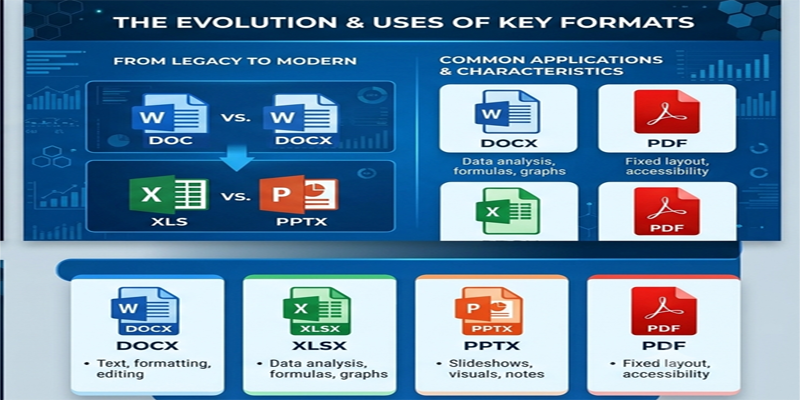
It is very important to choose a correct format while saving the file because it affects how a file is opened, edited, shared, displayed, and processed by other applications.
For example, Microsoft Word documents are generally saved as DOCX. For Excel workbooks, XLSX is used.
PPTX is used for PowerPoint presentations. When you want to preserve the layout of any documents, PDF is the best option.
For exchanging spreadsheet data between different applications, CSV plays an important role.
In this post, we are going to explore amazing “Microsoft Office File Formats“.
Here we will see some of the most common Microsoft Office file formats along with their differences, limitations, advantages, and practical uses.
1. What Is a File Format?
A file format defines how information is organised and stored inside a computer file. It determines how software applications interpret the content and what features can be supported.
A file extension is the group of characters appearing after the final dot in a filename.
For example:
Business_Report.docxMonthly_Sales.xlsxCompany_Presentation.pptxProject_Proposal.pdfCustomer_Data.csv
In these examples, DOCX, XLSX, PPTX, PDF, and CSV are file extensions.
Different file formats are designed for different types of information. Some preserve complex formatting, while others store simple text or structured data.
Understanding file formats helps you:
- Choose the right format for your work.
- Share documents without unnecessary formatting changes.
- Exchange information between applications.
- Reduce compatibility problems.
- Protect the appearance of important documents.
- Prepare files for printing, publishing, or analysis.
2. Microsoft Word File Formats
Microsoft Word is primarily used for creating text-based documents such as letters, reports, resumes, applications, contracts, and assignments.
The following are some important Word file formats.
A. DOCX – Word Open XML Document
<badge color=”success”>Recommended for most Word documents</badge>
DOCX is the default document format used by modern versions of Microsoft Word.
It supports text, images, tables, charts, hyperlinks, page layouts, styles, and many other document features.
Common uses:
- Creating professional reports.
- Writing letters and applications.
- Preparing resumes and CVs.
- Creating business proposals.
- Writing academic assignments.
- Sharing editable documents.
Advantages:
- Supports rich document formatting.
- Can be edited in modern Microsoft Word versions.
- Compatible with many other word-processing applications.
- Usually produces smaller files than the older DOC format.
- Supports modern Word features.
Limitations:
- Formatting can sometimes change when opened in different applications or versions.
- It is not designed to preserve an identical page layout on every device.
Example: Use DOCX when preparing a business report that colleagues may need to review and edit.
B. DOC – Older Word Document Format
DOC is the older binary document format associated with earlier versions of Microsoft Word.
It was widely used before DOCX became the default format.
Common uses:
- Opening older Word documents.
- Sharing files with systems that require the older format.
- Maintaining compatibility with certain legacy applications.
Advantages:
- Supported by many older word-processing applications.
- Useful when working with legacy documents.
Limitations:
- Does not support some modern Word features as effectively as DOCX.
- May have compatibility limitations with newer functionality.
- It is generally not the preferred format for new documents.
For most modern Word work, DOCX is the better choice.
C. RTF – Rich Text Format
RTF stands for Rich Text Format. It was developed to allow formatted text to be exchanged between different word-processing applications.
RTF can support basic formatting such as bold, italic, font sizes, and paragraph alignment.
Common uses:
- Sharing formatted text between different applications.
- Opening documents in older software.
- Exchanging relatively simple text-based documents.
Advantages:
- Supported by many word processors.
- Preserves basic text formatting.
- Useful for simple cross-application document exchange.
Limitations:
- Does not preserve all advanced Word features.
- Can be less suitable for complex layouts, graphics, and modern document functionality.
D. TXT – Plain Text File
TXT is a plain text format that stores unformatted text.
It does not preserve advanced formatting such as fonts, colours, images, tables, or page layouts.
Common uses:
- Writing simple notes.
- Saving text instructions.
- Creating basic content files.
- Sharing plain text between systems.
Advantages:
- Small file size.
- Opens in almost any text editor.
- Easy to process using scripts and software tools.
Limitations:
- No rich formatting.
- No embedded images or complex tables.
- Page layout and styling are not preserved.
3. Microsoft Excel File Formats
Microsoft Excel is used for spreadsheets, calculations, financial reports, data analysis, charts, and business records.
Excel supports several file formats depending on whether you need formulas, macros, or simple data exchange.
A. XLSX – Excel Open XML Workbook
<badge color=”success”>Recommended for most Excel workbooks</badge>
XLSX is the default file format for modern Excel workbooks.
It can store worksheets, formulas, formatting, charts, tables, and many other spreadsheet features.
Common uses:
- Preparing financial reports.
- Managing employee records.
- Creating sales reports.
- Tracking expenses.
- Performing calculations.
- Building charts and dashboards.
Advantages:
- Supports formulas and multiple worksheets.
- Stores charts, tables, and formatting.
- Compatible with modern Excel versions.
- Uses a structured XML-based format.
- Generally offers efficient file storage.
Limitations:
- Cannot store VBA macros as an active part of the workbook.
- Some advanced Excel features may not be supported by other spreadsheet applications.
Example: Use XLSX to prepare a monthly sales report containing calculations, charts, and multiple worksheets.
B. XLS – Older Excel Workbook Format
XLS is the older binary workbook format used by earlier versions of Microsoft Excel.
It is still encountered in many legacy business records and older spreadsheet systems.
Common uses:
- Opening older Excel files.
- Supporting legacy business software.
- Exchanging data with systems that require XLS.
Advantages:
- Supported by older versions of Excel.
- Useful for legacy compatibility.
Limitations:
- Has older worksheet and workbook limits.
- Does not support some modern Excel features.
- Is generally less suitable for new projects.
For new spreadsheets, XLSX is usually preferable.
C. XLSM – Excel Macro-Enabled Workbook
XLSM is a macro-enabled Excel workbook format.
It supports VBA macros, which can automate repetitive tasks and perform customised operations.
Common uses:
- Automating financial reports.
- Creating data-processing workflows.
- Running repetitive spreadsheet operations.
- Building customised Excel tools.
Advantages:
- Supports VBA macros.
- Can retain normal workbook content and formatting.
- Useful for automation and advanced spreadsheet applications.
Limitations:
- Macros may be blocked by security settings.
- Users should only enable macros from trusted sources.
- Not every spreadsheet application supports VBA in the same way as desktop Excel.
Example: A business may use an XLSM workbook to generate monthly reports automatically from imported data.
D. XLSB – Excel Binary Workbook
XLSB is a binary workbook format used by Microsoft Excel.
It can be useful for large or complex workbooks where file size and opening or saving performance are important.
Common uses:
- Large financial workbooks.
- Complex data models.
- Workbooks containing extensive calculations.
Advantages:
- Can produce smaller files than XLSX in some situations.
- May improve performance for certain large workbooks.
- Supports many Excel workbook features.
Limitations:
- Less convenient for systems that expect XML-based workbook formats.
- Not as widely supported by third-party spreadsheet applications.
- It is not a plain data-exchange format.
E. CSV – Comma-Separated Values
<badge color=”info”>Useful for data exchange</badge>
CSV is a simple text-based format used to store tabular data.
Each line usually represents a row, while values are separated by commas. However, the exact delimiter and handling of special characters can vary by regional settings and software.
Example CSV data:
Name,Department,Salary
Amit,Sales,30000
Priya,HR,35000
Rahul,IT,40000
Common uses:
- Exporting customer records.
- Sharing database information.
- Importing data into Excel.
- Transferring information between software systems.
- Preparing datasets for analysis.
Advantages:
- Simple and widely supported.
- Small file size for many datasets.
- Can be opened by Excel and text editors.
- Useful for transferring tabular data.
Limitations:
- Does not preserve formulas.
- Does not store multiple worksheets.
- Does not preserve charts, colours, or cell formatting.
- Data types may need to be checked when importing.
- Special characters and delimiters can cause import problems if encoding or regional settings differ.
Important: CSV is not a complete replacement for XLSX. If you need formulas, formatting, charts, or multiple worksheets, save your workbook as XLSX.
4. Microsoft PowerPoint File Formats
PowerPoint is used to create presentations containing slides, text, images, videos, charts, animations, and transitions.
Different PowerPoint formats are designed for editing, presenting, and sharing slides.
A. PPTX – PowerPoint Open XML Presentation
<badge color=”success”>Recommended for most presentations</badge>
PPTX is the default format for modern PowerPoint presentations.
It stores slides, text, images, shapes, charts, animations, transitions, and other presentation elements.
Common uses:
- Business presentations.
- Classroom lectures.
- Training sessions.
- Project proposals.
- Marketing presentations.
- Seminar slides.
Advantages:
- Supports modern PowerPoint features.
- Allows presentations to be edited.
- Compatible with modern versions of PowerPoint.
- Supports multimedia and advanced slide elements.
Limitations:
- Some formatting or effects may change in other presentation applications.
- Large multimedia files can increase presentation size.
B. PPT – Older PowerPoint Presentation
PPT is the older binary presentation format used by previous versions of Microsoft PowerPoint.
Common uses:
- Opening legacy presentations.
- Supporting older systems.
- Sharing files with applications requiring the older format.
It is generally better to use PPTX for new presentations unless compatibility with older software is necessary.
C. PPSX – PowerPoint Show
PPSX is a PowerPoint Show file. It is designed to open directly as a slideshow in compatible PowerPoint environments rather than opening in the usual editing view.
Common uses:
- Sharing completed presentations.
- Delivering training slides.
- Distributing presentations intended for viewing.
PPSX is useful when you want recipients to start viewing the slideshow immediately. However, it is not a security mechanism and should not be treated as a way to prevent editing.
D. PPTM – PowerPoint Macro-Enabled Presentation
PPTM is a macro-enabled PowerPoint presentation format.
It supports VBA macros for customised presentation functions and automation.
Common uses:
- Presentations with macro-based automation.
- Custom interactive presentation tools.
- Specialised business presentations.
Only enable macros in presentations from trusted sources.
5. PDF – Portable Document Format
<badge color=”success”>Recommended for sharing final documents</badge>
PDF stands for Portable Document Format. It was developed to help documents retain their appearance when opened on different devices and operating systems.
PDF files can contain text, images, links, forms, and other document elements.
Common uses:
- Sharing final reports.
- Sending invoices.
- Distributing resumes.
- Publishing brochures.
- Preparing official documents.
- Sharing documents for printing.
Advantages:
- Preserves page layout in many common viewing situations.
- Supported by a wide range of devices and applications.
- Useful for printing and publishing.
- Can support digital signatures and document permissions.
- Can combine text and images into one document.
Limitations:
- Editing may be less convenient than editing the original Word or Excel file.
- Some PDFs contain scanned images rather than searchable text.
- Complex conversions can change formatting.
- Security restrictions depend on the PDF software and settings.
How to Save a Word Document as PDF
- Open the document in Microsoft Word.
- Select File.
- Choose Save As or Export, depending on your version.
- Select PDF as the file type.
- Choose the destination folder.
- Save or publish the file.
How to Save an Excel Workbook as PDF
- Open your Excel workbook.
- Select File.
- Choose Save As or Export.
- Select PDF.
- Review the print area, page orientation, and scaling.
- Save the PDF.
Before exporting Excel data, check the page breaks and print settings. Otherwise, your spreadsheet may be inconveniently split across pages.
How to Save a PowerPoint Presentation as PDF
- Open the presentation.
- Select File.
- Choose Export or Save As.
- Select PDF.
- Choose the appropriate publishing options.
- Save the file.
PDF is useful when recipients need to view or print slides without requiring the original editable presentation.
6. Comparison of Common Microsoft Office File Formats
The following table summarises the formats discussed in this article.
| Format | Application or purpose | Main use | Supports editing? |
|---|---|---|---|
| DOCX | Word | Modern text documents | Yes |
| DOC | Word | Legacy documents | Yes |
| RTF | Word and other editors | Formatted text exchange | Yes |
| TXT | Text editors | Plain text | Yes |
| XLSX | Excel | Modern spreadsheets | Yes |
| XLS | Excel | Legacy spreadsheets | Yes |
| XLSM | Excel | Macro-enabled workbooks | Yes |
| XLSB | Excel | Binary workbooks | Yes |
| CSV | Data exchange | Tabular data | Yes, as plain data |
| PPTX | PowerPoint | Modern presentations | Yes |
| PPT | PowerPoint | Legacy presentations | Yes |
| PPSX | PowerPoint | Slide-show distribution | Yes, in compatible editors |
| PPTM | PowerPoint | Macro-enabled presentations | Yes |
| Multiple applications | Document sharing and printing | Limited, depending on software |
7. How to Convert Microsoft Office File Formats
Microsoft Office provides built-in options for saving documents in different formats.
A. Convert DOCX to PDF
Open the document in Word and use Save As or Export to select PDF.
B. Convert XLSX to CSV
- Open the workbook in Excel.
- Select the worksheet you want to export.
- Choose File → Save As.
- Select CSV as the file type.
- Save the file.
- Review any warnings about features that cannot be retained.
CSV generally exports the active worksheet rather than the entire workbook. It does not preserve formulas, formatting, charts, or other workbook features.
C. Convert PPTX to PDF
Open the presentation in PowerPoint and use Export or Save As to create a PDF version.
D. Convert DOC to DOCX
Open the older DOC file in a compatible version of Word and save it using the DOCX format.
E. Convert XLS to XLSX
Open the XLS workbook in Excel and use Save As to select XLSX. Review the workbook for features that may not convert perfectly.
Important: Always keep a backup of the original file before converting important documents. Some formats cannot preserve every feature of the original file.
8. How to Choose the Right File Format
Choosing the right format depends on what you want to do with the file.
| Your requirement | Recommended format |
|---|---|
| Create an editable Word document | DOCX |
| Share a final document for printing | |
| Create an Excel workbook with formulas | XLSX |
| Save an Excel workbook with VBA macros | XLSM |
| Exchange simple spreadsheet data | CSV |
| Create an editable presentation | PPTX |
| Share a presentation that starts as a slideshow | PPSX |
| Store plain text | TXT |
| Exchange simply formatted text | RTF |
Practical Recommendations
For students: Use DOCX for assignments while editing and PDF when submitting a final document if the institution requests it.
For office professionals: Use DOCX for reports, XLSX for calculations, and PPTX for presentations. Export final versions to PDF when recipients do not need to edit them.
For accountants: Use XLSX for financial calculations and XLSM when trusted VBA automation is required.
For data analysts: Use CSV for exchanging raw tabular information and XLSX for analysis involving formulas, charts, and multiple worksheets.
For businesses: Maintain editable source documents and distribute approved versions in suitable sharing formats, such as PDF.
9. Common File Format Problems and Their Solutions
Problem 1: Word formatting changes after opening a document
This can happen when fonts are unavailable, or the document is opened in a different word processor.
Solution: Use DOCX with compatible fonts, or distribute a PDF when preserving the final layout is important.
Problem 2: Excel formulas disappear after saving as CSV
CSV stores data values as text rather than retaining Excel formulas and workbook features.
Solution: Keep an XLSX copy if you need formulas, formatting, or multiple worksheets. Export to CSV only when you need a data-only file.
Problem 3: PowerPoint animations do not work in PDF
PDF is designed primarily for document viewing and printing. It does not retain PowerPoint’s normal slide animations and transitions.
Solution: Share PPTX when the recipient needs the original presentation experience.
Problem 4: An XLSM file does not run macros
Excel may block macros because of security settings or file trust restrictions.
Solution: Verify the source of the file and follow your organisation’s security policy. Never enable unknown macros simply to make a workbook work.
Problem 5: A PDF is difficult to edit
PDF is primarily intended for preserving and distributing documents rather than editing them.
Solution: Edit the original DOCX, XLSX, or PPTX file whenever possible. If only the PDF is available, use a suitable PDF editor or convert it carefully, then check the result.
10. Frequently Asked Questions
1. What is the difference between DOCX and PDF?
DOCX is an editable Microsoft Word document format. PDF is designed to preserve a document’s appearance for sharing, viewing, and printing. Use DOCX when editing is important and PDF when distributing a finished document.
2. What is the difference between XLSX and CSV?
XLSX supports formulas, formatting, charts, and multiple worksheets. CSV stores simple tabular data as text and does not preserve those Excel workbook features.
3. Which Excel format supports macros?
XLSM is the standard macro-enabled Excel workbook format. It can store VBA macros.
4. What is the difference between PPTX and PPSX?
PPTX is the standard editable PowerPoint presentation format. PPSX is designed to open as a slideshow in compatible PowerPoint environments.
5. Can I open DOCX files without Microsoft Word?
Yes. Several word-processing applications and online services can open DOCX files, although some formatting or advanced features may differ.
6. Which file format is best for sharing documents?
PDF is often a good choice for sharing finished documents because it generally preserves page layout. However, use DOCX, XLSX, or PPTX when recipients need to edit the original content.
7. Can Excel open CSV files?
Yes. Excel can open and import CSV files. When importing, check delimiters, text encoding, dates, and long numbers to avoid unwanted changes.
8. Does changing a file extension convert its format?
No. Renaming report.docx to report.pdf does not convert the document into a PDF. You must use the application’s export or save-as feature, or a suitable conversion tool.
Conclusion
Friends, in this post, we have gone through the amazing “Microsoft Office File Formats“. They greatly helps us in managing documents more effectively and avoid problems of common compatibility.
For editable Word documents, we use DOCX; XLSX is used for workbooks, PPTX is used for presentations; PDF is used for distributing finished documents, and CSV is used for exchanging simple tabular data. Some other formats such as XLSM, RTF, and PPSX are designed to serve more specialised purposes.
Choosing the correct format makes your work easier to edit, share, print, and manage with ease. Keeping an editable original file and creating a separate file for sharing and export when necessary could be the best approach to follow.
If you have any queries, you can write to us at support@a5theory.com; we will get back to you ASAP.
Hope! You will enjoy this post, “Microsoft Office file formats“.
Please feel free to give your feedback in the comment section below.
Have a great time!