

Hello Friends, in this blog post, we are going to discuss “Microsoft Copilot in Word, Excel, and PowerPoint“.
Artificial intelligence has dynamically changed the ways of creating documents, analysing information, and preparing presentations.
The amazing AI assistant, Copilot, has also been integrated into Microsoft 365 applications by Microsoft. It greatly helps users complete their daily tasks efficiently.
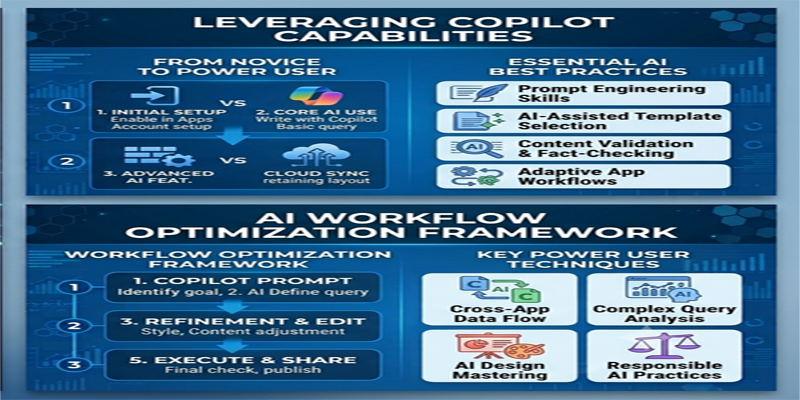
You can easily draft content in Word, analyse spreadsheet data in Excel, and create interactive presentations in PowerPoint using Microsoft Copilot with natural-language instructions.
Now you don’t need to perform each task manually; you just provide the commands or instructions to Copilot, and it will generate suggestions or make supported changes as per your desire.
These amazing and fascinating AI features can make Microsoft Office more easier to practice or use and help reduce…
…repetitive work, especially for students, office professionals, business owners, teachers, and content creators.
However, human judgment cannot be replaced completely by Copilot.
Copilot’s answers may contain mistakes, and features depend on the subscription plan…
…and application version, and human review is always required for important and sensitive documents.
In this post, we are going to see “Microsoft Copilot in Word, Excel, and PowerPoint” in detail.
Here, we will learn how Copilot works with Word, Excel, and PowerPoint, along with its effective use and limitations.
1. What Is Microsoft Copilot?
Microsoft Copilot is an AI-powered assistant developed by Microsoft. It uses artificial intelligence and natural-language processing to understand instructions and help users complete different tasks.
Within Microsoft 365, Copilot can assist with writing, editing, summarising, analysing information, and creating presentations.
For example, you can ask it to:
- Draft a professional business letter.
- Summarise a lengthy Word document.
- Explain trends in an Excel spreadsheet.
- Suggest an Excel formula.
- Create a chart from spreadsheet data.
- Prepare a presentation from existing content.
- Rewrite paragraphs in a professional tone.
- Generate ideas for a report or project.
Copilot is available through different Microsoft experiences, including Microsoft Copilot Chat and AI features integrated into Microsoft 365 applications. These experiences do not necessarily provide identical capabilities.
For business users, Microsoft 365 Copilot can also work with eligible organisational information, subject to licensing, permissions, and administrator settings.
Microsoft continues to expand Copilot’s capabilities, so available features may change over time.
2. How Microsoft Copilot Works in Microsoft Office
Copilot allows users to interact with supported Office applications using everyday language.
Instead of searching through multiple menus, you can describe the result you want.
For example, consider the following instruction:
“Create a professional monthly sales report with an introduction, sales summary, key findings, and recommendations.”
Depending on the application and available features, Copilot can help draft the content, organise information, and suggest improvements.
A typical workflow involves:
- Opening a supported Microsoft 365 application.
- Selecting the Copilot feature.
- Entering a clear instruction or question.
- Reviewing the generated response or proposed changes.
- Refining the output with additional instructions.
- Checking accuracy and saving the final work.
In supported experiences, Copilot can do more than provide suggestions. It can also make changes directly within documents, worksheets, and presentations, while allowing users to review and adjust the results.
3. Microsoft Copilot in Word
Microsoft Word is used for creating reports, letters, resumes, proposals, assignments, and other documents.
Copilot can help users draft, rewrite, summarise, and improve written content.
A. Create Documents Automatically
You can describe the document you want to create and ask Copilot to prepare a first draft.
For example:
“Create a professional business proposal for a digital marketing company. Include an introduction, services, pricing structure, benefits, and conclusion.”
Copilot can generate a draft based on your instructions.
You can then edit the document, add business-specific information, and improve the formatting.
B. Rewrite Existing Content
Sometimes you may already have written something but want it to sound more professional.
Copilot can help rewrite selected content.
Example instruction:
“Rewrite this paragraph in a professional and formal tone while keeping the original meaning.”
This is useful for business emails, reports, applications, and official documents.
C. Summarise Long Documents
If you have a lengthy document, Copilot can help identify its main points.
For example:
“Summarise this report into five important points.”
This can help managers, students, and professionals understand lengthy material more quickly.
D. Improve Writing Quality
Copilot can suggest improvements to:
- Sentence structure.
- Clarity and readability.
- Professional tone.
- Paragraph organisation.
- Document structure.
- Content flow.
E. Create Content from Existing Files
In supported experiences, Copilot can use referenced files as a starting point for new content.
For example, you can ask it to prepare a summary or draft based on an existing document.
Practical Example: Creating a Business Report
Suppose you need to prepare a quarterly business report.
You can ask Copilot to create a report structure, draft an introduction, summarise key information, and suggest recommendations.
You should then add verified business figures, check the conclusions, and review the final document.
This approach can reduce the time spent creating an initial draft.
4. Microsoft Copilot in Excel
Excel is widely used for financial calculations, business reports, data analysis, inventory management, and record keeping.
Copilot can help users understand spreadsheet information and perform supported workbook operations using natural-language instructions.
A. Generate Excel Formulas
If you do not know which formula to use, you can describe the calculation you want.
For example:
“Create a formula to calculate the total sales for each employee.”
Copilot can suggest an appropriate formula based on the available data and context.
You should still check the formula references and test the result.
B. Analyse Spreadsheet Data
Copilot can help identify trends, unusual values, and important patterns in a dataset.
For example, suppose you have a sales spreadsheet containing:
- Employee names.
- Product categories.
- Monthly sales.
- Sales targets.
- Regional information.
You can ask:
“Identify the top five employees based on total sales.”
Or:
“Compare monthly sales across different regions and highlight the strongest-performing region.”
Copilot can help produce summaries and insights from the available information.
C. Create Charts and Visualisations
You can describe the type of chart you need.
Example:
“Create a column chart comparing monthly sales for all regions.”
Depending on the data and supported features, Copilot can help create charts and other visual summaries.
D. Generate PivotTables
PivotTables are useful for summarising large datasets.
Copilot can help identify suitable summaries and create supported PivotTable-based analyses.
For example:
“Summarise total sales by product category and month.”
This can help users who are still learning how PivotTables work.
E. Edit and Organise Worksheets
Depending on the available Copilot experience, you can ask it to:
- Add or rename worksheets.
- Modify cell values.
- Apply formatting.
- Sort and filter data.
- Add conditional formatting.
- Organise worksheet content.
Microsoft describes Copilot in Excel as a tool that can help build and edit workbooks using Excel’s existing features.
Practical Example: Monthly Sales Analysis
Imagine that a business maintains an Excel workbook containing 1,000 sales records.
You can ask Copilot to:
- Calculate total sales.
- Identify the highest-selling product.
- Compare monthly performance.
- Find employees who achieved their targets.
- Create a chart showing sales trends.
You can then check the calculations and use the results to prepare a management report.
Important: Excel Copilot works best when data is properly organised. Use clear column headings, consistent data types, and structured tables where appropriate.
5. Microsoft Copilot in PowerPoint
PowerPoint is used to create business presentations, classroom lectures, project proposals, training materials, and marketing slides.
Copilot can help generate presentation drafts and improve existing slides.
A. Create a Presentation from a Prompt
You can describe the presentation you want.
For example:
“Create a 10-slide presentation about renewable energy in India. Include solar energy, wind power, benefits, challenges, and future opportunities.”
Copilot can help create a presentation draft based on the instruction.
You should review the slides and make sure the information is suitable for your audience.
B. Create a Presentation from a Word Document
One useful capability is creating a presentation based on existing content.
For example, if you have a Word document containing a business proposal, Copilot can help transform its main information into a PowerPoint presentation.
This is useful when you need to present an existing report without manually copying every section into slides.
C. Summarise Existing Presentations
If you receive a lengthy PowerPoint presentation, you can use Copilot to help summarise its main points.
Example instruction:
“Summarise this presentation and list its five most important findings.”
D. Improve Presentation Content
Copilot can help:
- Rewrite slide text.
- Suggest additional content.
- Organise information.
- Draft speaker notes.
- Suggest slide ideas.
- Create or modify supported slide elements.
E. Add Slides from Existing Files
In supported PowerPoint experiences, you can reference an existing file and ask Copilot to create a slide based on a particular section or topic.
Microsoft recommends reviewing and adjusting the generated slides before using them in a final presentation.
Practical Example: College Presentation
Suppose you need to prepare a presentation about artificial intelligence.
You can ask Copilot to create an initial presentation with sections covering:
- Introduction to artificial intelligence.
- History of AI.
- Applications of AI.
- Benefits and challenges.
- AI in education.
- AI in business.
- Future opportunities.
- Conclusion.
After the draft is created, add relevant examples, verify factual claims, and improve the visual design.
6. Microsoft Copilot vs Traditional Microsoft Office
Traditional Microsoft Office applications require users to perform most operations manually.
Copilot adds an AI-assisted way of working.
| Task | Traditional approach | With Copilot |
|---|---|---|
| Word document | Write and organise content manually | Generate and refine a draft |
| Word summary | Read and summarise manually | Request a summary |
| Excel formulas | Search for or write formulas | Ask for formula suggestions |
| Excel analysis | Apply functions and analyse data | Ask questions about the dataset |
| Excel charts | Select data and create charts manually | Request supported chart creation |
| PowerPoint slides | Prepare slide content manually | Generate a presentation draft |
| Presentation summary | Review slides individually | Ask for a summary |
Copilot does not eliminate the need to understand Word, Excel, or PowerPoint. Knowledge of these applications helps you evaluate AI-generated results and make better decisions.
7. How to Write Effective Copilot Prompts
The quality of Copilot’s output depends partly on the clarity of your instructions.
A vague instruction may produce a general response, while a detailed instruction can help generate more relevant results.
A. Be Specific
Instead of writing:
“Create a report.”
Try:
“Create a professional monthly sales report for a retail business. Include an introduction, sales performance, regional comparison, key findings, and recommendations.”
B. Mention the Desired Format
Tell Copilot how you want the information organised.
Examples:
- Create a table.
- Write five bullet points.
- Prepare a formal business letter.
- Create a 10-slide presentation.
- Summarise the information in one paragraph.
C. Provide Context
Explain the purpose of the task and the intended audience.
For example:
“Prepare a presentation for college students who are beginners in computer technology.”
This gives Copilot a better understanding of the required language and level of detail.
D. Refine the Output
If the first response is not suitable, provide another instruction.
For example:
“Make the language simpler and reduce the introduction to 100 words.”
You can continue refining the output until it meets your requirements.
E. Verify the Information
Always check important numbers, names, dates, formulas, references, and factual claims before using the result.
8. Microsoft Copilot Availability and Subscription Requirements
One important point is that Microsoft Copilot features are not identical across all Microsoft accounts and subscriptions.
Availability depends on factors such as:
- Your Microsoft 365 subscription.
- Whether you have a personal or organisational account.
- The Copilot licence assigned to your account.
- Your application version.
- Your organisation’s administrator settings.
- Regional availability and feature rollout.
Microsoft offers Copilot experiences through personal subscriptions and business or enterprise services. Some advanced capabilities require a specific paid licence.
Microsoft’s documentation identifies Copilot availability across eligible Microsoft 365 Personal, Family, and Premium subscriptions, as well as commercial Copilot offerings. The precise features and usage limits vary by plan.
How to Check Whether Copilot Is Available
- Open Microsoft Word, Excel, or PowerPoint.
- Sign in using your Microsoft account.
- Check whether the Copilot option appears in the application.
- If it is missing, check your subscription and account settings.
- If you use a workplace account, contact your Microsoft 365 administrator.
You can also consult Microsoft’s official documentation:
- Microsoft Copilot overview: https://learn.microsoft.com/en-us/microsoft-365/copilot/copilot-overview
- Microsoft Copilot requirements: https://learn.microsoft.com/en-us/microsoft-365/copilot/microsoft-copilot-requirements
9. Limitations of Microsoft Copilot
Although Copilot offers useful capabilities, it is important to understand its limitations.
A. AI Can Produce Incorrect Information
Copilot may generate incorrect facts, misleading explanations, or inaccurate summaries.
Always verify important information before using it.
B. Excel Calculations Need Verification
Copilot may suggest an incorrect formula or misunderstand the structure of your spreadsheet.
Check the formula, cell references, calculation logic, and final result.
C. Generated Presentations May Need Improvement
A presentation generated by Copilot may have unsuitable slide layouts, unnecessary text, or images that do not match your requirements.
Review the design and content before presenting it.
D. Availability Depends on Licensing
Some users may not see Copilot in their Office applications because their subscription does not include the required functionality.
E. Complex Instructions May Produce Unexpected Results
If you provide multiple complicated instructions at once, Copilot may misunderstand some requirements.
Break complex tasks into smaller steps and review the output after each stage.
F. Confidential Information Requires Care
Do not enter sensitive business or personal information into an AI experience unless you understand its data-handling terms and your organisation permits its use.
For workplace deployments, administrators should review permissions, data protection, and security settings.
Microsoft also provides guidance on Copilot requirements and connected experiences that can affect feature availability.
10. Best Practices for Using Microsoft Copilot
Follow these recommendations to get better results.
- Use clear instructions: Explain exactly what you want Copilot to do.
- Provide relevant context: Mention the topic, audience, and purpose.
- Use structured data in Excel: Organise your data before asking Copilot to analyse it.
- Review Word content: Check grammar, facts, tone, and document structure.
- Improve PowerPoint slides: Review slide layouts, images, and presentation flow.
- Protect confidential information: Follow appropriate privacy and security policies.
- Verify calculations: Never rely on an AI-generated financial result without checking it.
- Keep human control: Treat Copilot as an assistant rather than the final decision-maker.
- Learn Office fundamentals: Understanding the applications helps you use AI more effectively.
- Check feature availability: Confirm that your subscription supports the features you intend to use.
11. Frequently Asked Questions
1. What is Microsoft Copilot in Microsoft Office?
Microsoft Copilot is an AI assistant integrated into supported Microsoft 365 experiences. It helps users draft documents, analyse spreadsheet data, create presentations, and complete other tasks using natural-language instructions.
2. Can Copilot write a complete document in Word?
Yes. In supported experiences, you can ask Copilot to generate a document draft based on your instructions. You should review and edit the result before using it.
3. Can Microsoft Copilot create Excel formulas?
Yes. Copilot can suggest formulas and help users understand or analyse spreadsheet data. Always test formulas to confirm that they produce the expected results.
4. Can Copilot create a PowerPoint presentation automatically?
Yes. Supported Copilot features can generate a presentation from a prompt or help create one using existing content. The generated slides should be reviewed and customised.
5. Is Microsoft Copilot free?
Some Microsoft Copilot experiences are available without a paid Microsoft 365 Copilot add-on, but advanced features and higher usage levels may require eligible subscriptions or licences. Check the current Microsoft plan details for your account.
6. Is Microsoft Copilot better than traditional Office tools?
Copilot can make certain tasks faster, but it does not replace traditional Office skills. Users still need to understand document formatting, spreadsheet calculations, presentation design, and data accuracy.
7. Can I use Copilot in Word, Excel, and PowerPoint on a laptop?
Yes, provided your application, account, subscription, and device meet the relevant requirements. Supported web versions may also offer Copilot features.
8. Is information generated by Copilot always accurate?
No. AI-generated content can contain errors or misleading information. Important facts, calculations, and recommendations should always be verified.
Conclusion
Friends, in this blog post, we have gone through “Microsoft Copilot in Word, Excel, and PowerPoint“. The introduction of AI assistant features into Word, Excel, and PowerPoint using Microsoft Copilot makes Microsoft Office more intelligent and effective.
It greatly helps in creating and improving documents in Word; in Excel, it provides outstanding assistance for formulas, data analysis, and visualisations. In PowerPoint, you can generate attractive presentation drafts, summarise slides, and develop content from existing documents using this amazing AI assistant.
These AI features amazingly save you time and reduce repetitive work, especially for students, professionals, and businesses. But you should always be aware when using Copilot and not completely rely on it, especially for important and sensitive information, as it might also make mistakes sometimes.
Using your Microsoft knowledge with AI assistance is always the best approach to follow. Let the AI help with analysis, drafting, and repetitive tasks, and then you check and verify the information and approve it as the final result.
If you have any queries, you can write to us at support@a5theory.com; we will get back to you ASAP.
Hope! You would have enjoyed this post, “Microsoft Copilot in Word, Excel, and PowerPoint“.
Please feel free to give your feedback in the comment section below.
Have a great time!