

Hello friends, in this blog post(Epson L3110 Green And Red Light Blinking Problem Solution), we are going to discuss the solution to a very common problem with printers.
Suppose you want to print something using your printer, and you just start your printer and load the pages into it.| Epson L3110 Green And Red Light Blinking Problem Solution|
But when you start your printer, you see the red and green lights blinking continuously.| Epson L3110 Green And Red Light Blinking Problem Solution|
You know very well that when you encounter a few errors in the printer, you usually see a red light blinking, but this error generally gets solved by restarting your printer.| Epson L3110 Green And Red Light Blinking Problem Solution|
But this time it is something that you would have been watching probably for the very first time.
You also try to restart your printer several times, but these lights do not disappear.
Then you do next? You just want to try printing the documents and see whether it is printing fine or not.
Then you select the document from your system and give the print command.
But this is very irritating now, instead of printing the documents, you just get an error within a pop-up like:
“service required,” and then you find a detailed description below:
Error: “The printer’s ink pad is at the end of its service life, please contact Epson support”.
And finally, by this time, you have no idea what to do with this problem, which you might have encountered for the very first time.
You can also see the screenshot of the error window below.
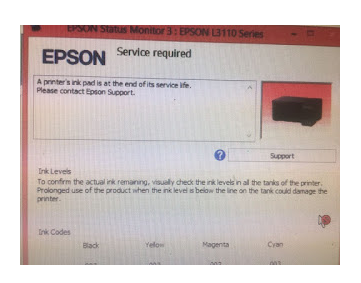
So now in this blog, I am going to show you a very simple and effective solution to solve this kind of problem.
To solve this kind of problem in your printer, you just follow the procedure step by step:
First, you would need to download a resetter software based on your printer model. In this blog, we are using resetter software for the Epson L3110 model.
You can easily get this software from the Internet. It is also known as the Epson Adjustment program.
Once you download this software for your printer model, just run the executable file as shown in the image.
You will see a window “EPSON Adjustment Program”.
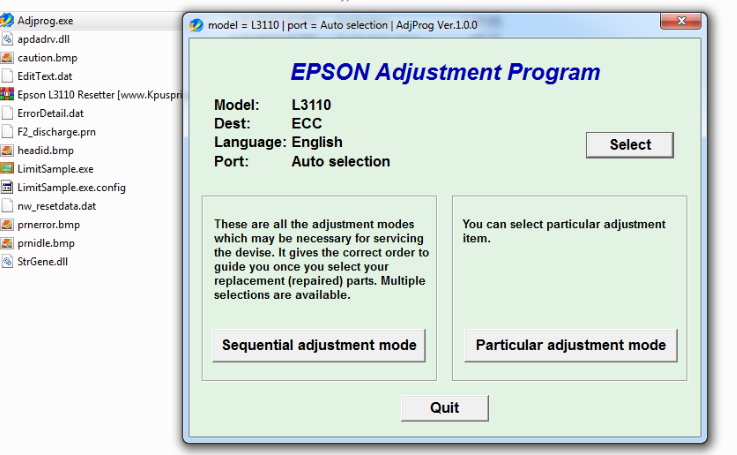
Now, in the above window, just select and click “Particular adjustment mode”.
You will see a list of adjustments and settings regarding your printer. See the image below for the same.
Now, from the list, you just click the “waste ink pad counter” which is under the Maintenance option.
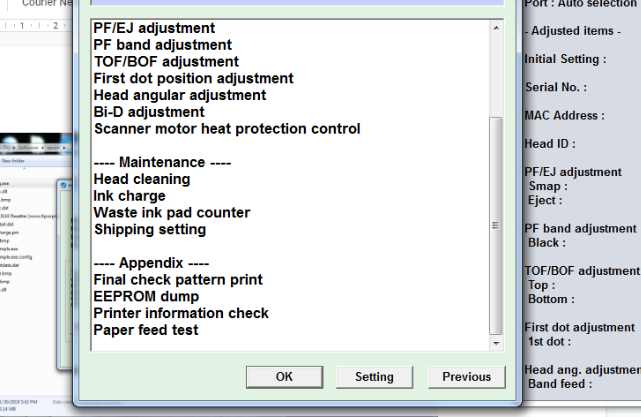
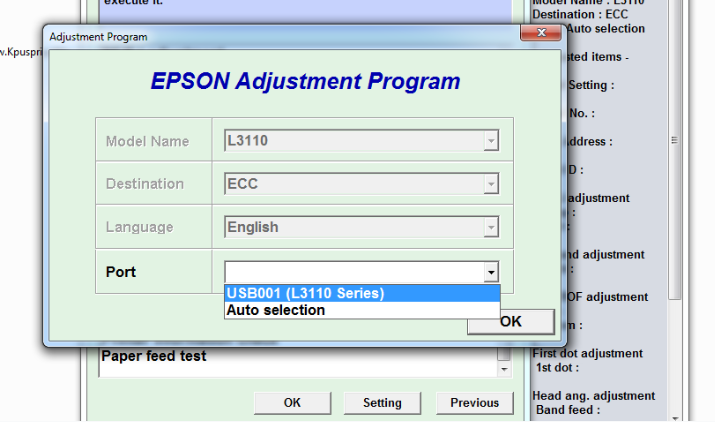
Before pressing the OK button, you just need to click the settings option.
Then select your printer from the list as shown in the image.
And then you just click the OK button.
Once you click OK, you will get the screen below with two checkbox options.
You just check both options and click the check button below.
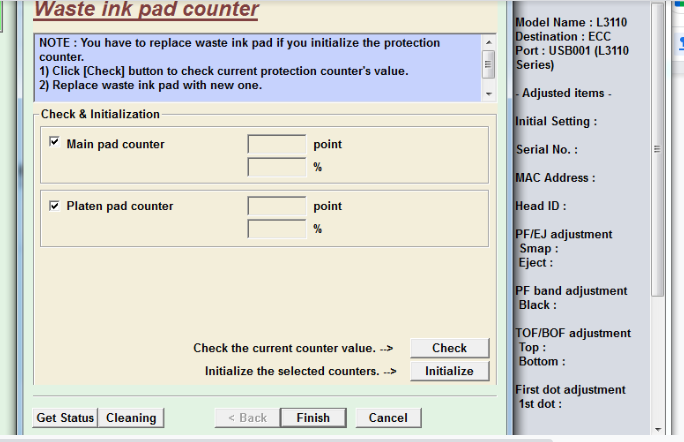
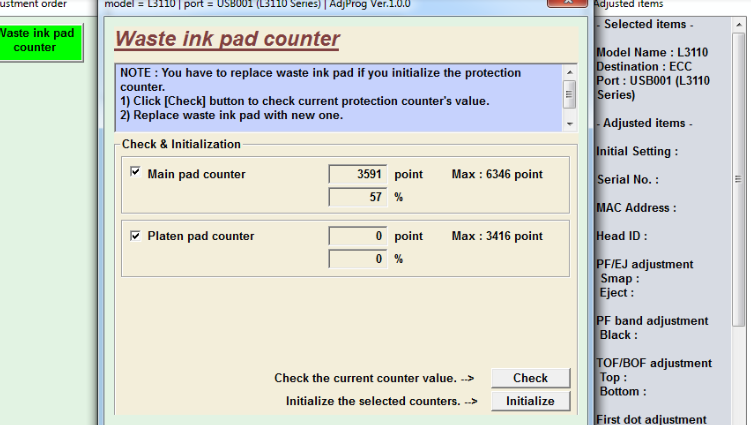
Once you click the check button then data will start to appear in the box, as shown in the image.
Now, check both the checkboxes and then click the “initialize” button this time.
Your ink pad counter will be initialized, and you will get a pop-up message like please turn off your printer.
You just turn off your printer.
Once you turn off your printer, you will suddenly get a pop-up message.
Now you can close all the open windows. And finally, you can start your printer again.
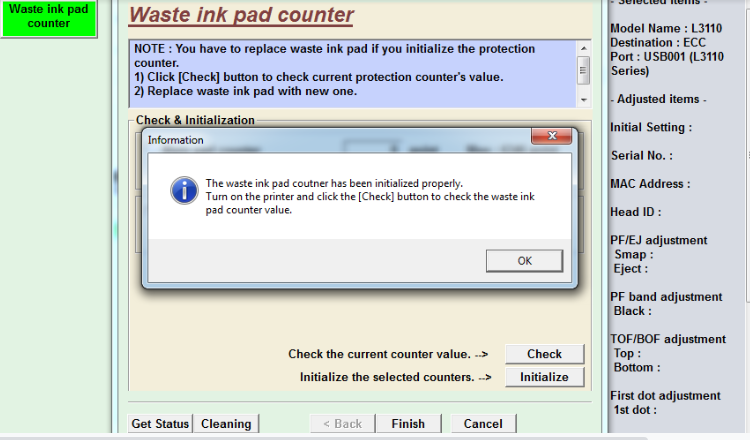
And this time, you will see that all the red and green lights blinking will disappear now.
And your printer head is moving. Now you can try to print a document, and you will print it successfully.
For this type of error, this method is applied to all printers.
But the main thing is the Resetter software for your printer model.
If you have an HP printer, then you will search for the resetter software for an HP printer based on your printer model number.
Q&A:
How do I stop the red light from blinking on my Epson L3110?
If you are encountering this type of issue with your printer, then the primary thing that you could…
…do is just power off your printer, disconnect all the cables, and then plug it back in and start your printer.
If the error persists,s then you can contact Epson support.
What is the red light blinking problem in Epson?
See, there could be many reasons behind this red light blinking.
You just wait to stop the power light from blinking before switching the power off to your printer.
If you have just changed the ink cartridge in your printer and your power light is still flashing even after…
…3 min, then something is wrong with your cartridge installation, and it was not installed properly.
So just reinstall the ink cartridge and check for the problem once again.
If the problem persists, please contact the Epson support team for better help.
How do I fix my Epson L120 red and green blinking at the same time?
There could be various possible reasons for such a problem, but…
…you can still try the below-given solution once, as it has worked for many:
First, power off your printer and then unplug all the cables and cords.
For almost 30 seconds, press and hold the power button of your printer.
Now connect all the cables and cords and power on your printer.
Now you can try to print some documents to check whether the problem persists or not.
If you are still facing the same problem, then you can contact the Epson support team.
How do I manually clean my Epson L3110?
You can clean your printer with two types of head cleaning available.
One is head cleaning, and the other is power cleaning. You can perform these cleanings manually.
You can perform simple head cleaning any number of times until you get the perfect nozzle check pattern.
But while you perform the power cleaning, you must have a difference of 12 hours between two power head cleanings.
Steps for performing the printer cleaning:
Very first, make sure no product light is indicating any type of error or blinking.
Now, you just insert a few plain sheets of paper inside the printer.
Now you can start your printer cleaning process either by holding the cancel button for almost 3 seconds until…
…the power light starts flashing, or you can go to the printer setting->maintenance->head-cleaning or power cleaning.
The cleaning process will start.
Once your cleaning process is finished, you can check the nozzle pattern by printing it.
If you get a satisfactory result, then stop cleaning further; otherwise, you can continue your cleaning process.
If the patterns are very disturbing, then you can perform the power cleaning once.
What is power cleaning in Epson L3110?
When you perform the power cleaning using your Epson printer, then…
…it replaces all the ink present in the ink tube and fills it with fresh ink from the tank.
The print head is also cleaned during the power cleaning process.
But before performing the power cleaning, make sure there is sufficient ink in the ink tank,…
… that you can easily see from the ink tank window.
It should be at least one-third else it could damage your product in either way.
How to reset the Epson printer?
To reset your Epson printer, you just press and hold the cancel button for at least 3 seconds.
After this one default setting window will appear on the screen and will ask you to reset your printer.
You click the ok button, and your print settings will start to reset.
In case of any queries, you can write to us at support@a5theory.com, and we will get back to you ASAP.| Epson L3110 Green And Red Light Blinking Problem Solution|
Hope! You would have enjoyed this post.| Epson L3110 Green And Red Light Blinking Problem Solution|
Please feel free to give your important feedback in the comment section below.| Epson L3110 Green And Red Light Blinking Problem Solution|
Have a great time!